
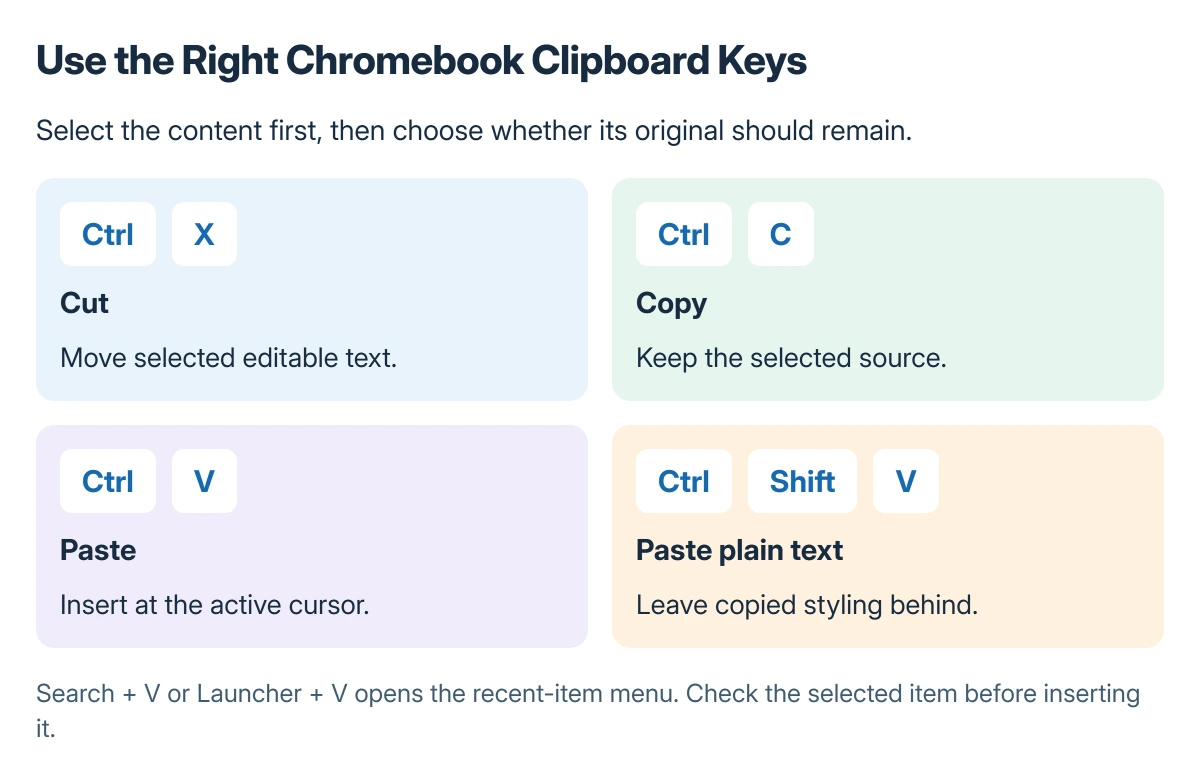
Cut and paste on a Chromebook uses Ctrl+X, then Ctrl+V. Select editable text first, cut it, click the destination and paste; use Ctrl+C when the original should stay where it is.
For copied formatting that does not belong in the destination, try Ctrl+Shift+V to paste plain text. The clipboard menu is separate and opens with Search+V or Launcher+V.
Select the content before using the shortcut
Drag across the intended text so it is highlighted. Click inside an editable field first when the text belongs to a document or message rather than the page around it.
Google says Ctrl+C copies selected content, Ctrl+X cuts and Ctrl+V pastes in its Chromebook keyboard reference.
Status: Chromebook cut, copy, paste, plain-text and clipboard-menu shortcuts checked in Google's help on 22 October 2026. No keyboard, clipboard or document was accessed for a test.
A webpage's ordinary paragraph can usually be copied but is not editable source text to cut. In that situation, choose Copy and leave editing to a document or field where changes are allowed.
Cut, choose the destination and paste
Press Ctrl+X for the selected editable text. Move to the target field or document, place the cursor exactly where the text belongs and press Ctrl+V.
Read the inserted text before continuing. A successful paste into the wrong field is a placement mistake, not a failed keyboard shortcut.
Use Ctrl+Z promptly in the affected editor if the last change needs undoing. When working across apps, check which app is active before issuing that undo command.
The Windows clipboard history controls use different system keys. On ChromeOS, use Google's Search or Launcher combination rather than assuming Windows+V is the Chromebook's shortcut.
Paste plain text when the formatting gets in the way
Google's steps distinguish Ctrl+Shift+V from ordinary paste: it inserts clipboard content as plain text. Use it when copied colors, links or type styles are not wanted in the destination.
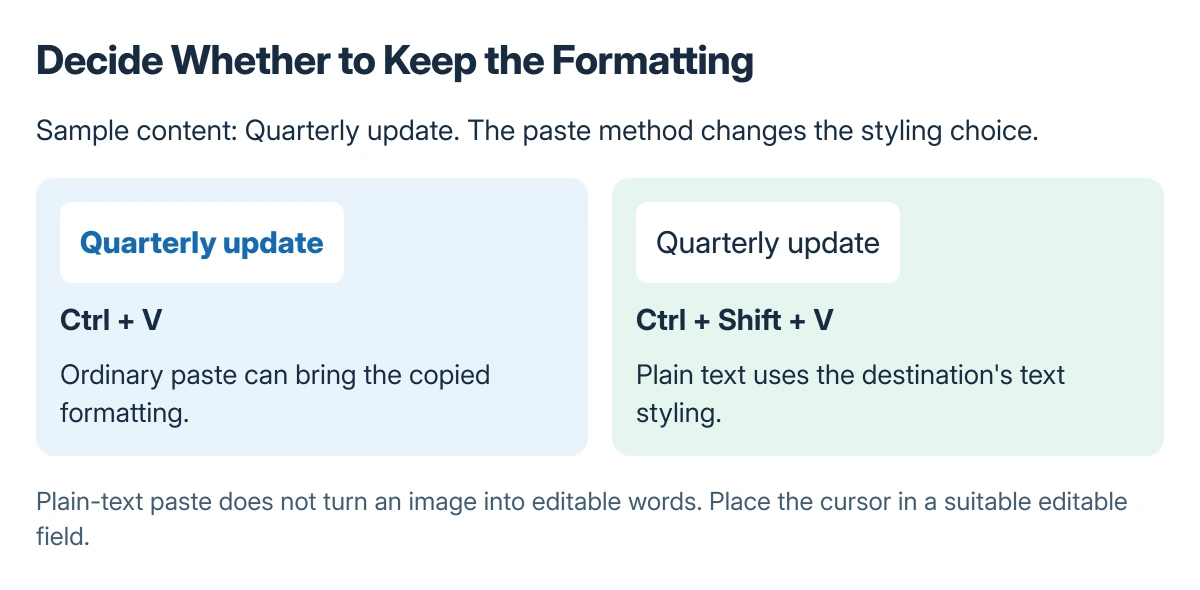
Plain-text paste does not turn an image into editable words. If the copied content is a picture, the destination must support that content type or a different text source is needed.
Choose a recent item from the clipboard menu
Press Search+V or Launcher+V to open the menu. Google adds that the arrow keys or Tab can navigate its entries; press Enter to paste the chosen item when the menu is open.
Inspect the item before inserting it into a message or shared document. Clipboard contents can include earlier copied material that is unrelated to the current task.
If the text selection or context menu is the problem, Google's touchpad guide documents using two fingers to right-click. Choose Copy or Paste in the relevant field's menu when available.
Copy a file without removing the original
Open Files and select the item in its actual folder. Press Ctrl+C, open the intended Google Drive or external-drive folder and press Ctrl+V.
Choose Copy for a backup so the source remains in place. When the transfer finishes, open the file from its destination to check the retained copy.
Google's Files reference identifies local, cloud and external-storage locations. Recent helps locate an item. Keep the retained copy in an actual storage folder.
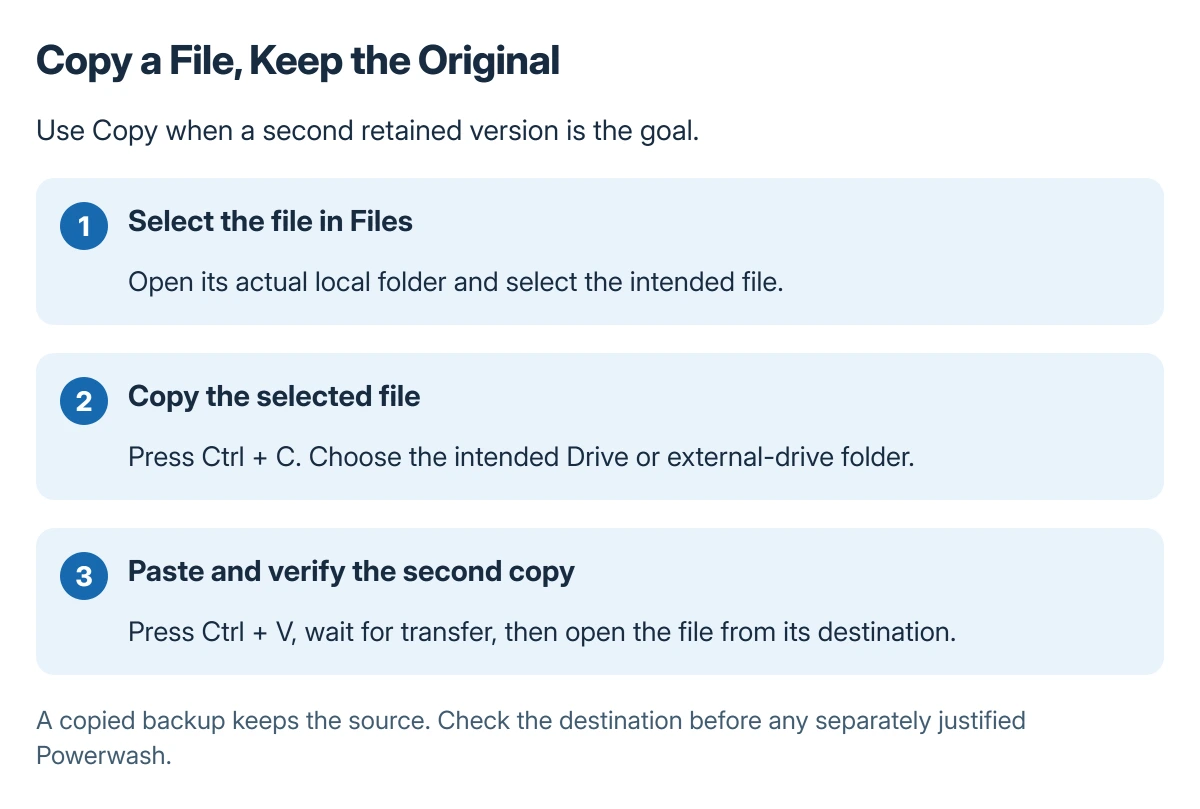
A Powerwash erases local data. Review the Chromebook reset preparation before any separately justified erase; routine clipboard use does not call for it.
When one app refuses the paste
Try the same nonprivate sample in another editable field. If it works there, check the original app's editing mode, accepted content and any organization restrictions before changing the whole Chromebook.
If shortcuts fail across editable apps after a normal restart, give Chromebook support the ChromeOS version, keyboard type and whether menu-based copy and paste still work. A school Chromebook should go to its administrator.
The Short Version
Select editable text, cut with Ctrl+X and paste with Ctrl+V. Use Ctrl+C to keep the original, or Ctrl+Shift+V when only plain text should be inserted.
Search+V or Launcher+V opens the clipboard menu. Verify both the item and the cursor position so earlier clipboard material does not land in the wrong document.
Where to Next
Try the operation with one harmless sentence in the intended app. Check the result there before moving a large block of work or copying private information.

Isaac Smith is the founder and editor of PC Glance, a website that covers computers, laptops, and technology. He is a tech enthusiast and a computer geek who loves to share his insights and help his readers make smart choices when buying tech gadgets or laptops. He is always curious and updated about the latest tech trends.