
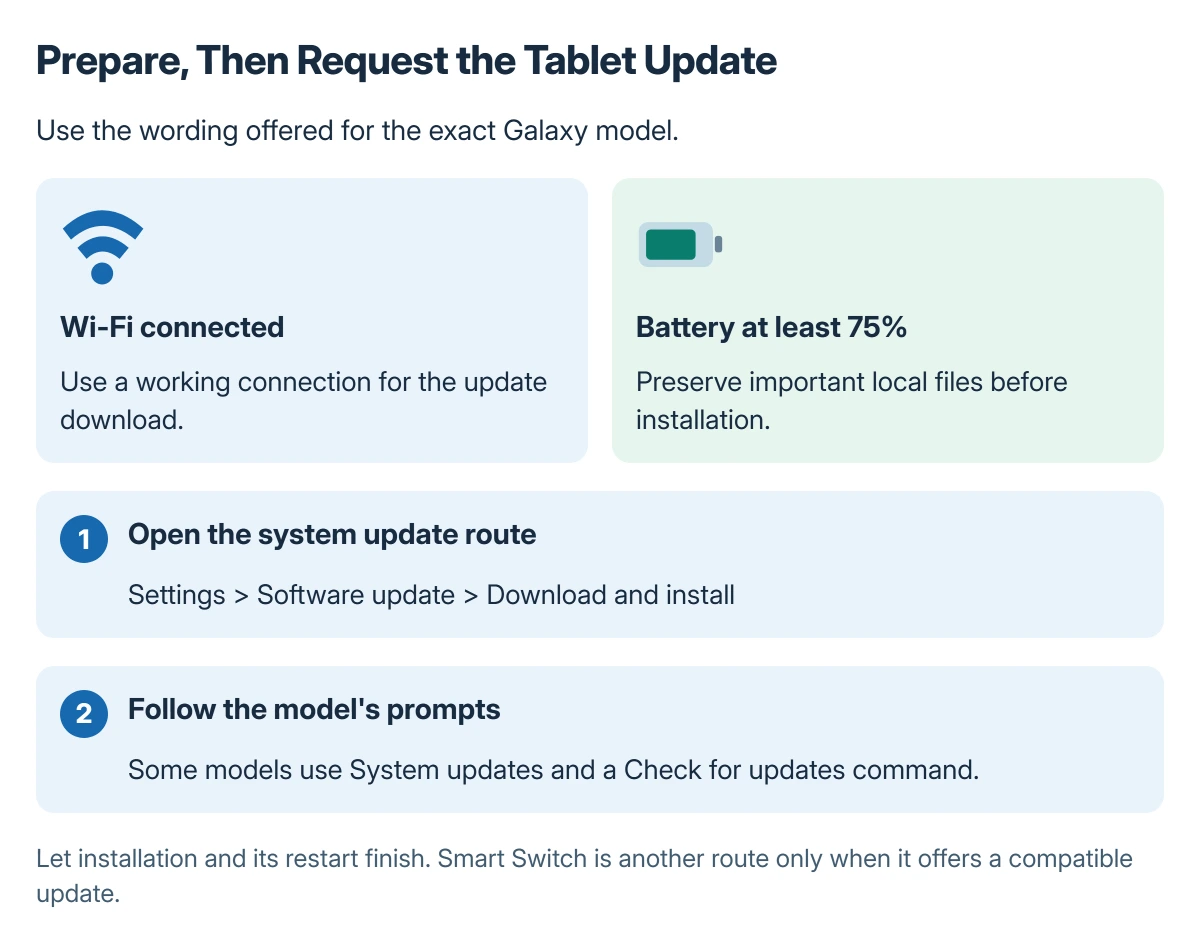
Update a Samsung tablet from Settings > Software update > Download and install. Some carrier models use System updates and Check for updates instead, so follow the wording shown on that tablet.
Connect to Wi-Fi, charge it and preserve important files first. After installation and restart, check the software information to confirm what actually changed.
Prepare the tablet before requesting the update
Save active work and make sure important local files are backed up. The Android backup coverage guide explains why a device backup should not be assumed to contain every downloaded file or app's data.
Google says to connect to Wi-Fi and charge to at least 75% in its Android update preparation. Leave enough free storage for the update's own requirements.
Status: Samsung's tablet-update routes, Smart Switch option and version checks reviewed 22 October 2026. Model and carrier differences remain part of the instructions; no tablet was updated.
Choose a time when the tablet is not needed. The installation restarts the device and temporarily prevents ordinary use.
Download and install the offered system update
Open Settings > Software update, then Download and install. On models using System updates, choose the available update-check command instead.
Samsung says the exact menus vary with model, carrier and software version in its Galaxy update instructions. An available download may start automatically or ask for Download now.
Review the update details and follow its installation prompts. Allow the restart to finish before checking apps or requesting another update.
A tablet with several pending releases may need to repeat the process. Check again after the completed restart rather than assuming the first offered package was the last one available.
Confirm the installed version and change list
Open Settings > About tablet > Software information to inspect the installed details. This verifies the tablet's actual software rather than the version described on an unrelated model's web page.
For the update's changes, inspect Last update, All changes or System update history, depending on the tablet. Samsung documents those model-dependent places for its release information.
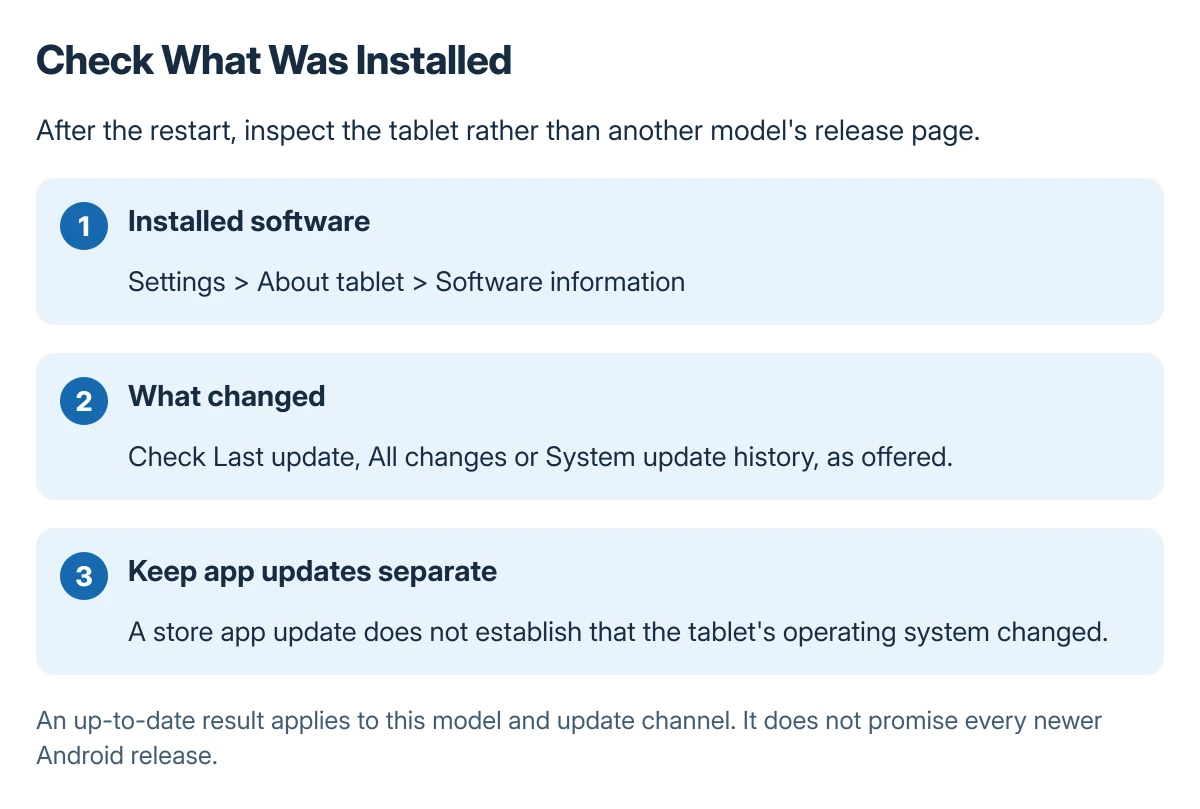
If the update check says the software is current, it means the offered release for this device and channel. It does not promise that an older Galaxy tablet qualifies for every newer Android version.
Use Smart Switch only when it offers the update
Samsung's desktop Smart Switch provides another update route when it detects an eligible connected device. Use Samsung's own download, connect the tablet by USB and choose Update if that option is offered.
Samsung recommends leaving the USB cable connected and the device unused until the process completes. Do not disconnect it because the screen changes or the tablet begins its expected restart.
An unavailable offer is not a reason to install firmware intended for another model. Ask Samsung or the carrier about the exact model code, region and installed build.
When the download fails or the tablet overheats
Reconnect to a working network if the download was interrupted. For a storage warning, free the requested space before retrying rather than repeatedly downloading the same package into a full device.
Stop and let an abnormally hot device cool before continuing; the Android overheating checks cover the conditions that need attention. Do not force an update through repeated heat warnings.
If the tablet will not start after an interrupted installation, give Samsung the exact model code and the point where installation stopped. Recovery can erase data, so do not treat a factory reset as the routine next update step.
The Short Version
Back up important files, connect to Wi-Fi and charge to at least 75%. Request the update from the tablet's Software update or System updates menu and allow the installation to finish.
Check Software information afterward. Smart Switch is an alternative only when it offers a compatible update, and older models may already be on their final supported release.
Where to Next
Open the apps needed for normal work and inspect the installed build. Keep any support request specific to that tablet's model and update result rather than another Galaxy device's release date.

Isaac Smith is the founder and editor of PC Glance, a website that covers computers, laptops, and technology. He is a tech enthusiast and a computer geek who loves to share his insights and help his readers make smart choices when buying tech gadgets or laptops. He is always curious and updated about the latest tech trends.