
Create an Excel chart by selecting the labels and values, then choosing Insert > Recommended Charts in desktop Excel for Windows. Preview a suitable chart, confirm it and replace the placeholder title with a meaningful description.
The selection matters as much as the chart type. Include the category labels with their numbers, and check what the legend and axes represent before formatting the result.
Arrange the labels beside their values
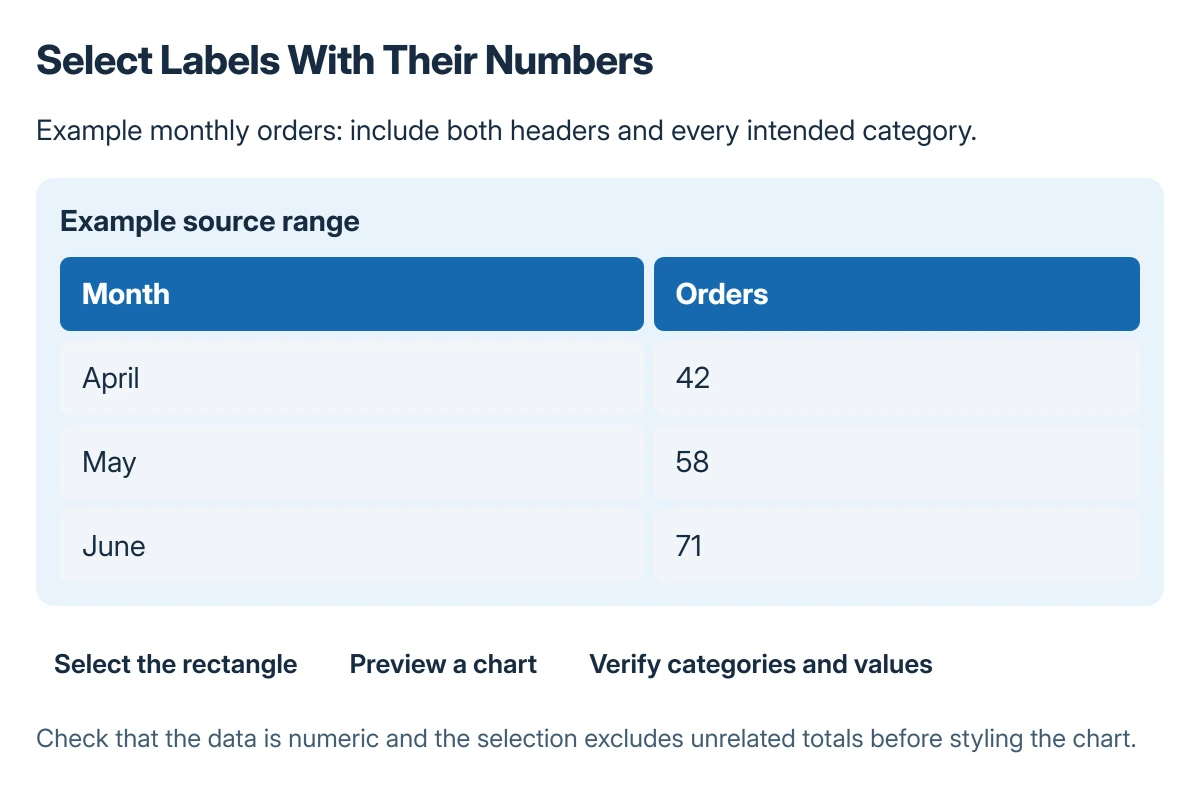
Use a small, clear range first. For example, put Month and Orders in the header row, with April, May and June beside their corresponding totals in the next rows.
Select that complete range, including the headers. Microsoft documents arranging chart data by the type of comparison in its chart-data instructions.
Status: Excel for Windows chart insertion and data arrangement checked in Microsoft's guidance on 22 October 2026. Browser differences are identified; no workbook was created or tested.
If the numbers came from an imported file, check that they are actually numeric before graphing them. The Excel number-format checks explain why an identifier or long number can be displayed differently from its intended value.
Preview a chart before inserting it
In desktop Excel for Windows, choose Insert > Recommended Charts. Select a suggestion, inspect its preview and choose OK when the category and series match the intended comparison.
Microsoft says All Charts offers other types when a recommendation is unsuitable in its chart creation guide.
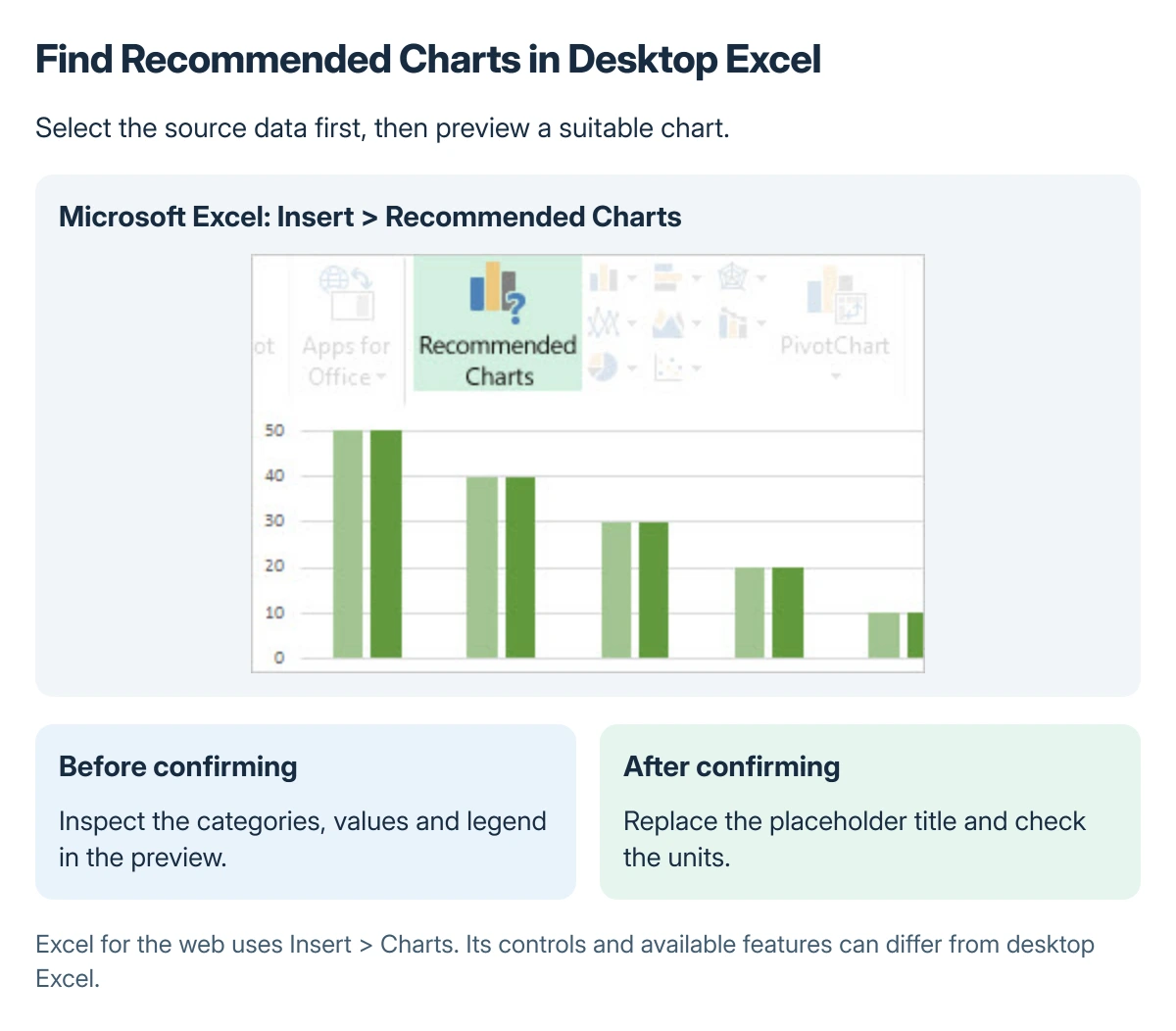
Used with permission from Microsoft.
A column chart makes a straightforward comparison of monthly counts. A scatter chart serves a different purpose: pairs of numeric values, with the first numeric field providing the x values.
Keep totals out of a category comparison when they would repeat the same values already plotted. Review the selected cells instead of treating every populated row as another category.
Label the result before changing its colors
Replace the chart title with wording that says what the values measure. Include units in the title or axis labels where they are needed to understand the numbers.
Check the legend against the column headers and compare the plotted values with the source cells. The chart should communicate the intended data even when decorative styling is removed.
Microsoft states that chart elements include titles, axes and a legend. Select the chart to expose its chart controls, then adjust only the elements that help the reader interpret this comparison.
If a field is in the wrong position in the worksheet, move the complete Excel column deliberately. Recheck the chart's represented range after rearranging its source.
In Excel for the web, start from Insert and Charts
Select the data range, open Insert and choose a type in Charts. Microsoft describes that route separately from the Windows Recommended Charts dialog.
Do not assume the same dialog layout or every desktop chart feature appears in the browser. Use the controls available for the selected chart and inspect its actual series and labels.
When the chart does not show the intended data
Return to the source range first. Check for an omitted header, unrelated total, blank field or selection that covers more cells than intended.
For a workbook that still produces an incorrect result, ask Microsoft Support or the workbook's maintainer about its chart type and source range. Use a separate copy or harmless sample rather than sending confidential records unnecessarily.
The Short Version
Select labels and values together, preview a suitable chart and check its data before styling it. Windows desktop Excel offers Insert > Recommended Charts; the browser starts with Insert > Charts.
Give the result a useful title and check its units, categories and series against the worksheet. A polished color scheme cannot correct a wrong selection.
Where to Next
Ask whether the chart answers one clear question without an explanation from its creator. If a category or value is surprising, inspect its source cells before changing the chart's appearance.

Isaac Smith is the founder and editor of PC Glance, a website that covers computers, laptops, and technology. He is a tech enthusiast and a computer geek who loves to share his insights and help his readers make smart choices when buying tech gadgets or laptops. He is always curious and updated about the latest tech trends.