

Insert an Excel checkbox by selecting its destination cells and choosing Insert > Checkbox in a supported Microsoft 365 Excel version. The in-cell checkbox represents TRUE when checked and FALSE when unchecked.
A legacy Form Control is a different feature under Developer. Check which type the workbook needs before following instructions for an older floating control.
Insert checkboxes into the selected cells
Select an empty cell or the range that should contain checkboxes. Choose Insert > Checkbox and confirm that the selection now contains the controls.
Microsoft documents the in-cell method for Microsoft 365 Excel on Windows and Mac in its checkbox guide. Its applicability list does not promise the command in every perpetual Excel release.
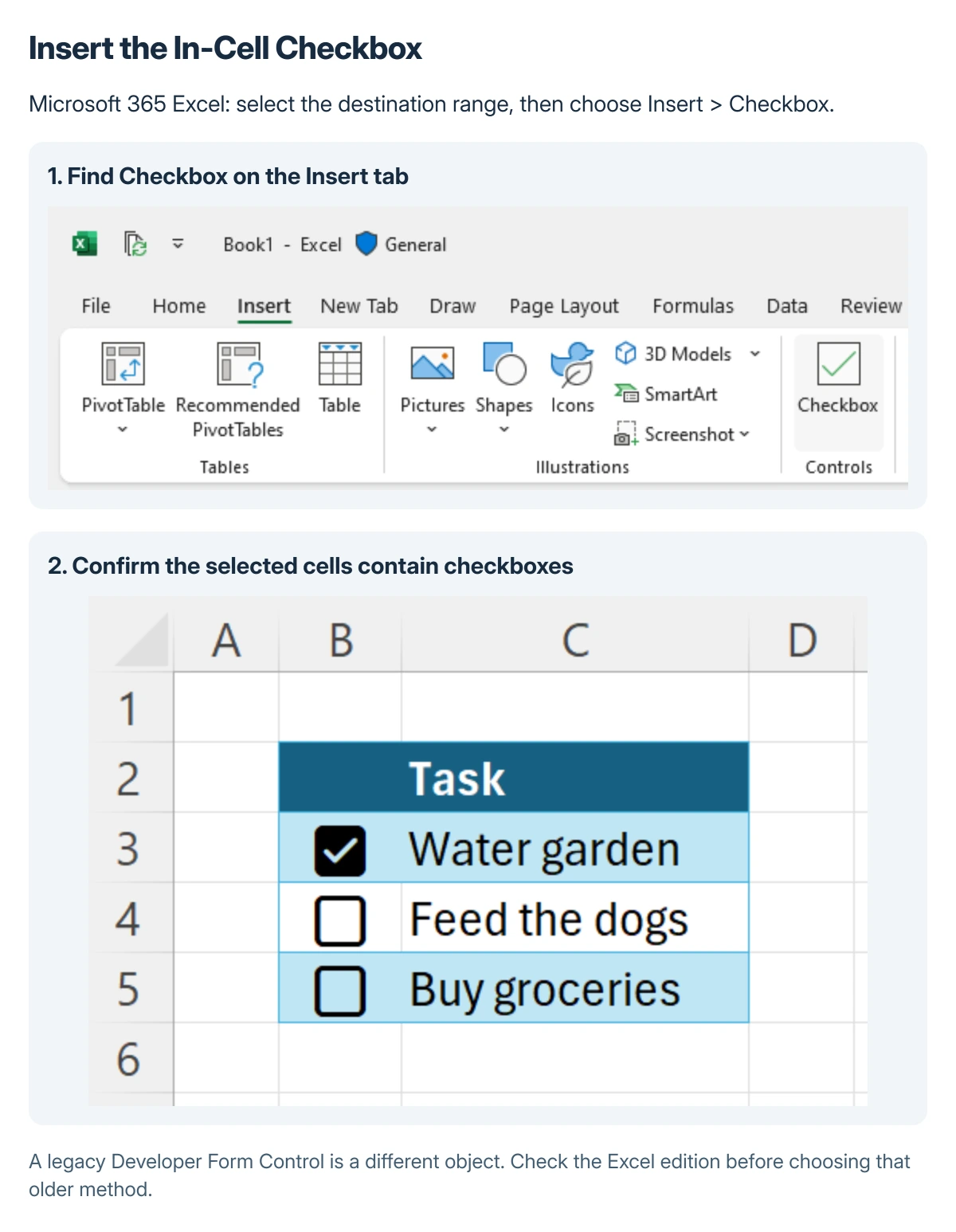
Status: Microsoft's in-cell checkbox behavior and the separate legacy Form Control instructions checked 22 October 2026. No workbook, macro or control was run.
Use a spare range or a copy when trying a new workbook layout. Existing entries should not be replaced without checking whether they are still required by a formula or another worksheet.
Check the value that formulas receive
Click the checkbox to change its state. Microsoft says the cell supplies TRUE for a checked box and FALSE for an unchecked box when referenced by a formula.
For example, a formula in B2 can display a label from a checkbox in A2:
=IF(A2,"Done","Pending")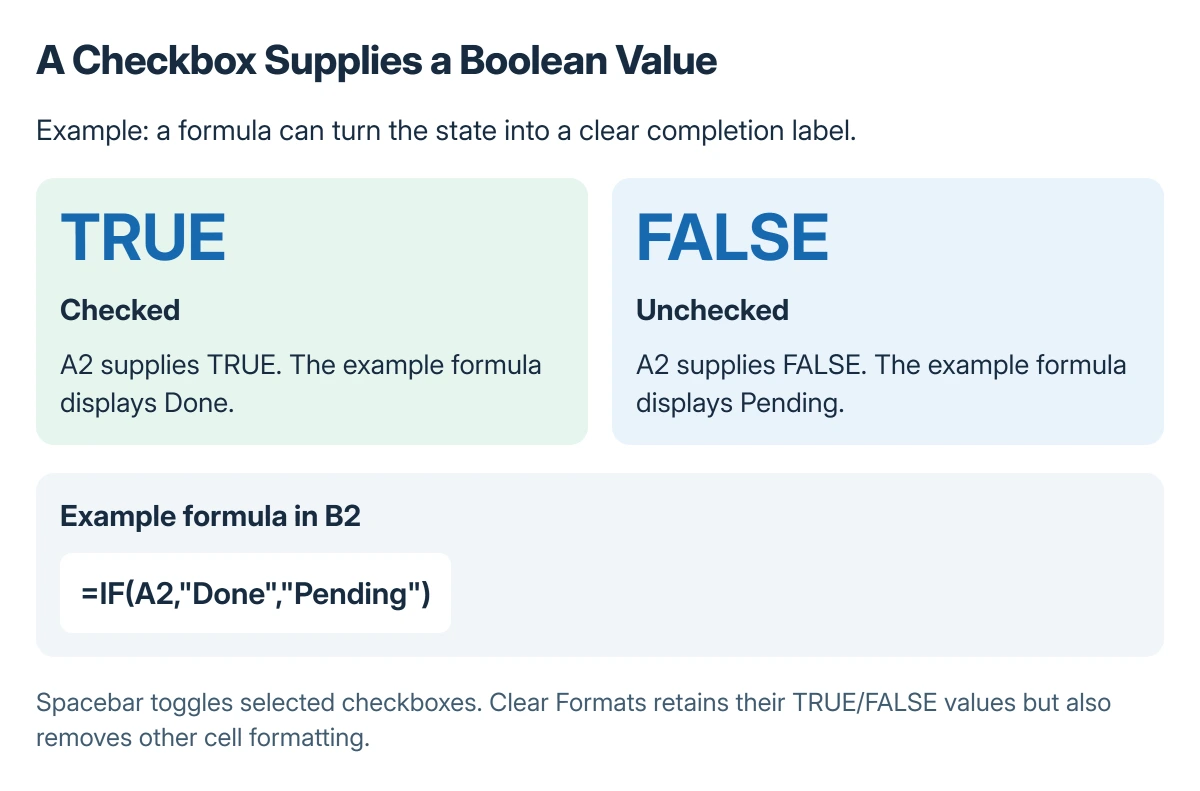
Used with permission from Microsoft.
Select the relevant checkbox cells and press Spacebar to toggle their state using the keyboard. Check the resulting state before relying on it in a completion count or a filter.
If the worksheet needs a list of named choices instead, the Excel drop-down guide uses data validation. A checkbox is suitable for a yes/no state rather than several distinct options.
Remove the controls or only their formatting
Select the checkbox range and press Delete. Microsoft states that checked boxes are first unchecked; another Delete removes them. Boxes already unchecked can be removed immediately.
To keep the underlying TRUE/FALSE values while removing checkbox formatting, choose Home > Clear > Clear Formats. That command also removes the cells' other formatting, so review the selected range carefully.
These are different outcomes. Decide whether the workbook should retain the boolean values before clearing the range.
Use the legacy route only for an older Form Control
Microsoft's Form Controls instructions describe Developer > Insert > Form Controls, then the checkbox control. Click its intended position in the worksheet and edit the default label as needed.
That creates an object with its own properties rather than the modern in-cell checkbox. Existing older workbooks may need that type, but it should not be confused with an absent Insert > Checkbox command.
Legacy Form Controls are not supported for use in Excel for the web. Have the workbook owner identify its intended platform before trying to convert controls or changing security settings.
When the command is missing
Check the Excel edition and installed version, and confirm that the workbook is open in desktop Excel. Give Microsoft Support or the work administrator those details if the documented command is still missing.
A normal in-cell checkbox does not require enabling an unknown macro. The Excel macro-permission guide is for actual workbook code, which should be assessed separately.
The Short Version
In supported Microsoft 365 desktop Excel, select the cells and choose Insert > Checkbox. Checked and unchecked states supply TRUE and FALSE to formulas.
Treat legacy Developer controls separately. Check the effect of Delete versus Clear Formats before removing controls from an existing workbook.
Where to Next
Try a checked and an unchecked entry in the workbook's intended Excel version. Verify the formula output before extending the controls across the whole list.

Isaac Smith is the founder and editor of PC Glance, a website that covers computers, laptops, and technology. He is a tech enthusiast and a computer geek who loves to share his insights and help his readers make smart choices when buying tech gadgets or laptops. He is always curious and updated about the latest tech trends.