
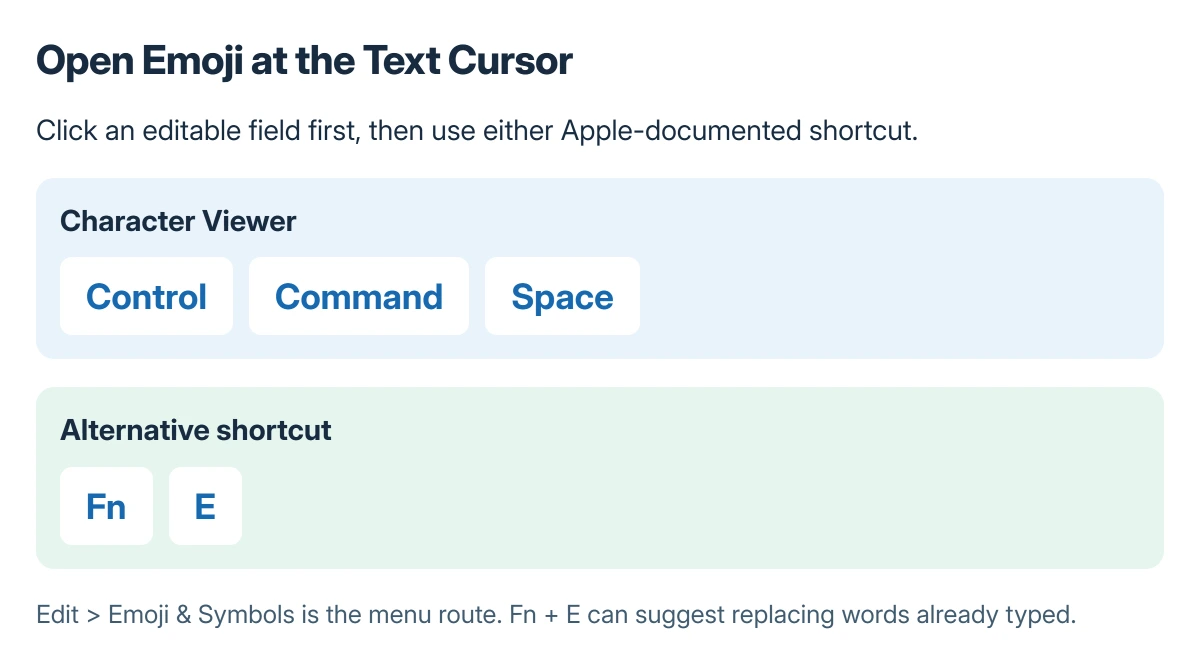
The Mac emoji shortcut is Control + Command + Space. Click into an editable text field first, then press the keys together to open the Character Viewer.
Fn + E is another Apple-documented route. The viewer can search ordinary emoji and symbols; Genmoji creation has separate availability requirements.
Open the picker at the text cursor
Place the cursor where the emoji belongs, such as an email draft or message. Press Control + Command + Space, or choose Edit > Emoji & Symbols from the app's menu.
Apple documents the three-key shortcut in its Mac keyboard reference. The menu route is useful when a keyboard shortcut is being intercepted by the active app.
Status: Apple's Mac shortcut and Character Viewer instructions checked 22 October 2026. Ordinary emoji entry is separate from Genmoji; no keyboard preference was changed.
Search for the character by description rather than scrolling through every category. For example, searching for a face or gesture can narrow the list before insertion.
Insert the character and inspect the result
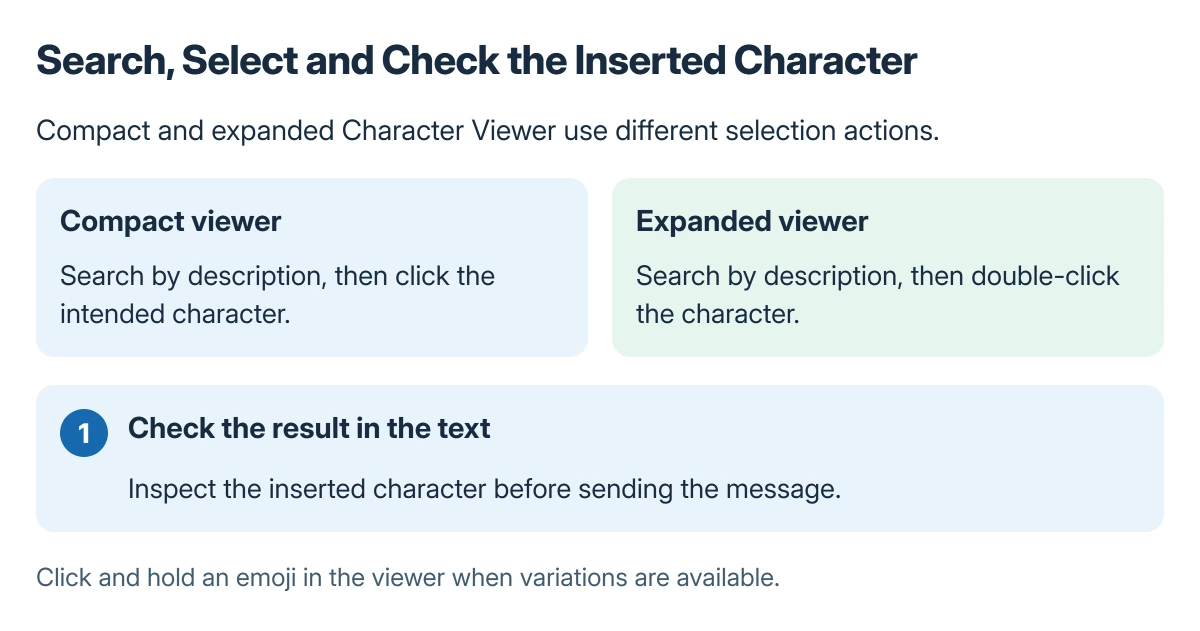
Apple says to click a character to insert it. If the Character Viewer is expanded, double-click the character instead. The two layouts explain why a single click can select an item without entering it.
For an emoji with variations, click and hold it in the viewer to see the offered choices. Check the inserted character in the actual message before sending it.
Apple states that Fn + E can also suggest an emoji for text already typed. Accepting that suggestion replaces the text, so use an empty insertion point when adding a character without replacing words.
Set the Fn or Globe key for frequent use
Open System Settings > Keyboard. Find Press fn key to or the corresponding Globe-key menu, and choose Show Emoji & Symbols.
Apple's Character Viewer instructions describe that preference. Change it only if a single-key shortcut suits the keyboard's other uses, and check the result in the text app afterward.
Expanded Character Viewer also provides Add to Favorites for a selected character. That can make repeated entry easier without building a text replacement.
For measurements, the degree-symbol guide covers a symbol-specific example and Windows alternatives. Ordinary emoji insertion does not require changing the document's keyboard language.
If letter capitalization is the issue, Mac Caps Lock's quick-tap behavior has different controls. When the picker fails in just one app, use that app's supported input controls and report the behavior to its provider.
The Short Version
Put the cursor in editable text and press Control + Command + Space. Search the Character Viewer, then click the character, or double-click in its expanded layout. Fn and Globe behavior can be adjusted in Keyboard settings.
Where to Next
Preview the finished message in its destination. A character's appearance can differ between fonts and devices even when the intended character was inserted correctly.

Isaac Smith is the founder and editor of PC Glance, a website that covers computers, laptops, and technology. He is a tech enthusiast and a computer geek who loves to share his insights and help his readers make smart choices when buying tech gadgets or laptops. He is always curious and updated about the latest tech trends.