
Screen record on a supported Samsung Galaxy phone from Quick settings > Screen recorder. Choose the sound setting, tap Start recording, then stop the recording from its toolbar when finished.
Support depends on the Galaxy model and software. A missing tile calls for a compatibility check; an app can also deliberately block capture.
Start from the Quick settings panel
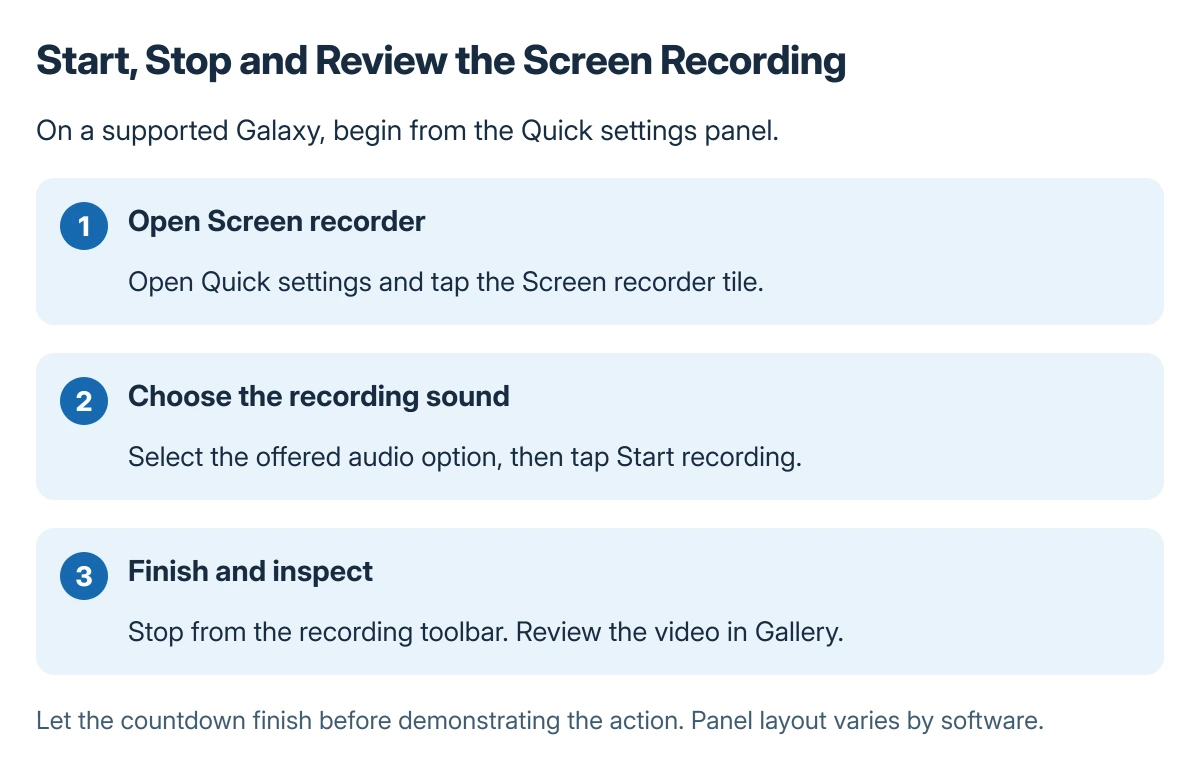
Swipe downward at the screen's top-right corner to open Quick settings on Galaxy versions with separate notification and control panels. On layouts with a combined panel, swipe down from the top and expand the controls.
Samsung advises using the top-right gesture in its Galaxy recording guide. Tap Screen recorder, choose the desired sound option, then tap Start recording.
Status: Samsung's US and UK Screen recorder guidance checked 22 October 2026. Availability and Quick panel layout vary by model and software; no Galaxy was recorded.
Let the countdown finish before performing the action to capture. Stop with the toolbar's Stop control, then open the result in Gallery and check its sound and contents before sharing.
Choose which sound the video should contain
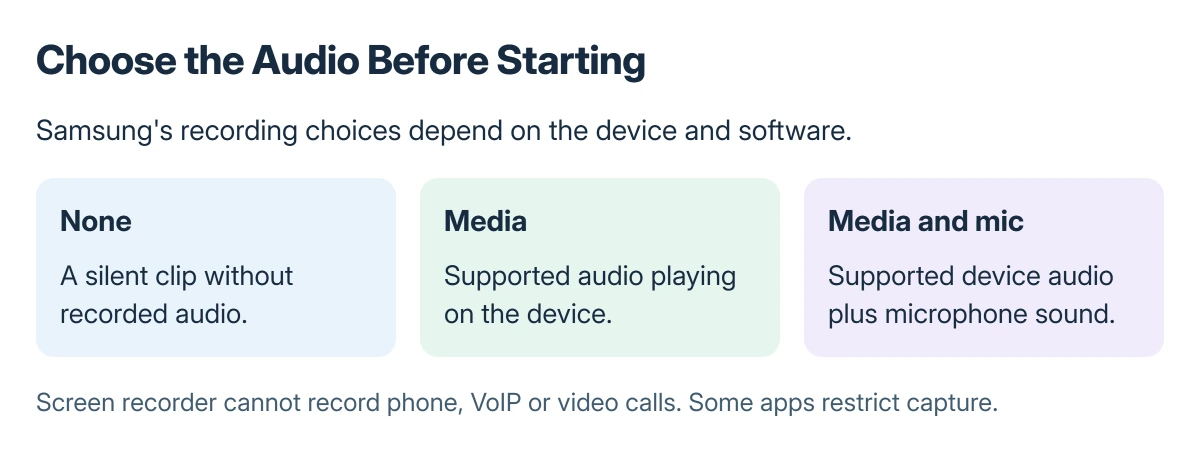
Samsung says the options can include None, Media, and Media and mic. Choose no sound for a silent demonstration, media for supported device audio, or media with microphone for spoken explanation.
Record a brief sample first if narration matters. Playing it back catches an unsuitable sound choice before repeating a long procedure.
Touch and hold the Screen recorder tile to open its settings. Samsung lists recording quality, touch indicators, save location and supported selfie-video controls there; the available options differ between devices.
If Screen recorder is missing
Edit the Quick panel and look for Screen recorder among the available buttons. Add it when offered, then return to the panel to start the recording.
Samsung states that the feature is supported only on selected models. Check its current compatible-device list for the exact model rather than assuming every phone with a similar name has it.
A still image may be enough to show a setting. The Samsung screenshot guide covers that smaller capture without needing a video recorder.
Understand a recording that is blocked or incomplete
Samsung says Screen recorder cannot record phone, VoIP or video calls. Some apps also block recording because of copyright restrictions; a working recorder elsewhere does not override that app's restriction.
For a support demonstration, close private messages and choose a screen that can be shared. Review the saved clip rather than assuming it contains only the intended action.
If the phone becomes hot, stop and follow the Android overheating checks. For a supported model whose recorder fails across ordinary apps, give Samsung support the model and software version.
The Short Version
Open Quick settings, select Screen recorder and the sound option, then start. Stop from the toolbar and inspect the video in Gallery. Add a missing tile only if the model supports the feature; recording restrictions still apply.
Where to Next
Use the shortest clip that clearly shows the action. Confirm its audio and visible information before sending it to another person.

Isaac Smith is the founder and editor of PC Glance, a website that covers computers, laptops, and technology. He is a tech enthusiast and a computer geek who loves to share his insights and help his readers make smart choices when buying tech gadgets or laptops. He is always curious and updated about the latest tech trends.