
Encrypt an email in Outlook only after checking that the sending account supports the required protection. With a qualifying account, open the message's Options tab, choose Encrypt, then select the available protection.
Encrypt and Do Not Forward have different restrictions. S/MIME is another method that needs certificates, so it should not be treated as the same button with a different name.
Confirm the account and protection type first
For a personal Outlook.com mailbox, Microsoft's instructions require a qualifying Microsoft 365 Personal or Family subscription. A work or school account depends on the organization's licensing and configuration.
Microsoft documents those personal subscription encryption options separately from S/MIME and Microsoft Purview protection. Select the intended sending account before looking for its controls.
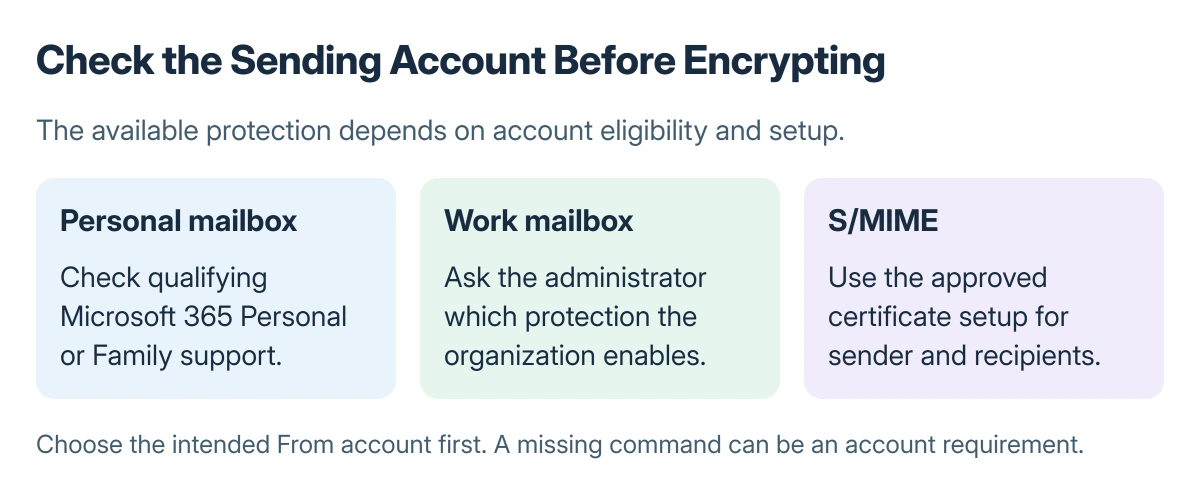
Status: Outlook encryption requirements and restrictions documented by Microsoft, checked 23 October 2026. No certificate was installed and no protected email was sent.
If the required command is unavailable, ask the account administrator or Microsoft support to verify eligibility. Give support the sending account type, Outlook edition and missing command.
Choose Encrypt or Do Not Forward deliberately
Compose the message, open Options > Encrypt, and choose the protection offered for that account. Confirm the selected permission before sending the content.
Microsoft says the personal Encrypt option keeps the message protected within Microsoft 365. Supported recipients can read it directly; other recipients may need the message portal and an authentication step.
Do Not Forward adds restrictions on copying and forwarding. That does not make every downloaded attachment retain the same protection: file type and recipient access still matter.
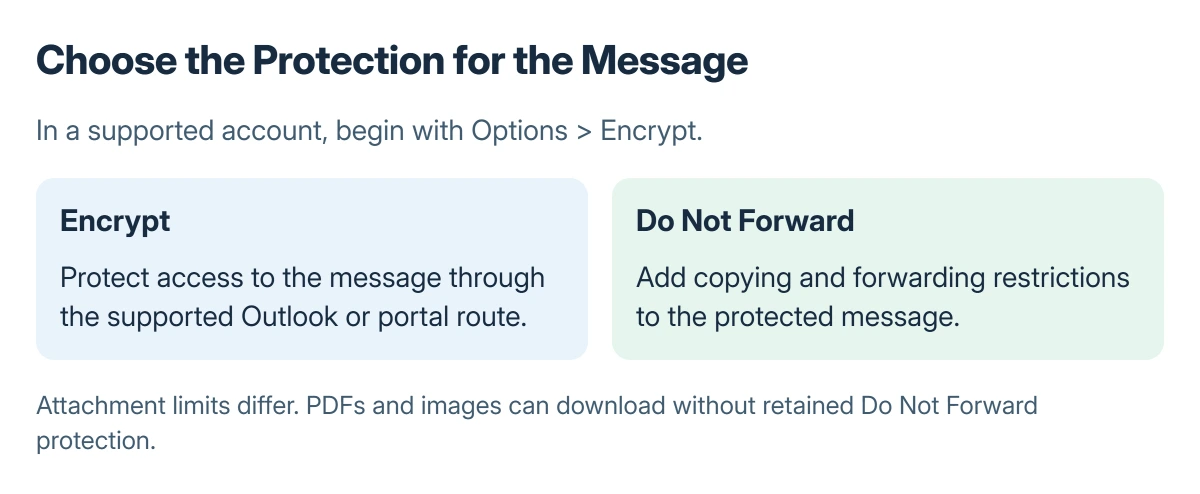
Microsoft states that Office attachments can retain Do Not Forward protection, while PDFs and images can be downloaded unprotected. Consider the attachment itself before relying on the message setting.
Use S/MIME only with the required certificates
S/MIME relies on certificates and suitable keys for the sender and recipients. Have the organization supply the approved setup rather than installing a certificate from an unknown source to make a warning disappear.
The exact route differs by new or classic Outlook. Follow the S/MIME section for that app in Microsoft's instructions and resolve warnings about recipients who may not be able to decrypt the message.
Confirm the addresses in any saved Outlook recipient list before protecting the message. The Outlook service status checks help when ordinary mail is also failing, rather than only protected messages.
Check recipient access before sending sensitive material
For an unfamiliar recipient or protection method, send a harmless test message first. Confirm that they can authenticate and read it before sending the real content.
If opening fails, record the account types, Outlook editions and exact error for the administrator. Do not remove the intended protection merely to bypass the error.
The Short Version
Check account eligibility, select Encrypt or Do Not Forward from Options, and understand the attachment rules. S/MIME needs certificate setup. Confirm that the intended recipient can open protected mail before sending sensitive content.
Where to Next
Keep a record of the chosen protection and any recipient error. The administrator needs both to separate account licensing from certificate or access problems.

Isaac Smith is the founder and editor of PC Glance, a website that covers computers, laptops, and technology. He is a tech enthusiast and a computer geek who loves to share his insights and help his readers make smart choices when buying tech gadgets or laptops. He is always curious and updated about the latest tech trends.