
Add a shared mailbox in Outlook after the organization's administrator grants access. Restart Outlook first, because the mailbox can appear automatically. Adding its name to the folder list alone does not grant permission to open it.
Use your own work account for access. A shared mailbox is not intended as a separate account whose password is passed around a team.
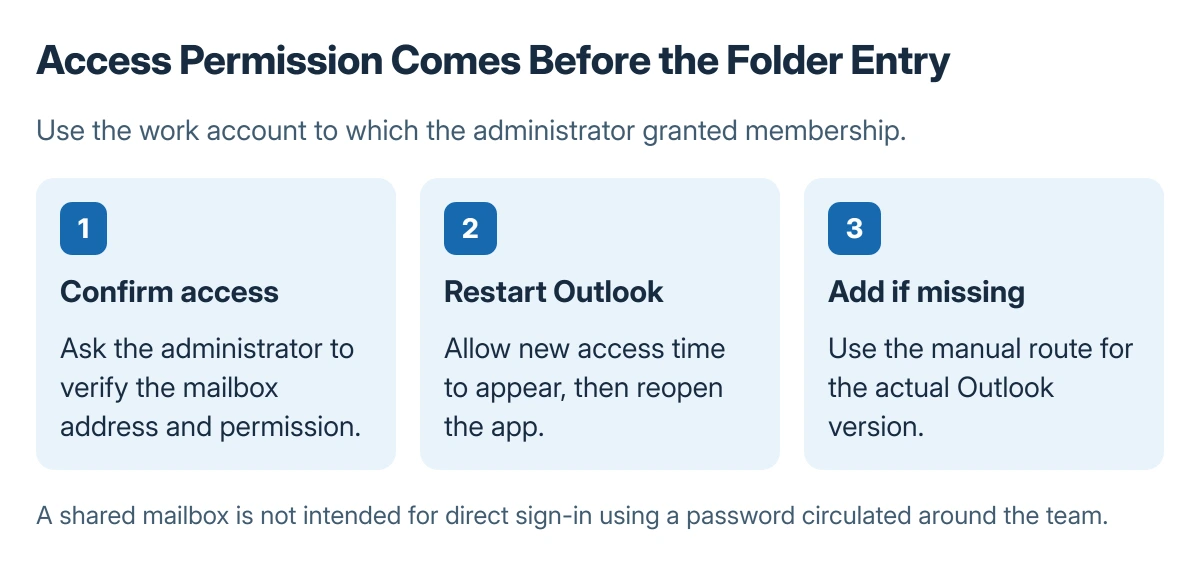
Check membership before changing Outlook
Ask the administrator to confirm the shared mailbox address and your access. Close and reopen Outlook after access is granted, allowing time for a newly added membership to become available.
Microsoft says the mailbox should appear automatically after the administrator adds the member and Outlook restarts. Its shared mailbox guide provides the manual routes when it does not.
Status: shared mailbox access and Outlook addition documented by Microsoft, checked 23 October 2026. No mailbox, membership or account setting was changed.
If the address cannot be opened, have the administrator verify permissions before repeatedly adding duplicate entries. Read access and the ability to send from the address need the appropriate organizational permissions.
Add it to the folder list in new Outlook
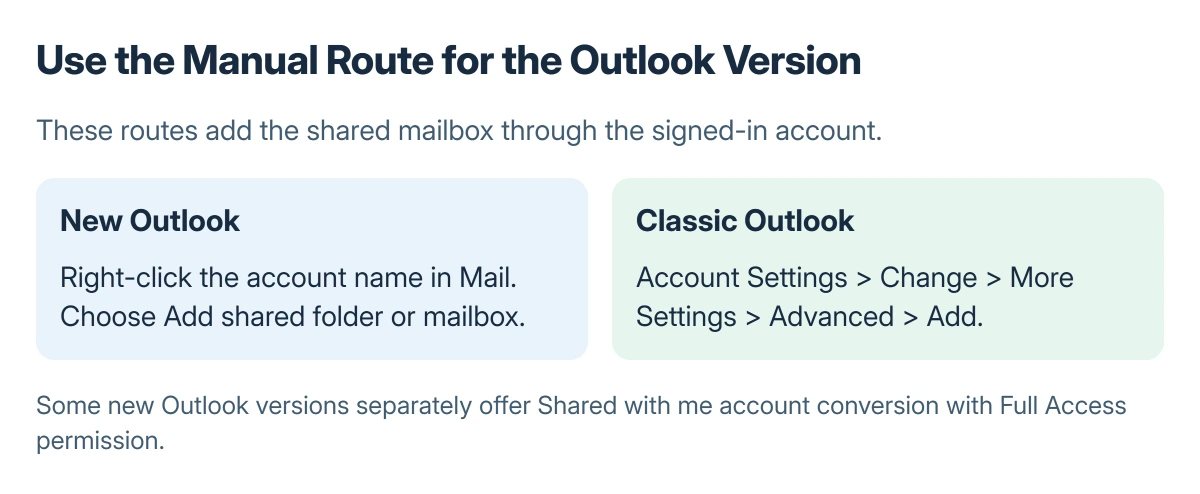
Select Mail. In the folder pane, right-click your work account name and choose Add shared folder or mailbox. Enter the shared mailbox name or address and complete the prompt.
Microsoft documents that folder-list route for new Outlook. Expand the mailbox and open an expected folder to confirm the correct address was added.
If access includes organizing mail, create a folder under the intended mailbox. Check its parent before moving team messages into it.
Use Account Settings in classic Outlook
Choose File > Account Settings > Account Settings. On Email, select the work account, choose Change, then open More Settings > Advanced > Add.
Enter the shared address. Confirm with OK, finish the remaining account prompts, and check the folder pane after returning to mail.
This procedure displays the shared mailbox through the signed-in user's account. It is different from trying to log into the shared mailbox with its own credentials.
Treat the newer account feature as a separate option
Some new Outlook versions offer Settings > Accounts > Shared with me. An existing shared entry may have Convert; an absent entry may be added with + Add.
Microsoft states that this account feature requires Full Access and is unavailable in some new Outlook versions. Use it when separate mailbox settings are needed; check availability in the installed edition.
The automatic reply controls explain another mailbox setting. For a mailbox that already opens but returns outdated matches, use the specific stale search result guidance.
If reading works but sending fails, give the administrator the selected From address and exact error. A successful folder addition does not prove every sending permission has been granted.
The Short Version
Confirm access, restart Outlook, then use the manual folder or account-settings route for that version. Keep the newer Shared with me account feature separate from ordinary folder addition and sign in with your own account.
Where to Next
Verify the mailbox identity and a known folder before changing rules, replies or notifications. Report a permission failure to the administrator with the action that triggered it.

Isaac Smith is the founder and editor of PC Glance, a website that covers computers, laptops, and technology. He is a tech enthusiast and a computer geek who loves to share his insights and help his readers make smart choices when buying tech gadgets or laptops. He is always curious and updated about the latest tech trends.