
Chromebook keys not working can mean a changed key assignment, a sign-in profile problem, or failed keyboard input. Check ordinary key behavior first, then compare Guest mode and the internal keyboard test.
A hardware reset comes later because it can remove Downloads files.
Check what the affected key is meant to do
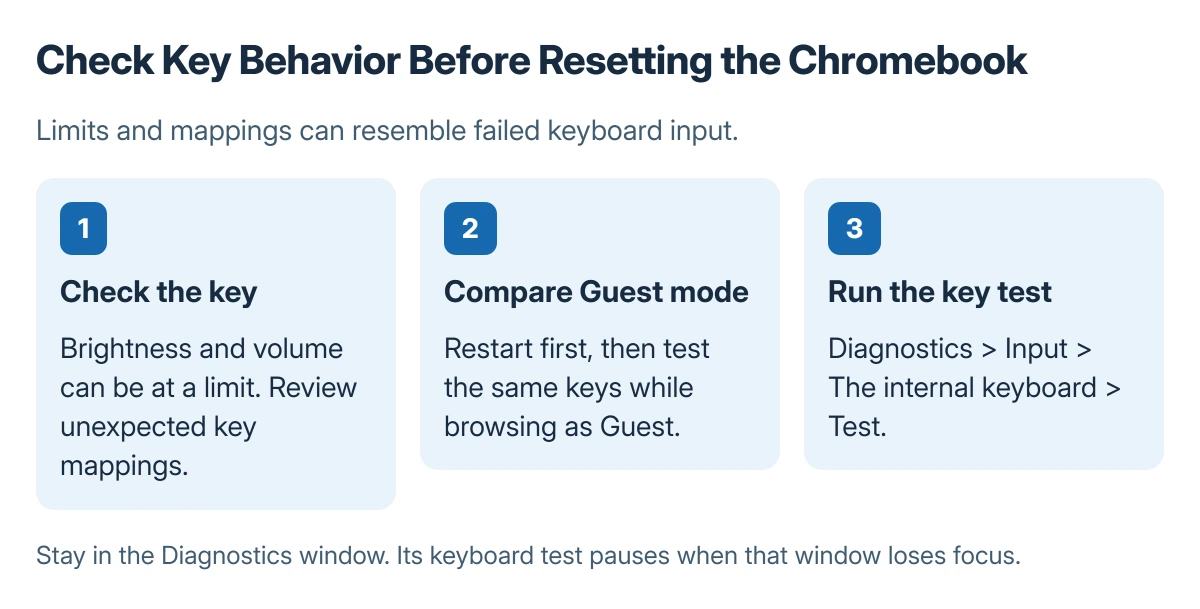
A brightness or volume key makes no further change when its setting has reached a limit. Back and Forward can be inactive when the browser has nowhere to navigate. Google describes these as checks before treating the keyboard as faulty.
Status: Google-documented keyboard checks. The saved owner thread has no confirmed repair. No keys or Chromebook were tested for this guide.
For a key that performs the wrong action, check Settings > Device > Keyboard > Built-in keyboard > Remap keyboard keys. This route for changing supported key assignments is documented by Google.
A missing Caps Lock key is normal on many models. Use the Chromebook Caps Lock shortcut instead of assuming a normal Search key is faulty.
Restart, then compare Guest mode
Restart the Chromebook. If typing still fails, sign out and use Browse as Guest, when it is available on the sign-in screen. Try the same affected keys in an ordinary text field.
Google says keys that work in Guest mode should lead to checking the affected account. Its keyboard troubleshooting instructions recommend removing and adding that account again. Preserve its device-only files before account removal.
Do not remove the owner account casually; changing the owner requires Powerwash. If Guest mode is disabled on a managed Chromebook, ask the administrator to help rather than trying to bypass the policy.
Test the internal keyboard in Diagnostics
- Open Settings > About ChromeOS > Diagnostics.
- Select Input.
- Find The internal keyboard, then select Test.
- Follow the test prompts and check which keys register.
Google states that the test pauses when the Diagnostics window loses focus. Stay in that window while pressing the keys, otherwise an apparent lack of input can be a paused test.
Record the keys that fail. A result helps the manufacturer understand the fault; it does not justify pulling keycaps off a laptop or replacing parts without model-specific repair instructions.
Try a hardware reset only after saving local files
Google warns that a hardware reset can delete some files in Downloads. Back them up first. This reset restarts hardware such as the keyboard and touchpad; it differs from a full factory reset.
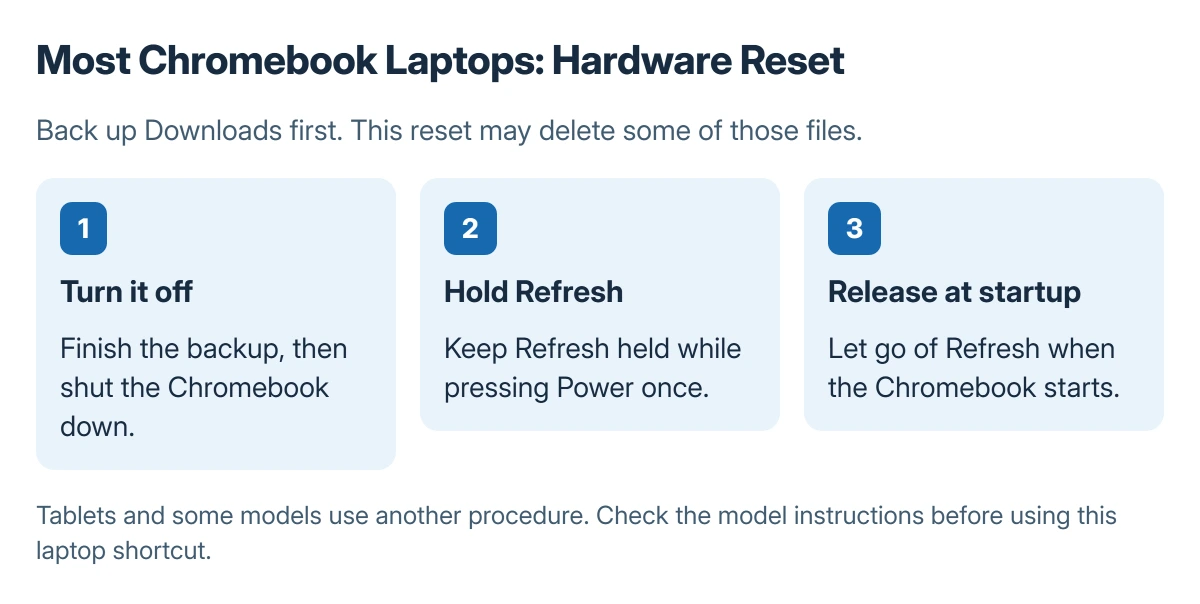
For most Chromebook laptops, turn the device off, hold Refresh, and tap Power. Let go of Refresh as startup begins.
Tablets and some other models use different procedures, so check Google's model list before applying a laptop shortcut to them.
If the keyboard still fails, contact the manufacturer with the test result. The Powerwash guide explains the more destructive reset, but a repeated failure of the same physical keys deserves service advice before erasing the device.
The Short Version
Check key limits and assignments, compare Guest mode, and run Diagnostics while its window stays active. Save local files before any account removal or hardware reset, then seek manufacturer help for persistent failures.

Isaac Smith is the founder and editor of PC Glance, a website that covers computers, laptops, and technology. He is a tech enthusiast and a computer geek who loves to share his insights and help his readers make smart choices when buying tech gadgets or laptops. He is always curious and updated about the latest tech trends.