

Removing Excel table formatting can mean clearing its colors, removing the table features, or clearing all cell formats. Those are three different commands.
Choose the result first so the data, formulas and useful table behavior survive the change.
Choose between the style and the table
Click a cell in the table and look for Table Design on Windows or Table on Mac. If the data is already a normal range, the table-specific commands will not be available.
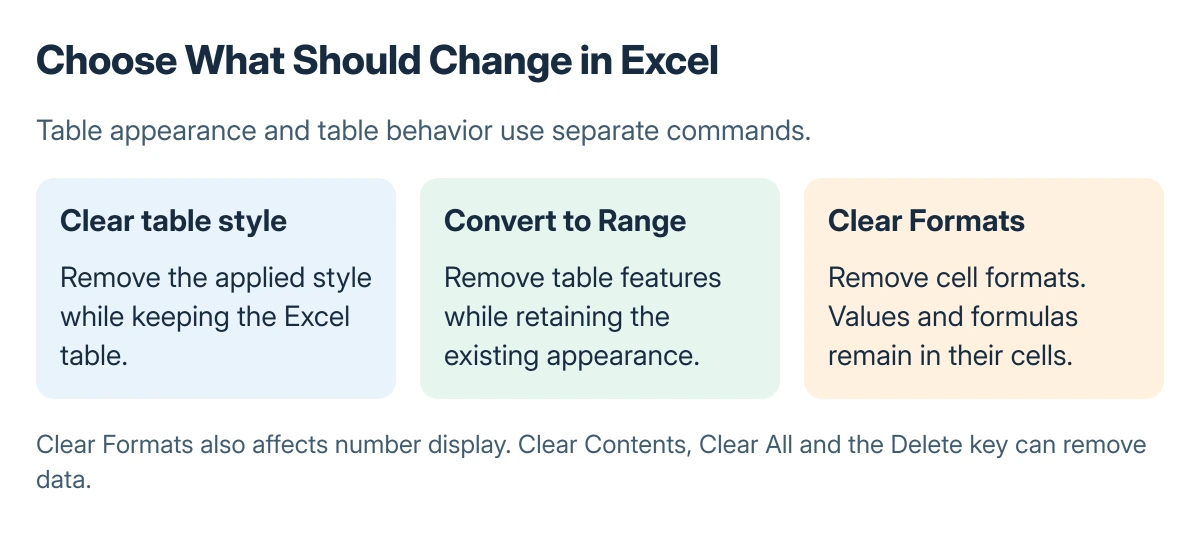
Status: Microsoft-documented Excel controls. The sample cells are diagrams, and no workbook was changed to produce this guide.
Microsoft says removing a table style does not remove the table. If only the colored bands are unwanted, use the style command first. Keep Convert to Range for data that should stop behaving as a table.
Clear the table style while keeping table features
- Select any cell inside the table.
- Open Table Design and expand Table Styles. On a Mac, look on the Table tab.
- Select Clear in the style gallery.
- Check the resulting appearance and confirm the table controls still exist.
Microsoft documents this action in Format an Excel table. It returns the table to its default table format. Keep that gallery command separate from the Home tab's Clear All action.
If a fill color or number format remains, it may require a cell-format change. Do not convert the whole table merely to remove one remaining appearance setting.
Convert the table to a normal range
On Windows, select a table cell, open Table Design, then choose Convert to Range in Tools. The right-click alternative is Table > Convert to Range. Confirm the conversion if prompted.
On Mac, choose the Table tab, then Convert to Range and Yes. Microsoft says the existing table style formatting remains after conversion, so the cells may still look like a table.
Table features are removed. The table's filter arrows disappear, and structured formula references become normal cell references. Check formulas and any workflow that depended on the table expanding automatically.
Clear remaining formats without deleting the data
In desktop Excel for Windows, select the required cells. Open Home, then the Clear menu in the Editing group, and choose Clear Formats. This affects formats, not the contents.
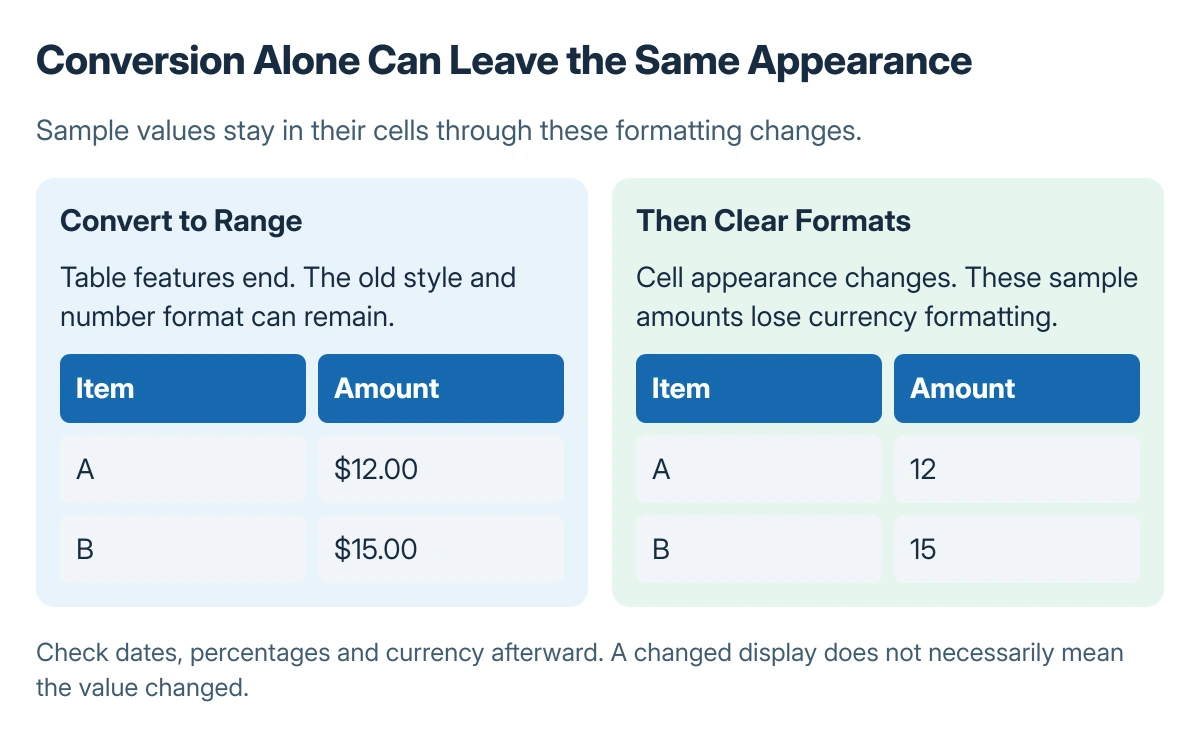
Microsoft states that formats include number formats, conditional formats and borders. Dates, currency and percentages can therefore display differently afterward. Check a sample before clearing a large area.
The Excel scientific notation guide explains why a number can look different without its stored value changing. If formatting is blocked by protection, check the locked-cell and sheet protection settings before changing permissions.
Avoid Clear All, Clear Contents, or the Delete key when the goal is appearance alone. Those actions can remove values or formulas. Use Undo immediately if the wrong command was selected.
The Short Version
Clear the table style to keep the table. Convert to Range to remove its features while retaining its appearance. Clear Formats only when cell formatting also needs to go, then check number displays and formulas.

Isaac Smith is the founder and editor of PC Glance, a website that covers computers, laptops, and technology. He is a tech enthusiast and a computer geek who loves to share his insights and help his readers make smart choices when buying tech gadgets or laptops. He is always curious and updated about the latest tech trends.