
Excel file encryption adds a password prompt before the workbook opens. In desktop Excel for Windows, the command is File > Info > Protect Workbook > Encrypt with Password.
Save the file and reopen it to check the result.
Use file protection for a password to open
Excel uses similar protection names for different tasks. Encrypt with Password controls access to the file. Protecting a sheet controls editing, while protecting workbook structure controls the sheets inside it.
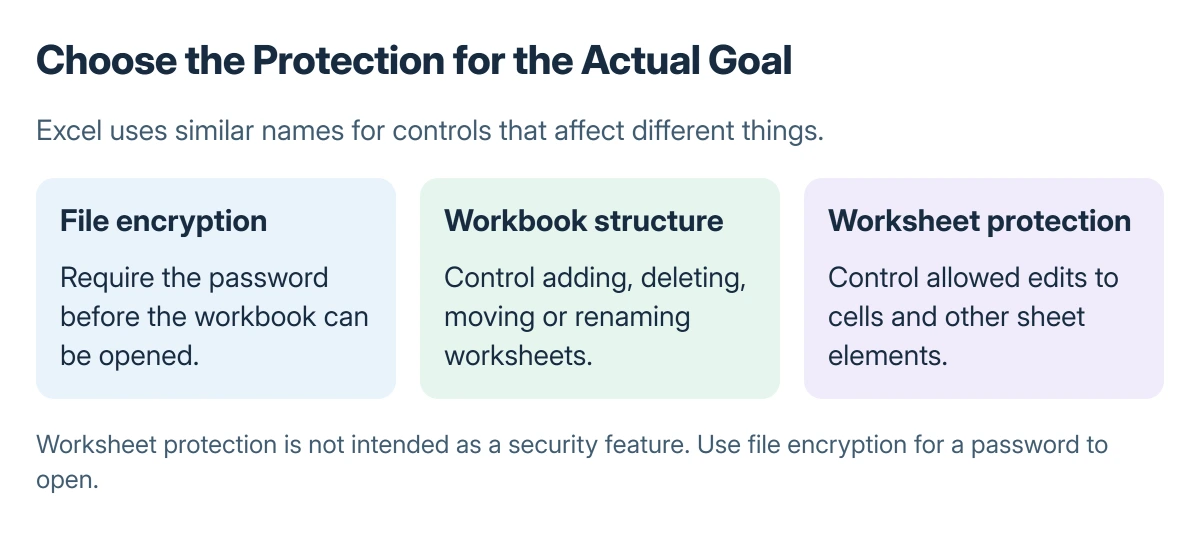
Status: Microsoft's file-encryption procedure for desktop Excel on Windows. No workbook was encrypted or password-recovery method tested here.
Microsoft states that worksheet protection is not intended as a security feature. Use the locked-cell instructions when selected formulas need editing protection; do not use that as a substitute for encrypting a confidential file.
Add the opening password in Excel for Windows
Keep a secure record of the intended password before applying it. Confirm the open workbook is the one that should receive protection, then follow Microsoft's file password instructions:
- Select File > Info.
- Open Protect Workbook, then select Encrypt with Password.
- Enter the password in the Password box and select OK.
- Enter the same password again in Reenter Password, then select OK.
- Save the workbook.
Microsoft documents that passwords are case-sensitive. Check Caps Lock and the keyboard layout before entering the same password twice. A password typed incorrectly in both boxes can still become the file's password.
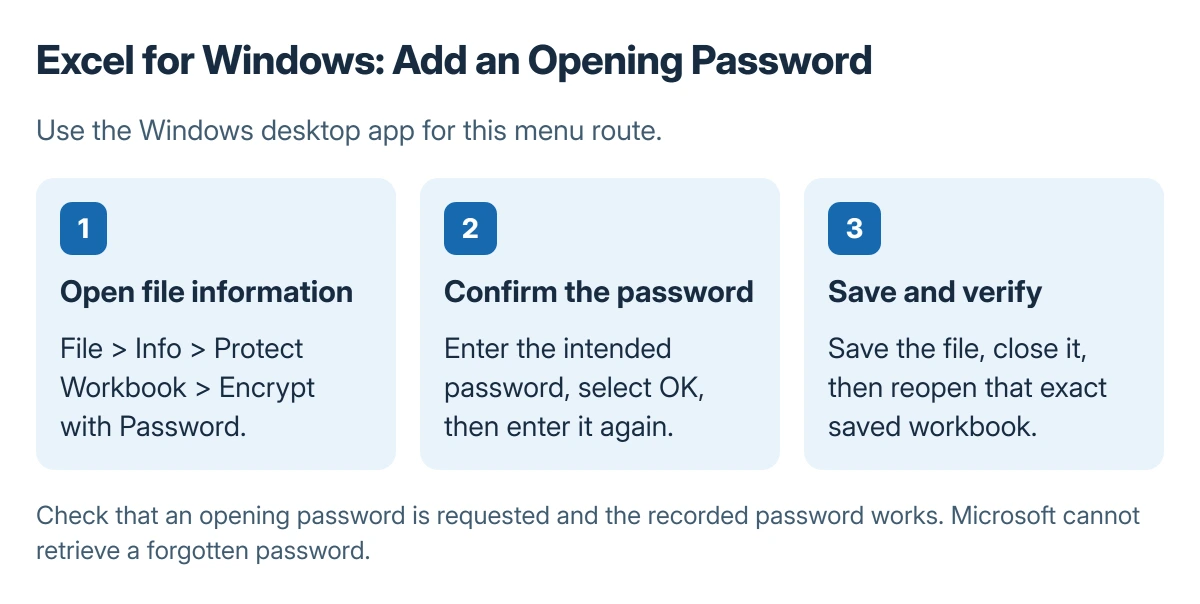
These menu steps are for desktop Excel on Windows. They do not describe the web app or promise identical Mac menus. If File > Info is absent, check which Excel application is open before searching for a missing control.
Reopen the saved file and verify the prompt
Close the saved workbook, then reopen that exact file from its saved location. It should require the opening password before displaying the contents. Enter the recorded password to confirm that the file remains accessible.
If it opens without that prompt, check that the saved copy has the intended encryption and that a different, unprotected duplicate was not reopened. A successful verification matters more than simply seeing the protection menu once.
A Word attachment needs its own Word document encryption. Protecting the spreadsheet does not apply a password to other files sent with it.
Keep the password recoverable for its owner
Microsoft says it cannot retrieve a forgotten Excel password. Store it securely and share it only with the intended recipients through an appropriate separate channel. The recipient still needs both the file and its correct password.
Encryption does not prevent a person who knows the password from disclosing the contents.
For organizational records, follow the access and sharing controls required by the organization rather than treating a password as complete control over copied data.
The Short Version
Use Encrypt with Password for a password to open the Excel file. Confirm it, save, and reopen the saved workbook. Keep the password safe because Microsoft cannot recover it.

Isaac Smith is the founder and editor of PC Glance, a website that covers computers, laptops, and technology. He is a tech enthusiast and a computer geek who loves to share his insights and help his readers make smart choices when buying tech gadgets or laptops. He is always curious and updated about the latest tech trends.