
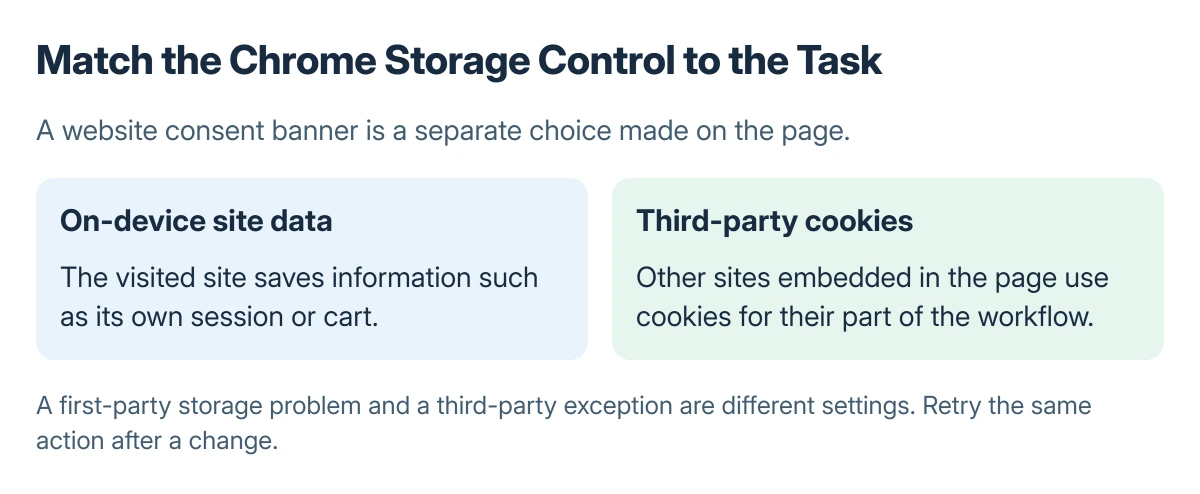
Enabling cookies in desktop Chrome depends on which kind of storage the site needs. A website saving its own sign-in data uses on-device site data. Embedded content from another site can need a third-party cookie exception.
Allow the needed behavior, then retry the same page action.
Identify the cookie control the site needs
Open Chrome's Settings > Privacy and security. Google says first-party cookies come from the visited site, while third-party cookies come from other sites. The website's consent banner is another choice made on the page itself.
Status: Google's Chrome desktop cookie and on-device data instructions reviewed 23 October 2026. The guide separates local storage and third-party permissions. No browser setting was changed.
If the site cannot keep its own session, inspect Site settings > Additional content settings > On-device site data. Google's site-data instructions describe the default behaviors available there.
Allow sites to save data on your device permits that storage. The option that deletes data when all windows close can let a session work now but remove its remembered state after Chrome closes.
Add a third-party exception for the intended site
Use Privacy and security > Third-party cookies. Under Sites allowed to use third-party cookies, select Add, enter the intended web address, and confirm Add.
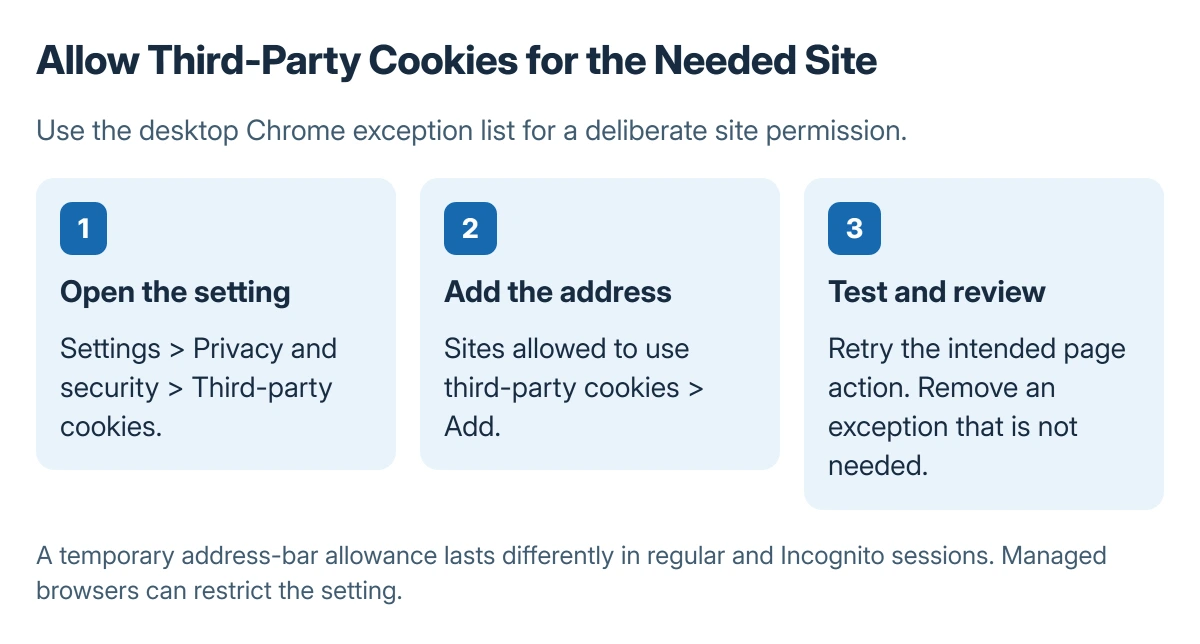
Site-specific exceptions are documented by Google on the cookie controls page. Check the address before adding it. Avoid a broad domain pattern when permission for the particular site is enough.
Return to the page and repeat the action that failed. If it still fails, remove an unnecessary exception and ask the site's support team which embedded service the workflow needs.
Check temporary and private-session behavior
On a page with third-party cookies blocked, Chrome can offer a cookie control beside the address. Turn on third-party cookies there to try that site, then let Chrome reload the page.
Google states that the regular-window exception from this control lasts 90 days unless turned off sooner. In Incognito, the temporary setting lasts for that Incognito session. Third-party cookies start blocked in Incognito.
A work or school browser may prevent the change. Ask its administrator about the exact site and locked setting so the required permission can be reviewed.
Keep other website permissions separate
A blocked new window needs the Chrome pop-up permission, which does not change cookie access. A site whose saved login is damaged may need site-specific cookie clearing, which signs it out and deletes saved site preferences.
Do not clear every site's data just to enable cookies for one page. If the permission is already correct, report the actual remaining error so the site can check the rest of its sign-in or payment flow.
The Short Version
Check on-device site data for the visited site's storage. Use a third-party exception for embedded services, and test the intended action afterward. Temporary and Incognito permissions have different lifetimes.

Isaac Smith is the founder and editor of PC Glance, a website that covers computers, laptops, and technology. He is a tech enthusiast and a computer geek who loves to share his insights and help his readers make smart choices when buying tech gadgets or laptops. He is always curious and updated about the latest tech trends.