
Sharing a contact on iPhone starts in Contacts, inside the card that should be sent. Tap Share Contact, choose the fields to include, then select a sharing method such as Messages or Mail. Check the card before sending private details.
NameDrop is a different option for exchanging your own new contact information nearby.
Open the intended card and choose its fields
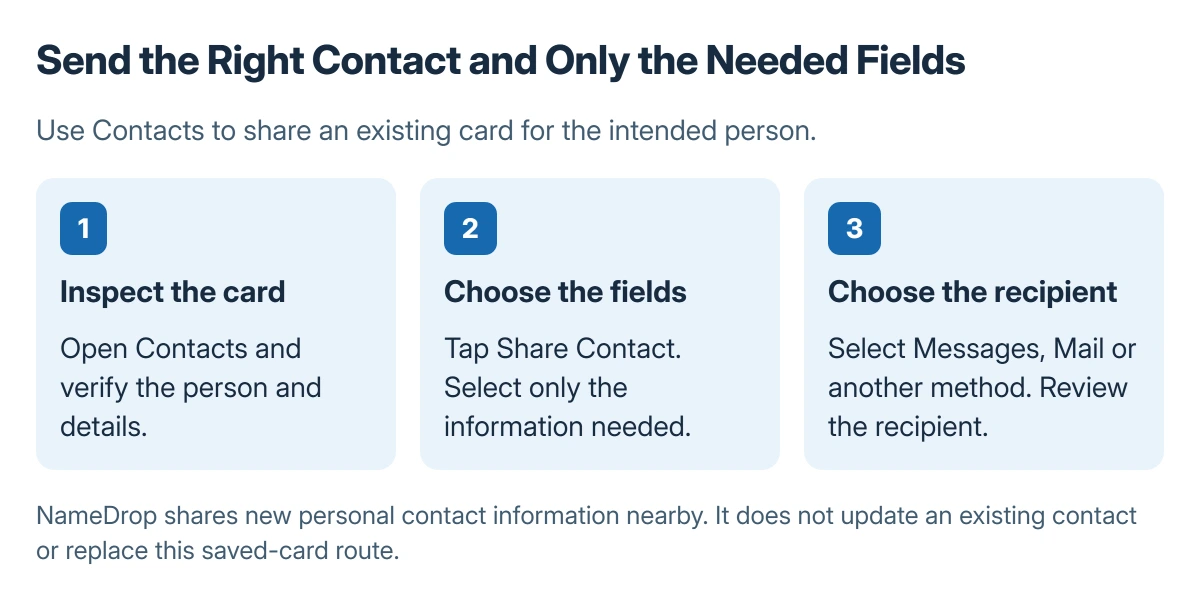
Open Contacts and find the person by name, phone number or email address. Open the card and verify that it belongs to the intended person, especially when several entries have similar names.
Status: Apple's Contacts and NameDrop instructions checked 23 October 2026. Field selection and sharing methods are documented controls. No private contact card was accessed or sent.
Apple says to tap Share Contact and choose the fields to share. Keep only the information the recipient needs. A work number may be appropriate while a home address or personal email is unnecessary.
Continue with the share control and select Messages, Mail or another offered method. Review the recipient and the attached card before completing the send. Apple's Contacts instructions document this card-sharing route.
If duplicate cards contain different details, use the iPhone duplicate-contact checks before choosing a card to send. Sharing an incomplete entry does not merge it with a better one automatically.
Confirm what the recipient actually received
Have the recipient inspect the card's chosen phone and email fields. The recipient may need to save the card in their own contacts. A sent message alone does not show how their address book handled it.
Apple documents field selection rather than requiring every stored detail to travel with the card. Reopen the sharing view if a needed field was omitted and send a corrected version intentionally.
When Contacts search is too slow to find the entry, use the iPhone contact-search checks. A search problem is separate from whether a correctly selected card can be shared.
Use NameDrop for your own new contact information
For NameDrop, bring the iPhone display within a few centimeters of the other supported device's top edge. Hold that position until both devices show the sharing interface.
Choose to share and receive, or only receive. When sharing, inspect the selected fields. To cancel before completion, move the devices apart or lock the iPhone.
Apple states that NameDrop sends new contact information and does not update an existing contact. Use Contacts and Share Contact when the task is to send a saved card for someone else.
When the sharing method cannot complete
Try another appropriate method offered in the share sheet, or check the app's actual send error. Avoid posting the card publicly just because a private transfer failed.
For a managed phone with restricted sharing, ask its administrator about the permitted method. If Contacts cannot open or Share Contact consistently fails, report the iPhone software version and the exact action to Apple Support.
The Short Version
Open the correct Contacts card, select Share Contact and choose its fields. Check the recipient before sending. NameDrop exchanges new personal contact information nearby and does not update an existing card.

Isaac Smith is the founder and editor of PC Glance, a website that covers computers, laptops, and technology. He is a tech enthusiast and a computer geek who loves to share his insights and help his readers make smart choices when buying tech gadgets or laptops. He is always curious and updated about the latest tech trends.