
Adding widgets to the Mac desktop starts by Control-clicking the wallpaper and choosing Edit Widgets. Find the widget in the gallery, click it for automatic placement or drag it where needed, then choose Done.
Desktop widgets require macOS Sonoma 14 or later. Notification Center widgets are available separately.
Add the widget from the desktop gallery
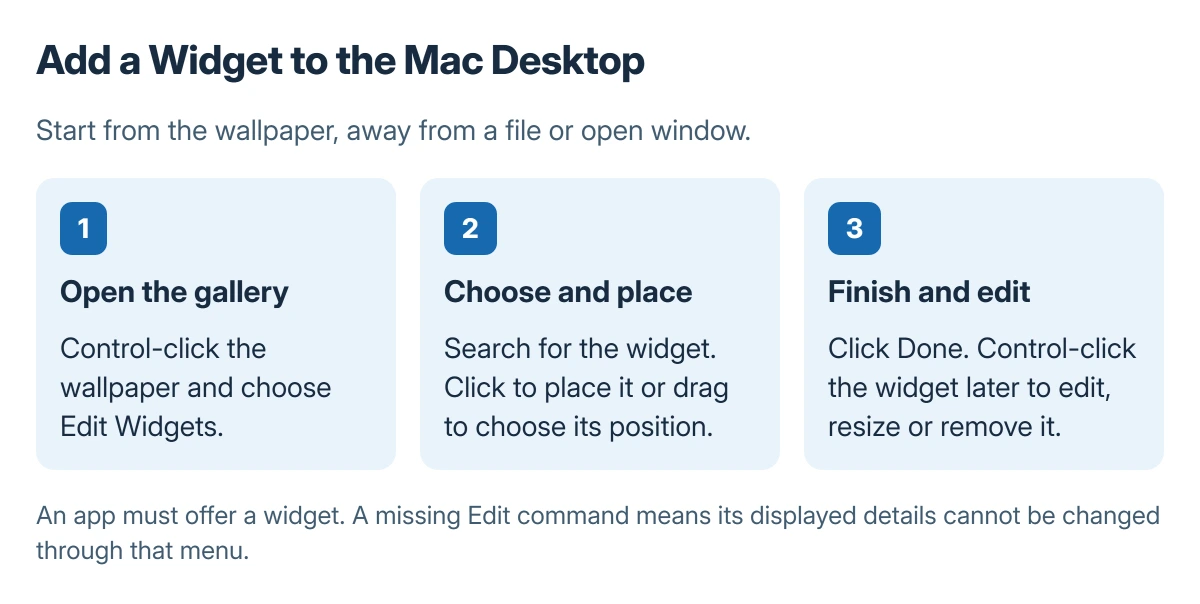
Control-click an empty part of the wallpaper, away from a file or app window. Choose Edit Widgets, then search for the app or browse the gallery's categories. Select the offered size that fits the available space.
Status: Apple's Mac widget controls reviewed 23 October 2026. The pictures show procedures, not captured desktop screens. No apps or desktop settings were changed.
Apple says clicking a widget or its Add button places it automatically. Dragging it from the gallery chooses the position manually. Move it again if it hides files or covers a part of the wallpaper needed for other work.
Use the Mac widget instructions for the available gallery controls. After adding the intended widgets, click Done at the gallery's bottom-right corner.
Change the details or remove a widget
Control-click the widget. Choose Edit followed by its name when that command is available, then change the highlighted information and finish with Done. A weather city or reminder list can be a widget detail rather than an app-wide setting.
Apple documents choosing another size in the same shortcut menu. Choose Remove Widget to take it off the desktop. Removing the widget does not require uninstalling its app.
If the widget is hidden, open System Settings > Desktop & Dock > Widgets and check Show Widgets: On Desktop. Stage Manager has a separate checkbox. Desktop file icons use the desktop item visibility controls.
Add an iPhone widget when the requirements match
Apple states that iPhone widgets need iOS 17 or later, the same Apple Account on both devices, and an iPhone nearby or on the same Wi-Fi network. In Desktop & Dock's Widgets section, turn on Use iPhone widgets.
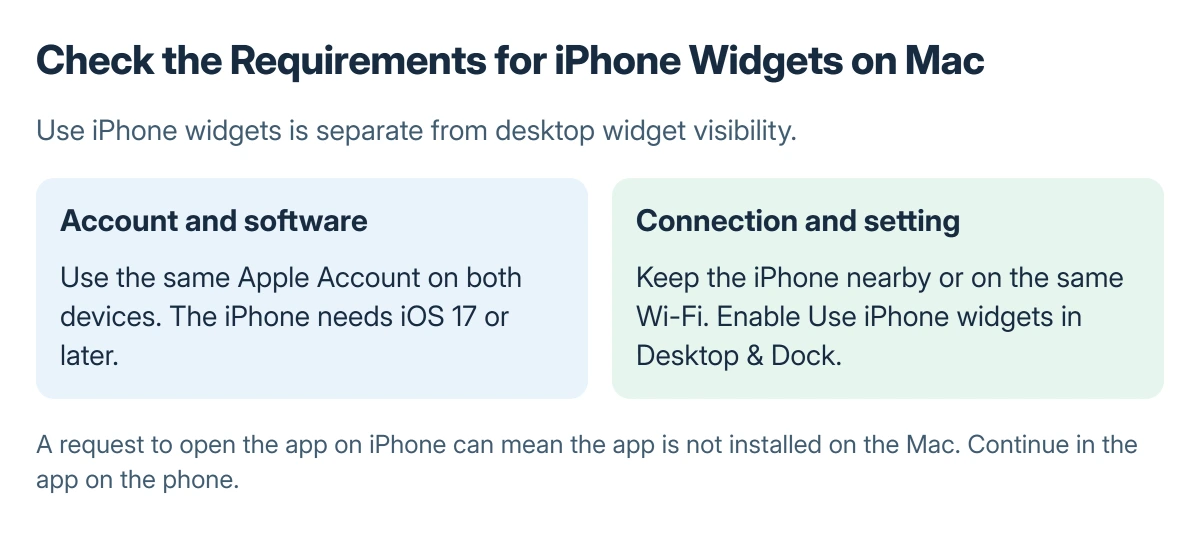
Return to the widget gallery and look for the iPhone app. A widget asking to open its app on iPhone can mean the app is not installed on the Mac. Open it on the phone to continue rather than assuming the widget is broken.
A Mac paired with the wrong iPhone can need its device selection checked separately. The presence of a phone widget does not establish that iPhone Mirroring is configured correctly.
When the expected widget is unavailable
Check the app and offered gallery sizes. An app must provide a widget; installing an ordinary app does not guarantee one exists. If its widget has no Edit command, Apple says its displayed information cannot be changed through that menu.
For a specific widget that stays empty with the requirements met, check the app's own connection and account, then ask its developer about that widget. Repeatedly adding the same item does not supply missing app data.
The Short Version
Open Edit Widgets from the wallpaper, choose a widget and position it, then click Done. Edit or remove it with a Control-click. Check the separate account, location and enablement requirements for iPhone widgets.

Isaac Smith is the founder and editor of PC Glance, a website that covers computers, laptops, and technology. He is a tech enthusiast and a computer geek who loves to share his insights and help his readers make smart choices when buying tech gadgets or laptops. He is always curious and updated about the latest tech trends.