
"Audio renderer error. Please restart your computer." comes from the browser's video player when its sound device vanishes or resets. Pulled headphones, a Bluetooth headset switching, or a driver resetting after sleep all do it.
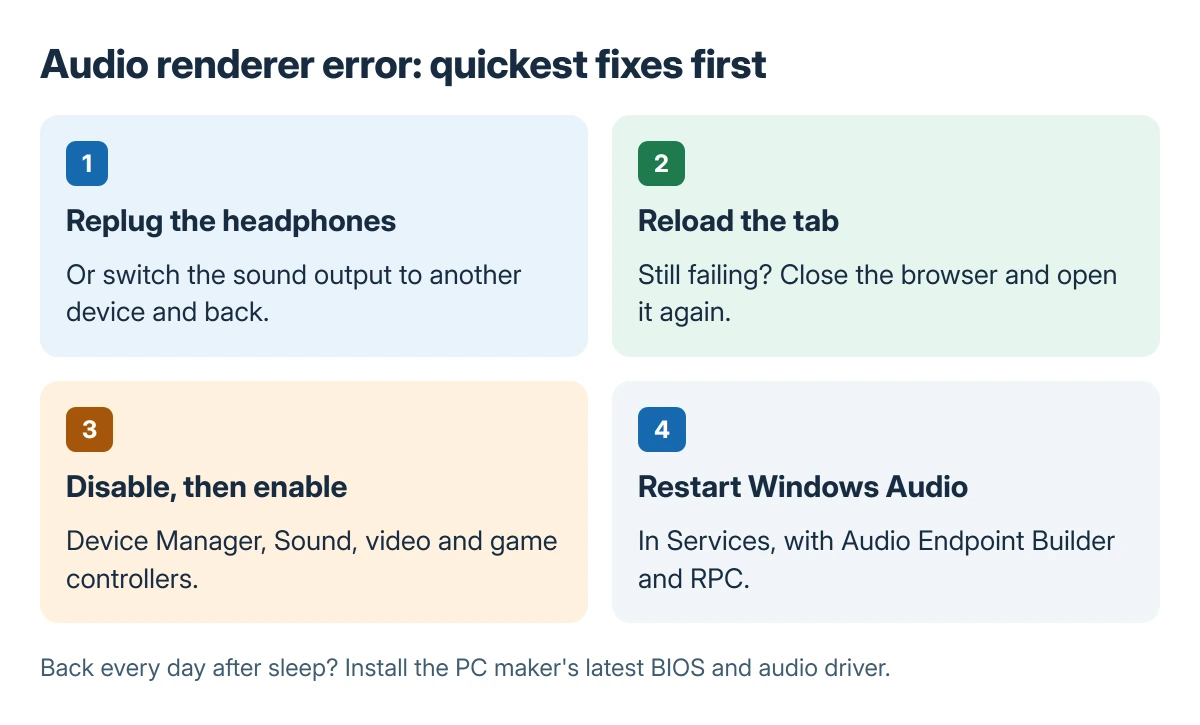
A full restart clears it because Windows rebuilds the audio device. Quicker steps do the same: replug the headphones, or switch the device off and on in Device Manager. Do those first, then fix the cause so it stops returning.
Why YouTube shows it
The message shows up in the YouTube player in Chrome and Edge on Windows, often after the laptop has slept or sat idle. Other sound on the PC can be gone too. That means the Windows audio device dropped out, not just the tab.
Status: Microsoft's sound troubleshooting page and five Microsoft Q&A threads on this error checked 23 October 2026. The fixes are owners' and Microsoft's; nothing was changed on a PC.
The Microsoft Q&A thread titled with the exact message has 48 replies. A related one about Edge shows more than 70 people with the same question, and owners there mostly restarted until they found a quicker way.
Replug the headphones or switch the output
The top reply in the big thread is one line: an owner unplugged their headphones, plugged them back in, "and the problem was gone". Over twenty readers found it helpful.
Without wired headphones, switch the output instead. On Windows 11, select the volume icon in the taskbar corner, open the list of sound devices, choose a different one, then choose yours again. Reload the video afterwards.
Reload the tab or restart the browser
Reload the YouTube tab once the sound is back. One owner on a Dell Inspiron found that closing and reopening Chrome cleared it without restarting Windows, so try that before the full restart.
The original asker in the big thread also noticed the error stopped after allowing YouTube in their ad blocker. Turn the blocker off for YouTube for a day. If the error stays away, the extension was part of it.
Disable and re-enable the sound device
This gets you a fresh audio device without a restart. Right-click Start, open Device Manager and expand Sound, video and game controllers. Right-click the audio device and choose Disable device.
Right-click it again and choose Enable device. An owner with both an Intel and a Realtek entry did this to the two of them, and in their words, "The video audio is working now" right after. Reload the tab once it is done.
Restart the Windows Audio service
Microsoft says to restart these three services when sound misbehaves. Type services in the taskbar search box, right-click each in turn and choose Restart:
- Windows Audio
- Windows Audio Endpoint Builder
- Remote Procedure Call (RPC)
One owner fixed theirs by restarting Audiosrv from the Services tab in Task Manager, and more than ten readers found that helpful. Another, on a Dell XPS 13, said restarting the service did nothing; the driver underneath decides.
Our page on resetting audio settings in Windows covers those services and the enhancements in full order.
Stop it coming back
An error that returns every day after sleep is a driver or firmware problem. The cure sits on the PC maker's support site. Owners report that updated or reinstalled drivers on Dell laptops cleared it only for a while.
The firmware helped one owner more. After a BIOS update they "had the error again but only once" in two weeks, where before it came several times a day. Install the maker's latest BIOS and audio driver, not a generic driver.
Microsoft's sound troubleshooting page also lists turning audio enhancements off and rolling the driver back. A rollback is the right try when the error began straight after an update.
Music programs and some games can take the device over. In the classic Sound window, open the device's Properties, then Advanced. Our Sound Control Panel guide shows where the exclusive control box sits.
When nothing works
If the error keeps returning with the latest BIOS and the maker's audio driver, the laptop maker has to look at it. Note when it happens: after sleep, after a headset connects, or at random. Give support that pattern.
The Short Version
Replug the headphones, or switch the output and back, then reload the tab. Next, disable and re-enable the sound device in Device Manager, or restart Windows Audio. If it returns daily, install the maker's BIOS and audio driver.
Where to Next
The moment the error appears says the most: right after sleep, when a Bluetooth headset connects, or with a music program open. Post that moment and the laptop model in the comments, and I'll match it to a fix.

Isaac Smith is the founder and editor of PC Glance, a website that covers computers, laptops, and technology. He is a tech enthusiast and a computer geek who loves to share his insights and help his readers make smart choices when buying tech gadgets or laptops. He is always curious and updated about the latest tech trends.