
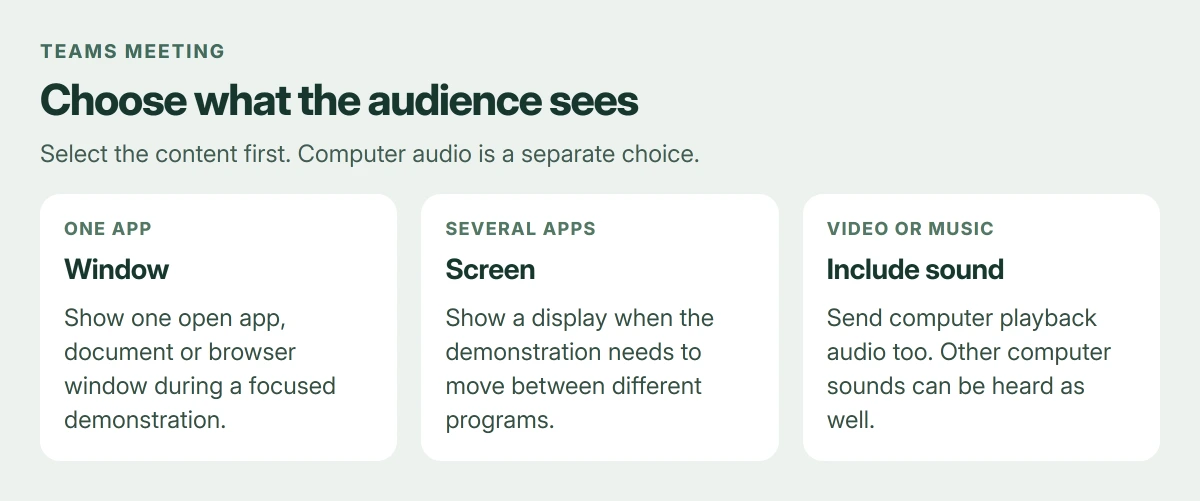
In a Teams meeting, Share opens the choices for showing a screen or an app window. Choose Window for one document or browser window; use Screen when people need to follow you between apps. Turn on Include sound when presenting a video.
An unavailable Share control can be a meeting-role restriction. On a Mac, permission to record the screen is another requirement. Neither is fixed by changing the webcam setting.
Decide what the meeting needs to see
Open the document or app before selecting Share. Close private material that might appear in the area you plan to present. Sharing an entire screen exposes more than sharing one window.
Microsoft documents screen and window sharing in its Teams presentation guide. Sharing a PowerPoint through PowerPoint Live is another option when the task is presenting slides.
Status: Teams sharing, sound and meeting-role documentation checked 23 October 2026. Covers desktop and browser use, with a Mac permission branch. No meeting was recorded or tested.
For a short demonstration of one application, I'd choose its window. A screen share makes sense when the demonstration depends on switching between several programs.
Start the share and confirm the content
- Join the meeting and select Share in the meeting controls.
- Select the screen or open window the audience should see.
- Wait for sharing to begin, then ask a participant to confirm the intended content is visible.
- Reveal the presenter toolbar by moving the pointer against the screen's upper edge.
- Select Stop sharing when that part of the meeting ends.
Leaving the document open after Stop sharing does not continue presenting it. Confirm that sharing has stopped before opening anything private.
For Teams in a browser, Microsoft names Google Chrome and the latest Microsoft Edge as supported screen-sharing choices. The browser adds its own picker, where you must select the content and confirm Share.
Include the video's sound
Microsoft says Include sound sends computer audio to participants. Select Share, enable that toggle, then choose the content. It can transmit notification sounds too, so silence unrelated apps first.
For the Windows desktop app, Teams and Windows need to use the same speaker output. Check that match if the picture shares correctly but the video's audio does not.
In Teams for web, the browser picker can offer Also share tab audio for a tab or Also share system audio for a window or screen. Read the option for the item you selected; tab audio covers that tab alone.
A Mac may request Microsoft's Teams audio driver for computer-sound sharing. Follow the installation prompt and restart if directed. Screen visibility and computer-audio sharing have separate permissions and requirements.
For a microphone that fails even when no video is being presented, use the Teams microphone device checks. Include sound is for computer playback, not the microphone selection.
Share is unavailable or the organizer must allow it
Microsoft states that organizers, co-organizers and presenters can share content, while attendees cannot. Ask the organizer to make you a presenter when the meeting has assigned the attendee role.
An organization's policy can also limit presentation. On a work account, send the organizer or IT team the meeting details and the unavailable control. Reinstalling Teams cannot grant a meeting permission.
Allow screen recording on a Mac
When Teams requests screen-recording permission, select Allow and follow Open System Settings. Under Privacy & Security > Screen & System Audio Recording, enable Microsoft Teams.
Return to the meeting and try Share again, following any quit-and-reopen prompt. For Teams in a browser, the browser needs screen-recording permission as well. Grant access to the program actually doing the sharing.
If the application closes as sharing begins, that is a crash rather than a missing permission. The Teams screen-sharing crash guide covers that separate failure.
For a persistent failure, record the Teams version, operating system, and whether sharing works in the browser. Send those details to the organization's IT team or Microsoft support so they can compare the clients.
The Short Version
Share a window for one app or a screen for a wider demonstration. Computer audio needs its sharing option enabled. Missing presenter rights and Mac screen-recording permission are separate reasons sharing can be unavailable.
Where to Next
For an important presentation, arrange a brief rehearsal with another participant. Their view establishes whether the intended material and audio reach the meeting.

Isaac Smith is the founder and editor of PC Glance, a website that covers computers, laptops, and technology. He is a tech enthusiast and a computer geek who loves to share his insights and help his readers make smart choices when buying tech gadgets or laptops. He is always curious and updated about the latest tech trends.