
Entering a panel ID in Promethean Screen Share joins the waiting room, not the presentation. Open the ActivPanel receiver, enter its ID on the laptop, then select that device on the panel and start sharing.
This procedure follows Promethean's ActivPanel LE guide. Menu placement and session controls can differ on other panel generations.
Open the receiver on the ActivPanel
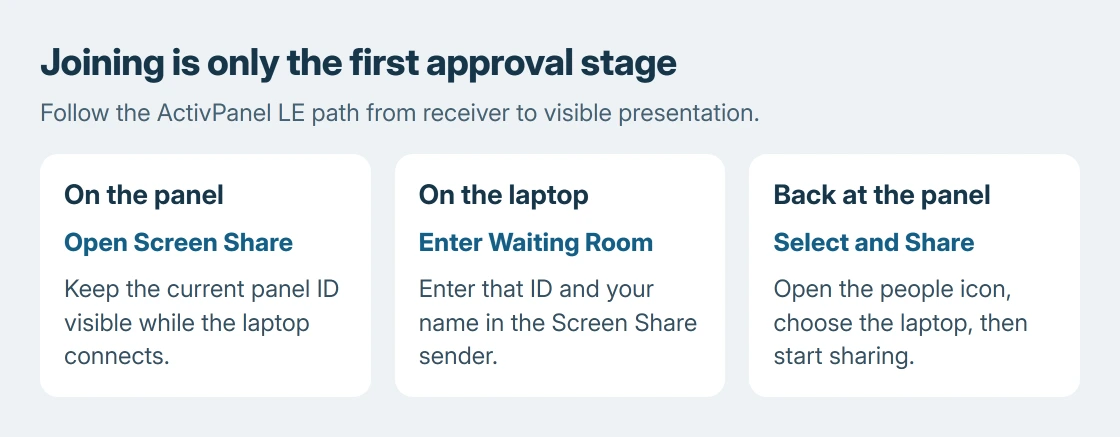
Wake the panel and open Applications, then Screen Share. Leave its panel ID visible while connecting the laptop. A code from another classroom or a previous session can send the connection attempt to the wrong destination.
The LE procedure is documented by the vendor: the panel receives and the laptop sends. Both sides have a job in starting the presentation.
Status: Promethean's ActivPanel LE sharing procedure checked October 25, 2026. This is vendor-documented setup, not a tested classroom connection. Other models may use different menus.
For a school-managed laptop, use the Screen Share sender supplied by the IT team. That avoids replacing a working managed installation with a different receiver package or an unrelated screen-sharing app.
Enter the current panel ID on the laptop
The guide directs Windows and Mac users to share.one.prometheanworld.com for the sender. If it is already installed, open Screen Share. Enter the panel's ID and a recognizable name, then select ENTER WAITING ROOM.
Remain at the laptop until the request has been sent. Seeing the name on the panel is the useful confirmation that the waiting-room stage succeeded. The laptop's app being open does not prove the panel received it.
On the ActivPanel, tap the people icon to open the waiting room. Select the laptop's name and choose the purple Share control. Check that the intended material now appears on the panel.
Prepare that material before approving the share. The Windows sharing checklist covers arranging displays and keeping private content out of the area being shown.
A device is waiting but the screen stays unchanged
Return to the panel's waiting room and check whether the correct name was selected. Joining does not start presentation. The ordering is ours: check panel approval before reinstalling.
If the laptop never appears, compare the ID with the receiver currently open in the room. Then give school IT the sender version, panel model and exact error, including whether any other device can join that receiver.
Avoid turning the school firewall off as a general test. Staff can check the network and approved Screen Share configuration without changing protection for every application on the laptop.
Microsoft says Windows + K connects to a Miracast-compatible display. That list is not the Promethean sender's panel-ID entry screen.
Use the method the room is configured for. A missing panel in one connection system does not establish that the other system's waiting room is broken.
Finish sharing or use the panel's wired input
The LE guide ends the session through the X in the black bottom bar, followed by Close. Check the panel after closing before opening private material on the laptop.
For a wired LE connection, Promethean describes USB-C, or HDMI plus USB Touch. Connect the cables and select that input through the panel's Source control. Touch needs its supported data connection too.
That gives the classroom another presentation route while IT checks wireless sharing. Use the panel's supported cable and laptop adapter; the connector shape alone does not establish video support.
A remote meeting needs its own presentation controls. Our Teams screen and sound guide covers that separate destination. A picture on the classroom panel does not prove remote attendees can see or hear it.
The Short Version
Open the panel receiver, send the laptop to its current ID, then select that laptop in the waiting room and press Share. End the session from the panel controls, or select a supported wired input when wireless sharing needs IT attention.

Isaac Smith is the founder and editor of PC Glance, a website that covers computers, laptops, and technology. He is a tech enthusiast and a computer geek who loves to share his insights and help his readers make smart choices when buying tech gadgets or laptops. He is always curious and updated about the latest tech trends.