
The Blue Yeti microphone needs selection in Windows and in the recording app. Connect USB directly to the PC, unmute the mic, and test that input before changing effects or adding software.
These controls refer to the original multi-pattern Yeti. Yeti Nano, Yeti X, Yeti GX and Yeti Pro have different hardware and instructions.
Connect the microphone and choose its input
A direct USB connection is documented by Logitech for its input/output microphones. Use the supplied cable or a suitable replacement that carries data, rather than relying on a power light to prove audio detection.
On Windows 11, open Settings > System > Sound and find Input. Choose the Yeti entry. Microsoft documents this route in its microphone setup and test guide.
Status: Logitech's Yeti controls and Microsoft's Windows 11 microphone procedure checked October 25, 2026. No microphone, recording or G HUB installation was tested.
Open the selected input's properties and use Start test. Speak normally, stop the test, and use the available playback option to hear the result. Our microphone test guide explains checking the recording rather than only the device name.
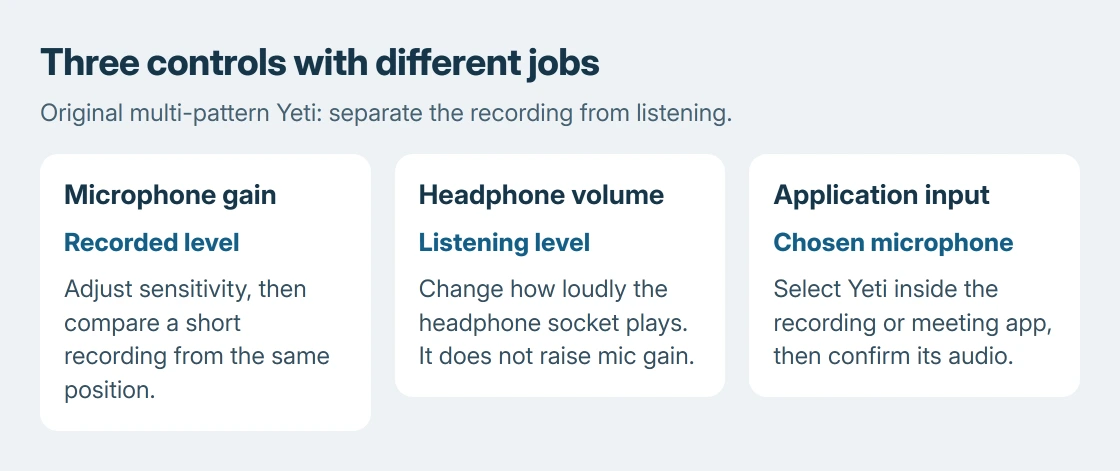
If Windows records the voice correctly, open the meeting, recording or streaming app and choose Yeti in that app's microphone settings too. An application can retain a previous laptop-microphone selection after Windows has changed.
Keep gain, mute and headphone volume separate
Logitech identifies microphone gain, instant mute and headphone monitoring as separate Yeti hardware controls. Press the mute control to restore recording when the mic is muted.
Use Gain to change the microphone's input sensitivity. Make a short recording at normal speaking volume, then adjust if the voice is too weak or distorts. Repeat with the same speaking position so the comparison means something.
The headphone-volume control changes listening loudness. Turning it up is not the correction for a recording whose input level is too low.
For monitoring, plug headphones into the mic's headphone socket. Logitech says this provides direct voice monitoring without software delay. Select Yeti output in Windows when computer audio should use that socket too.
If computer playback disappears, check Sound > Output and choose the intended speakers or headphones. The microphone input and its headphone output have separate selections.
Choose a pickup pattern before adding effects
The original Yeti provides cardioid, omnidirectional, bidirectional and stereo patterns. Cardioid favors a source in front, omni captures around the mic, and bidirectional covers opposing sides.
For one person speaking, start with cardioid and a consistent position in front of the microphone. A pattern intended to capture the room can also capture more of the room's unwanted sound.
G HUB supplies the advertised Blue VO!CE filters and effects. Those features are a later choice. Establish a clear ordinary recording first, so a filter change is not mistaken for repairing a missing USB connection.
The Yeti is missing or only one app stays silent
Logitech's detection troubleshooting begins with another USB port, another cable and another computer. Check those before treating a lit microphone as a working data connection.
A Yeti that works on another PC points back toward the first computer's configuration. One that fails across those connection changes needs a Logitech support case, with the exact model and the checks already completed.
If Windows hears the mic but one application does not, inspect that app's selected input and Windows microphone permissions. The Windows microphone fault guide covers access and disabled-device cases in more detail.
Keep a successful local recording when reporting an app-only failure. It establishes that audio reached Windows, while leaving the application or its permissions as the next part to check.
The Short Version
Select Yeti under Windows Input, record a test, and select it inside the intended app. Adjust gain for the recording and headphone volume for listening. Use the correct pattern, then consider effects after basic audio works.

Isaac Smith is the founder and editor of PC Glance, a website that covers computers, laptops, and technology. He is a tech enthusiast and a computer geek who loves to share his insights and help his readers make smart choices when buying tech gadgets or laptops. He is always curious and updated about the latest tech trends.