PEAK can lose voice chat while the microphone works in Discord. Select the real mic in PEAK and restart without voice-changing software. If Windows can't record it either, fix its input selection and permissions first.
Hearing game sounds but no teammates is different from teammates being unable to hear you. Check both directions with someone standing nearby, since proximity chat depends on how close you are.
In this guide
1. Select the microphone and check the voice mode
Connect your headset before starting PEAK. In Settings, open the audio controls and select your headset or mic under Microphone. Choose the headset or USB microphone itself, rather than a disconnected device or virtual voice input.
Check Microphone Mode too. Voice Activation should transmit when you speak; Push To Talk needs its assigned key held. Push To Mute does the opposite, so holding that control silences you.
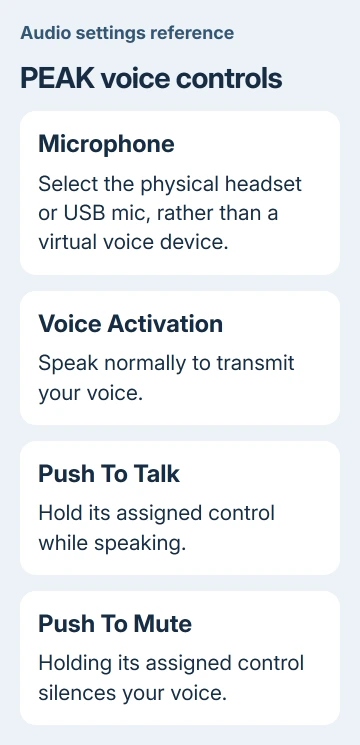
Compare the selected mode with the control binding in your copy of the game. Don't assume a key someone else uses is still assigned on your PC. For a quick comparison, use Voice Activation and speak normally.
Ask a nearby teammate whether they can hear you. Then have them speak back. If they hear you but you can't hear them, your microphone is already sending audio; check the listening side rather than raising input volume.
When voices alone are missing, check Voices Volume in PEAK's audio settings. Game music playing doesn't mean the voice-volume setting is also turned up. Continue if the selected microphone and voice controls look right.
2. Restart the lobby with voice software closed
Exit PEAK fully, close Voicemod, VoiceMeeter or another program that routes or changes your microphone, and reopen the game. Select the physical microphone again if the virtual device had been selected.
One owner in the voice chat discussion reported that removing their voice mod and reloading restored voice chat. The developer also recommends checking the selected audio device and disabling conflicting audio software.
I'd try closing the voice software before reinstalling the game. It's a quick, reversible audio change. If closing it restores chat, update that program or check its settings before using its virtual microphone again.
Have each player quit and relaunch PEAK, then create a fresh lobby. Check that every player has installed the available PEAK updates. Every player should be running the same game version.
The same saved discussion includes an owner who restored chat by making sure both players used the same graphics launch option. If your copies offer Vulkan or DirectX choices, compare the options and try matching them for the next launch.
Matching the launch option didn't restore chat for every group. If your group already uses DX12, try Vulkan together when offered. Return to the previous option if it creates rendering trouble.
3. Check whether Windows can record the microphone
Open Settings > System > Sound. Under Input, select your intended microphone. A webcam, controller, monitor or virtual device can be selected instead of the headset you meant to use.
On Windows 11, open that microphone's properties, select Start test, speak, and stop the test. Play back the recording if that option appears. Raise Input volume when your recorded voice is too quiet.
On Windows 10, select the device under Choose your input device. Speak and watch Test your microphone. If the meter moves, Windows is receiving audio from the selected microphone.
The Windows microphone checks also cover headset mute buttons and connection problems. Check a physical mute switch or a boom microphone's mute position before changing drivers.
If Windows receives nothing, try reseating the headset connection or another suitable USB port. Test the microphone again. For trouble recording in other apps as well, check the headset maker's support page for connection and driver help.
If Windows isn't picking up your Blue Yeti, the Yeti setup guide addresses that device's input setup. Return to PEAK once the selected microphone records correctly.
4. Give Windows desktop games microphone permission
On Windows 11, open Settings > Privacy & security > Microphone. Turn on Microphone access, Let apps access your microphone, and Let desktop apps access your microphone.
On Windows 10, open Settings > Privacy > Microphone. Use Change if device access is off, enable Allow apps to access your microphone, and enable Allow desktop apps to access your microphone.
PEAK is a desktop game. It doesn't need its own switch among the individual Store-app switches, and desktop microphone access isn't controlled by a separate permission switch for each game.
Restart PEAK after changing the permissions, then repeat the nearby-player voice check. If Windows records properly and desktop access was already allowed, keep the current permissions and try the game-specific checks.
5. Remove processing conflicts and verify game files
For a Razer headset, check its microphone controls in Razer Synapse. Disabling the headset's background-noise suppression restored voice for some players, according to that developer reply. Other headsets may offer a similar control.
Turn off that noise suppression for one test, then test a normal speaking voice. If it makes no difference, restore your preferred setting. Other apps can process the same microphone differently.
To check PEAK's installed files, close the game. In Steam's Library, right-click PEAK > Properties > Installed Files > Verify integrity of game files. Let the check finish and install anything Steam needs to replace.
Launch the game again after verification completes. Steam checks the installed files and replaces damaged or missing content. Neither step requires deleting your save or downloading an unofficial voice-fix mod.
If all game audio is missing, check Windows Volume mixer while PEAK is running and confirm that the game isn't muted. For a headset connected without sound, use the headphone output checks if it isn't offered as a playback device.
When the microphone still won't reach the lobby
Use the support links on PEAK's Steam page to report the problem. Include the game version, microphone model, selected input, graphics launch option, whether Windows records it and whether only one player or the whole lobby is affected.
A separate Steam voice call can keep your group talking while the game fault is unresolved. It lets you talk, but won't recreate proximity chat. When reporting the fault, mention that the separate call works but in-game chat doesn't.
The Short Version
Select the real mic and correct mode, then restart without voice-routing tools. Match game versions, check Windows recording and desktop access, and verify PEAK's files. Send those results with a continuing lobby-only fault.
Checked November 12, 2026.