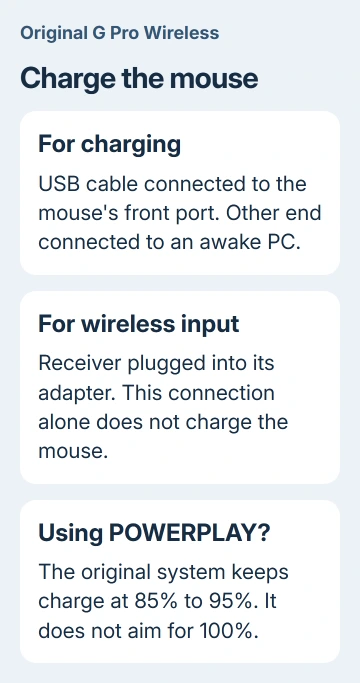
A G Pro Wireless mouse that won't charge needs its cable in the mouse itself, not the receiver adapter. Remove that adapter, connect the cable to the mouse's front port and plug the USB end into an awake computer.
A stuck battery percentage and a mouse that dies when unplugged call for different checks. POWERPLAY also stops short of 100% by design, so check how you're charging before replacing anything.
In this guide
1. Move the charging cable from the receiver to the mouse
The little USB receiver handles the wireless connection. Leaving it plugged into the cable's adapter keeps the receiver near your mouse, but it doesn't send charging power through the air.
Disconnect that adapter and put the cable into the mouse's front charging socket. Use the original cable first because its plug fits the recessed opening. Use a computer USB port, bypassing hubs and other accessories.
Keep the computer awake during this check. A port that stops supplying power when the computer sleeps can leave the mouse uncharged even though it stayed plugged in overnight.
Logitech's PRO Wireless setup guide says an empty battery takes around two hours to charge from a PC USB port. It also explains that the mouse uses the cable for data while directly connected.
Move the pointer while the cable is attached. If that works, data is getting through the cable, though the battery might not hold a charge. Continue if unplugging it makes the mouse die.
2. Try another USB port, then a cable that fits
Connect the cable through another computer USB port. For a desktop, try a port built into the computer rather than one on an accessory. Leave the mouse connected long enough to compare its behavior with the first port.
If charging starts through the second port, the first port or its power supply is the part to check. If neither works, borrow a known-working cable that fits the original G Pro Wireless's Micro-USB socket properly.
The original G Pro Wireless and newer PRO models can have different charging connectors. Check the actual socket before ordering a cable. A USB-C replacement for a different PRO model won't fit this mouse.
The plug should seat without pressure against the surrounding plastic. Do not force a bulky connector into the recess. If it won't fit, use a compatible replacement with the right plug shape.
I'd spend money on a replacement cable only after borrowing one or trying another computer. A cable is a sensible first suspect, but buying several doesn't help when the mouse's charging socket is damaged.
If Windows reports a USB connection error rather than recognizing the wired mouse, follow the USB troubleshooting steps. That is a connection fault to solve before trusting a battery reading.
3. Compare the battery display with unplugged use
After charging, unplug the mouse and switch it off and on using the switch underneath. Check whether it keeps working wirelessly and whether the battery indicators show a different range.
On the original model, the startup battery display lasts seven seconds. Three green dots cover 50% to 100%; two cover 30% to 50%; one covers 15% to 30%. A flashing red dot means less than 15%.
Those ranges are broad. Three dots don't mean 100%, and a small increase won't necessarily change the lights. Compare them with actual unplugged operation rather than expecting an exact percentage from the lights.
If the mouse works unplugged but G HUB's percentage remains unchanged, close and reopen G HUB and reconnect the mouse. When reporting the problem, include both the percentage shown and how long the mouse works unplugged.
If it works only while the cable is attached, the cable is supplying power but the battery isn't keeping the mouse running. That narrows the next step to the battery or charging hardware, especially after the cable and port checks.
When unplugged use fails because the receiver isn't connecting, use the Logitech mouse connection checks. A charged mouse still needs its receiver; the original G Pro Wireless doesn't pair through Bluetooth.
4. Check POWERPLAY separately from cable charging
A mouse sitting near the top of its battery range on POWERPLAY isn't necessarily failing to charge. The original POWERPLAY system maintains the battery between 85% and 95% by design, rather than holding it at 100%.
That behavior is described in the POWERPLAY battery explanation. Waiting for 100% on the pad can make normal operation look broken.
For a mouse that actually runs flat on the pad, test charging by cable first. Successful cable charging means the mouse can accept power through its front socket. Next, check the pad, its power connection and the charging module.
Check that the POWERCORE charging module supplied with the system is fitted in the mouse's underside compartment. The ordinary cover isn't a wireless charging module. Connect the base's USB cable firmly at both ends.
Move POWERPLAY off a metal desk, which can prevent charging. Use its supplied cloth or hard mouse pad; an overly thick replacement pad can weaken or stop charging too. Retest with the mouse resting inside the charging area.
Report a pad-only failure as a POWERPLAY issue when contacting support. Report failure through both cable and pad as a mouse charging issue. Give support the result for each charging method.
5. Request service when it can't hold a charge
A mouse that shuts off as soon as you unplug it, after charging with a suitable cable and trying more than one working USB connection, needs a repair check. Reinstalling mouse drivers won't repair a worn battery or a loose charging socket.
Use Logitech Support and select PRO Wireless Gaming Mouse, then its support or warranty contact option. Have the serial number, purchase details and your cable, port and unplugged-use results ready.
Ask whether your warranty covers a replacement for this fault. For an older mouse outside coverage, ask a repair shop for a battery and charging-port assessment before approving parts.
The wireless mouse setup guide can help reconnect a replacement receiver or mouse. Pairing restores the wireless connection; charging the original battery is a separate task.
The Short Version
Charge by cable from an awake PC, then compare another port and cable if needed. Check unplugged use against the battery display. POWERPLAY staying at 85% to 95% is normal; immediate shutdown after cable charging needs service.
Checked November 12, 2026.