A Sprite extruder wheel that won't turn can be waiting for the nozzle to heat, or it can have a motor connection problem. Heat the nozzle to the correct loading temperature and try the printer's own extrusion control first.
A clicking or turning motor needs different checks when the filament stays still. Use the connection checks for a completely silent motor.
Sprite assemblies appear on several printers and in upgrade kits. Use the printer model and exact extruder version when choosing cable, firmware or replacement-part instructions.
In this guide
1. Heat the nozzle before testing extrusion
Cancel the failed print and use the printer's temperature controls to heat the nozzle for the loaded material. Wait until the actual temperature, not just the requested temperature, reaches the filament's specified loading range.
Use the printer's own Move, Extrude or filament-loading control, depending on the model. Ask for a small forward movement and watch the wheel. A cold manual test can leave the wheel stationary even when the motor and cable work.
On printers using Marlin's cold extrusion prevention, the printer's firmware blocks filament movement until the hotend reaches its set minimum temperature. Heating clears that condition.
That minimum depends on the firmware. The nozzle still needs to reach the right loading temperature for your filament.
Keep the cold-extrusion safeguard enabled. Disabling it to make a motor turn can push filament against a nozzle that can't melt it, causing damaged filament or a jam.
If the wheel now turns and filament comes out normally, the original result depended on nozzle temperature. If the heated printer still can't move the wheel, continue with what the mechanism actually does.
2. Separate a silent motor from a blocked feed
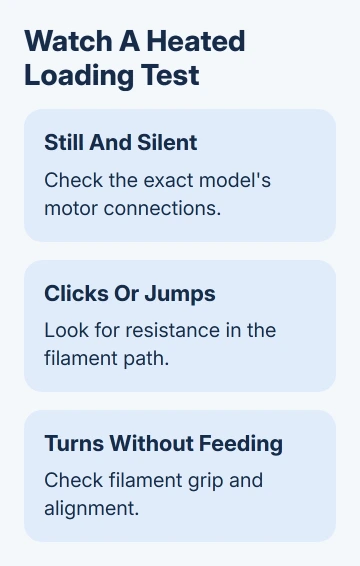
Watch the drive mechanism while repeating that small loading movement. Check whether it stays still and silent, moves in short jumps with a clicking sound, or turns continuously without carrying the filament.
For a silent motor, check its connection and controls. Clicking or jumping means the motor is trying to move against resistance or isn't moving smoothly.
If the wheel turns but the filament doesn't move, check its grip, alignment and the path the filament follows.
The extruder grip guide covers the turning-wheel case. Tightening the tension screw won't restore an interrupted motor connection.
Try the printer's own loading command rather than a sliced model from the PC. If the wheel works there but not during a job, the motor can move and you should check the selected printer profile or job next.
For a USB print that stops when its PC sleeps, check the Windows power and sleep controls. That case differs from a failed local loading command.
For a controller reporting cold extrusion prevented, return to the actual nozzle temperature and the configured firmware. Don't assume the requested temperature reached the heater just because the number changed on the display.
If the temperature won't rise or is unstable, stop the extrusion attempt and ask for the model's heating-fault procedure. Testing the wheel won't fix a faulty heater or temperature sensor.
3. Reseat the motor connection with power removed
Turn the printer off, disconnect its power and let hot parts cool before handling connectors. Check the extruder motor plug and the accessible cable connections for a loose latch, crooked seating or visible damage.
On an Ender-3 V3 SE, Creality's motor-not-rotating procedure identifies a poorly connected motor cable and calls for reconnecting it at both ends, including the motherboard end.
Follow that model's access instructions to reach the motherboard.
A standard Sprite, Sprite Pro upgrade and a V3 SE assembly don't share every cable or board arrangement, so don't transfer a connector position from another printer's picture.
Check for a plug that looks seated but sits at an angle. A latch should secure the matching connector without forcing it. Bent contacts, a damaged socket or exposed conductors need service.
After reconnecting and reassembling the printer, restore power, heat the nozzle and repeat the same small extrusion movement. If normal movement returns, check that the cable stays clear of moving parts before printing.
If it remains silent, keep that result for support. Tell them the motor stayed silent after you checked its connections. Adjusting filament tension won't help them check an electrical fault.
4. Deal with resistance only when the motor tries to turn
Check that the spool can unwind and the filament isn't caught under another loop or trapped along its route. A direct-drive Sprite pulls filament at the print head, but resistance can still come from the spool or entrance.
Use the printer's normal unload procedure at the material's proper temperature. Look for a chewed or flattened section where the gear kept pushing without advancing the strand. Remove damaged filament before loading again.
If the mechanism needs cleaning or opening, use the maintenance instructions for that exact assembly. Debris in the teeth and a blockage farther down the hotend are different jobs; turning the pressure screw harder doesn't clear either one.
Once loading works, watch a small print. If extrusion fails only when the nozzle reaches the bed, check first-layer height and clearance instead of continuing the stationary-motor checks.
I'd stop repeatedly commanding extrusion when the wheel just clicks against the same obstruction. It can grind the filament until a later loading attempt has nothing left to grip.
5. Match an upgrade kit to its printer and firmware
For a newly installed Sprite kit, compare the kit's installation instructions with the actual printer and board version. Even when the extruder fits the printer, it still needs the right wiring and firmware settings.
Marlin's extrusion safety settings explain why firmware can refuse a move, including a cold hotend or an excessive requested extrusion length. A move blocked by those safety checks doesn't mean the motor is broken.
Keep test movements small. Changing motor current, reversing wires or flashing a firmware package for a different board can introduce another fault before the original one has been identified.
For a persistent V3 SE failure, the manufacturer procedure moves on to cable continuity and E-axis drive-voltage checks. Those checks test the wiring and motor driver and need electrical service work.
Ask Creality support at cs@creality.com whether the cable, motor or driver needs testing.
Send the printer model, board and firmware version, Sprite variant, and a short video showing the heated loading command. Say whether the wheel is silent, clicking or slipping, and whether reseating the connectors changed it.
The Short Version
Heat the nozzle and use a small built-in extrusion command. For a silent motor, check the model's cable connections with power removed. For clicking or slipping, check the filament path and blockage.
Persistent failure needs the exact model's electrical service checks.
Checked November 12, 2026.