A silent Acer microphone usually needs its input and permission settings checked first. If a USB mic freezes Windows 11 instead, check the separate AMD Audio CoProcessor workaround that restored microphone use for an Acer Nitro owner.
Start with the silent-mic checks if Windows stays responsive. For a repeatable freeze when connecting a USB microphone, disconnect that mic and read the coprocessor section before plugging it in again.
In this guide
1. Choose the microphone Windows should record
Open Start > Settings > System > Sound. Under Input, select the device you intend to use. A laptop's built-in microphone, a webcam microphone, and a USB headset can all appear as separate choices.
Look at the chosen device's properties and run Start test under Microphone test. Speak, choose Stop test, then play the recorded sample if that option is present. Check input volume if the sample is very quiet.
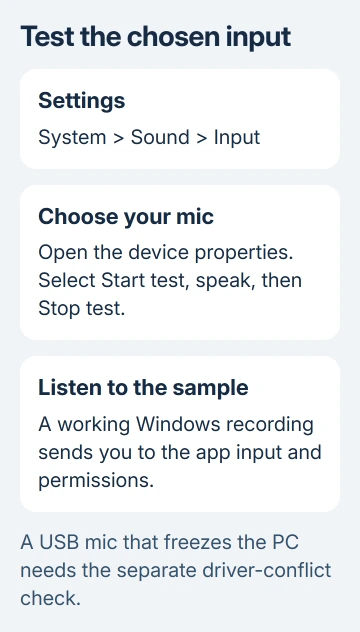
If the Windows sample contains your voice while the meeting stays silent, select that same microphone inside the app. Automatic selection can leave a call listening to a disconnected headset even after Windows has a usable built-in input.
For a meeting-specific failure, the Zoom microphone checks separate joining audio, mute, and app selection. Don't remove system devices to fix an app that simply chose the wrong microphone.
A mic missing from Input needs a different route from one with a moving level but no call audio. Check permission next, then move to driver repair if Windows still can't see the recording device.
2. Allow microphone access for the affected app
Open Settings > Privacy & security > Microphone. Turn on Microphone access, then Let apps access your microphone. Enable the individual Store app you want to use when it's listed.
For desktop apps, also enable Let desktop apps access your microphone. Desktop programs don't use the Store-app switches, so check their separate access control.
Microsoft's microphone troubleshooting steps cover these permissions and the Windows recording test. After changing access, restart the affected app and run its microphone test.
If Windows records properly and the app now hears you, stop there. The AMD Audio CoProcessor name in Device Manager isn't itself an error, and leave it enabled when recording works.
If an organization manages the permission controls, request access for that app from its administrator. A driver reinstall won't override a microphone restriction set by the organization.
3. Check the driver for this Acer model
Right-click Start > Device Manager. Check Audio inputs and outputs, Sound, video and game controllers, and System devices for the relevant microphone and audio components.
Double-click a device showing a warning symbol and read Device status on the General tab. Record its error code and driver details. These details let support check what failed without assuming the coprocessor caused it.
Intel-based and AMD-based Acers can use different audio components. Skip AMD Audio CoProcessor if your model doesn't have it. A driver package that fixed another owner's AMD Acer isn't necessarily right for your Intel laptop.
Find the Acer model and its SNID or serial number on its label or support information. Use those details on Acer Drivers and Manuals, then select the matching Windows version.
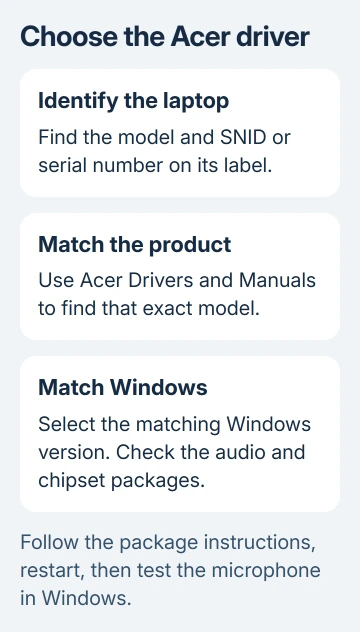
Download the audio and related chipset packages offered for that exact model, following their installation instructions. The relevant driver can be grouped with another package; don't assume every Acer lists a separate coprocessor download.
If the microphone remains missing, the Windows instructions also offer audio-driver reinstallation through Device Manager. Save the correct Acer installer first, ready to use if Windows doesn't restore the device.
After installation and a restart, return to the Windows microphone test. It's good if the device appears without a warning, but play the recorded sample to check that your microphone actually works.
4. Try the coprocessor workaround for a USB-mic freeze
One Acer Nitro owner confirmed that disabling AMD Audio CoProcessor stopped the microphone problem in a USB audio troubleshooting thread. The original fault froze Windows when a USB microphone was connected.
The original poster also said it worked, with no later report of it returning. A later participant with another audio dongle still reported crashes. Use this workaround for matching symptoms; it isn't a confirmed Acer-wide driver fix.
Disconnect the USB mic and save open work. Open Device Manager > System devices. Find AMD Audio CoProcessor, right-click it, choose Disable device, and confirm. Leave similarly named HDMI and display-audio devices alone.
Restart if prompted, reconnect the USB mic, and repeat whatever previously caused Windows to freeze. Check the Windows recording sample and normal shutdown too, since the reported failure also affected audio settings and shutdown.
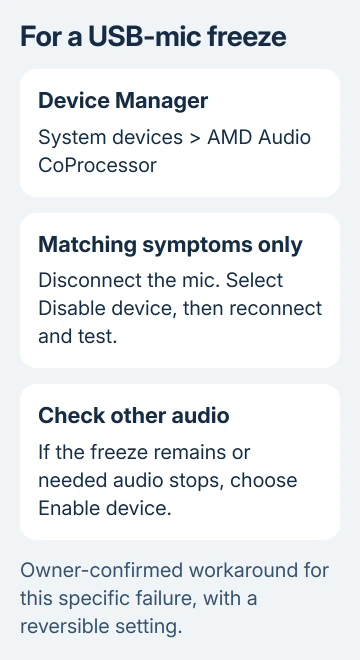
Disabling this component can affect other audio functions. Test the built-in microphone and speakers too; if audio is lost or the freeze remains, return to the same entry and choose Enable device.
I'd keep the device enabled if your built-in mic is silent but Windows still responds. Try this workaround when connecting the external mic reliably causes the same freeze, not just because the laptop has an AMD processor.
If the coprocessor entry isn't present, skip this step. Disabling unrelated system devices to imitate another model's list creates a second problem without checking the original one.
5. Give Acer a repeatable fault and the driver details
If the microphone still fails, contact Acer with the model, Windows version, audio-driver version, and any Device Manager code. Explain whether the built-in mic is silent or a USB mic freezes the computer.
Include the mic's model, whether it connects directly or through a hub, and whether another input records normally. If disabling the coprocessor helped, ask for a supported driver fix that keeps the other audio functions available.
A USB mic that also fails on another computer needs its maker's support involved. For a laptop whose built-in mic is absent after the correct driver is restored, ask Acer about hardware diagnostics and warranty service.
Once the input works, keep the Windows USB microphone setup steps for choosing the intended external device. Changing microphones later can require selecting it again in the call app.
The Short Version
Test the correct input, allow app access, and use drivers for the exact Acer model. Disabling AMD Audio CoProcessor is an owner-confirmed workaround for a matching USB-mic freeze; reverse it if it doesn't help or removes needed audio.
Checked November 12, 2026.
 If you have any business, I can build it online