
You pick a screen or a window to share in a Teams meeting. The control bar appears, and a second later Teams closes and restarts. Calls work and chat works. Only screen sharing kills the app.
I would turn off HDR in Windows before anything else, because two owners on one Microsoft Q&A thread solved it with that switch. On an AMD graphics card, one more file can cause it, and an owner found exactly which.
That Q&A thread has a "Same question" count of 20+, and a Super User question from September has 647 views.
Read the crash before you fix it
Open Event Viewer, then Windows Logs, Application. Find the Error for ms-teams.exe (Teams.exe in classic Teams) at the time of the crash, and read the line Faulting module name, which tells you whose graphics driver failed.
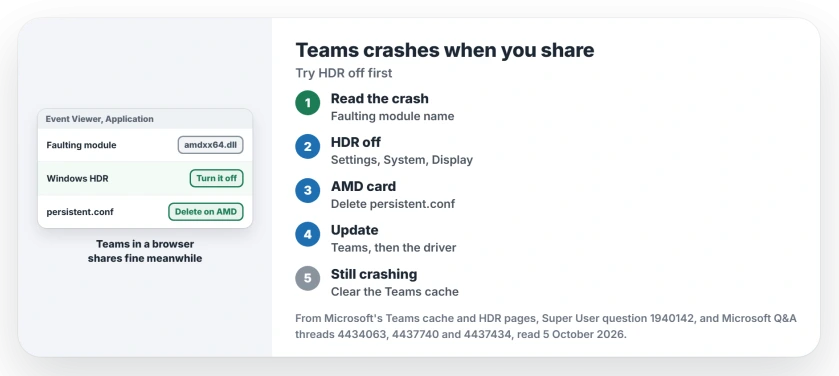
Status: checked 5 October 2026. Teams closed seconds after sharing began. Turning off HDR stopped it for two owners; an AMD owner deleted one Teams settings file, until an update fixed it.
The owners' logs named three: igd10um64xe.dll for Intel, nvwgf2umx.dll for Nvidia, and amdxx64.dll for AMD. Ours: I would read that line first, because it tells you which fix here fits your PC.
1. Turn off HDR
In Windows 11 the HDR switch sits in Settings, System, Display, as Microsoft's HDR settings page shows. Windows 10 calls it Use HDR, under Windows HD Color settings.
Confirmed by an owner: "I disabled HDR on the screen setting and it works like a charm". Another posted "after disable the HDR, it works well". Ours: switch it back on after the meeting if you watch HDR video.
2. On an AMD card, delete one Teams file
The Super User owner ran a Radeon 7900 XTX. Renaming the Teams package folder stopped the crash. So they hunted down the one file to blame: "The only file you need to delete to fix this issue is this one".
Quit Teams from the tray icon first. Then open this folder, which comes from Microsoft's own cache steps:
%userprofile%\appdata\local\Packages\MSTeams_8wekyb3d8bbwe\LocalCache\Microsoft\MSTeamsGo into Logs, then the folder whose name starts with sc-tf, then SkypeRT. Delete persistent.conf there. The owner reported that they "haven't lost any chat history, shared file nor app setting" afterward.
Why your crash can come back
The owner traced it to a line about the HEVC video extension inside that file. They warned it was "still a temporary fix". Your crash returns once Teams is closed and reopened after a share.
Another member set that line to 0 and made the file read-only. That stops Teams from changing it. The owner was less sure, writing "I can't help but wonder if it might have unknown side effects".
Ours: delete the file before each meeting rather than locking it. You lose nothing you can see.
3. Update Teams and your graphics driver
Later, in a comment, the same owner wrote: "I think they finally fixed it", since a clean file no longer gained the HEVC line when they started a call. Ours: that points to an update to Teams or the driver.
On an older Q&A thread, an owner with the same AMD card had the driver crash during Teams sharing on every 24.x release. Release 23.12.1 did not crash. Ours: update Teams first, then try your graphics card maker's current driver.
4. Clear the Teams cache
Microsoft says clearing the cache is "a targeted step for a small number of problems with the local client", and the steps for new Teams are on its Teams cache page.
Microsoft's note on the Reset option is blunt: "When you reset the Teams app, the app data is deleted". Ours: I would try the single file first, then the cache, then a reset.
Share from a browser in the meantime
The owners agree on one thing. Teams in a browser shares fine. The Super User owner wrote that "the web version of Microsoft Teams is working fine" and only the desktop app crashed.
Before the next call, choose the shared window and computer-audio option for the content being presented.
On Firefox they lost audio sharing, so you may want the app back soon. If your camera misbehaves in the same meetings, see Teams camera not working. For sound, see Teams audio not working.
What did not help
Reinstalling the graphics driver changed nothing for the Super User owner. On the Nvidia thread, an owner had tried older and newer drivers, a Teams reinstall and a cache clean, all with HDR already off.
Ours: that Nvidia case shows HDR is not the only trigger. Your Event Viewer line is still the best guide.
Does this happen on a Mac?
Q&A has a thread about Teams crashing on screen sharing on macOS Sequoia, but every fix on this page came from a Windows PC. HDR and the AMD file are Windows-side causes.
The Short Version
- Teams can crash a second after screen sharing starts while everything else works.
- Event Viewer names the graphics driver behind the crash.
- Turning off HDR fixed it for two owners.
- On AMD, deleting persistent.conf stopped it, but it came back after Teams restarted.
- A later update fixed the AMD case for that owner.
- Teams in a browser shares fine while you wait.
Where to Next
Turn off HDR and start a test meeting on your own. If Teams still closes, read the Faulting module name in Event Viewer.
Which graphics card is in your PC, and which fix worked? Leave both in the comments.

Isaac Smith is the founder and editor of PC Glance, a website that covers computers, laptops, and technology. He is a tech enthusiast and a computer geek who loves to share his insights and help his readers make smart choices when buying tech gadgets or laptops. He is always curious and updated about the latest tech trends.