Microsoft Teams meeting links open the invited call directly. For everyday work, sign into the organization's account, then use chat for messages and Calendar for meetings. That account determines which conversations appear.
To keep the app but stop its sign-in launch, disable Teams automatic startup in its settings and the computer's startup controls.
The steps here cover work or school Teams on a computer, with phone controls where they differ. A personal account can have a different set of features.
In this guide
Open Teams with the account used by your organization
Start Microsoft Teams from Windows Start or the Mac's Applications folder. Microsoft documents the browser option at teams.microsoft.com in its Teams sign-in guide.
If the Mac has no installed app yet, download and install Teams for macOS before choosing the account for these conversations.
To remove the desktop client from this computer, uninstall the installed Teams copy and check any legacy installer separately.
If that installed copy offers a newer release, complete the Teams update before checking which controls your account receives.
Enter the work or school credentials and complete any verification required by the organization. Confirm that the account belongs to the workplace or school whose conversations you need.
If that identity displays the wrong spelling, correct the Teams account name through the personal profile or the organization that controls it.
A completely blank client needs the Teams window and video repairs before its chat controls can be used.
Replacing an office telephone service also needs a complete Teams Phone plan for carrier access, call handling, and the changeover.
When access stalls after entering that account, work through Teams connection problems before changing chat or meeting controls.
Status: Microsoft Teams chat, channel and meeting instructions checked November 3, 2026. This guide uses work or school Teams; access and available features depend on the organization.
On a phone, install Microsoft's Teams app from the device's app store and sign into that account. If access is refused, ask the organization to check the account's Teams access rather than creating an unrelated personal login.
Once signed in, check unwanted Away status in Teams separately from whether messages are arriving.
Send a message to a person or group
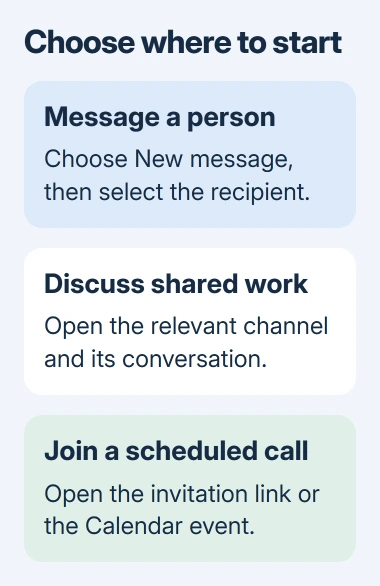
Select New message at the top of the chats-and-channels list. Enter the recipient's name, choose the intended person, write the message and select Send. On the phone app, start with Chat > New message.
For a group, add the other recipients before sending. Microsoft's chat instructions also explain how to name the group and review its participants.
Check that the message appears in the intended conversation. Similar names can belong to different people, so verify the selected recipient before sending confidential information.
A failed outgoing message needs the Teams delivery checks, including pending personal requests and organization notices.
Unwanted contact needs the Teams blocking controls, which differ between personal profiles and organizational outside contacts.
Keep shared discussions in the appropriate channel
Open the team's channel when the conversation belongs with its shared work. Microsoft says people with access to that channel can read its messages; choosing a channel is different from selecting individual chat recipients.
For a channel missing from Teams, check hidden entries and membership before asking its owner about deletion.
Starting a project without an existing workspace calls for creating a Teams team, including its audience and first channel.
In a Posts layout, choose Start a new post or Start a post, enter the subject and message, then select Post. Use Reply on an existing discussion when responding to it.
A Conversation tab uses a threaded layout. Write a new message and select Send, or use Reply in thread for a specific discussion. Microsoft's channel-message guide describes both layouts.
If the new-post command is unavailable, the channel may restrict posting to moderators. Ask its owner about posting permission; a different keyboard shortcut cannot grant that access.
Join the meeting and control what others hear or see
Open the meeting link in the invitation, or select Calendar, open the meeting and choose Join. Microsoft states that joining without an account depends on the organizer allowing it; some invitations place guests in a lobby.
For a participant without a Teams login, use browser or phone guest entry and complete the meeting's requested verification.
The meeting-joining instructions explain those routes. If waiting in a lobby, the organizer needs to admit you; repeatedly opening the invitation does not admit you automatically.
Coming from Zoom? Compare the Teams meeting experience before choosing how to invite outside participants.
Once connected, Mic switches your microphone on or off and Camera controls video. Chat opens the meeting conversation. Select Leave when finished, as described in Microsoft's meeting-control reference.
Calling ordinary phone numbers through a provider needs an administrator to configure Teams Operator Connect, including licenses and number assignments.
To preserve the call, start a Teams meeting recording and check the capture notice; joining or sharing a screen alone doesn't record it.
For camera privacy during that call, choose a Teams background before joining or change it from the meeting controls.
Joining a call leaves your desktop unshared; Teams screen visibility changes when you choose content to present.
For a microphone that remains silent while enabled, check Teams' selected audio device. Presenting an app uses the separate screen-sharing controls, including its computer-sound option.
Schedule a call for later
In the current desktop Calendar, select New or a timeslot. Add the title, date, time and attendees, enable Teams meeting, then select Save. Confirm the event includes online meeting details.
For an unscheduled discussion, start a Teams meeting immediately from Calendar, a chat or a channel instead.
Scheduling from Google Calendar uses the official Teams meeting add-on, with its own installation and account authorization.
Microsoft's scheduling page also gives a chat route: More chat options > Schedule a meeting, followed by the details and Send.
On a phone, use Calendar > New event, add the participants and meeting details, then tap Done. Check the time and recipients before sending an invitation, especially when colleagues work in another time zone.
After the call, download its Teams recording through Shared and confirm that downloading is allowed for your account.
If the expected team, calendar or permission remains missing, give IT the account address and exact message. For a meeting-access problem, contact its organizer with the invitation you received.
The Short Version
Use the organization's account, choose a person or channel for messages, and join calls through their invitation or Calendar. Check Mic and Camera during the call, and enable Teams meeting when scheduling an online event.