

A Microsoft Teams update needs the desktop app to restart before it takes effect. Use Update > Update and restart Teams in the desktop update control when offered. Phones install Teams updates through their app stores.
Teams on the web is already updated. If a new feature is missing, first check the installed app version, then check whether the update still needs to finish or your account hasn't received the feature yet.
In this guide
Check the installed version before starting
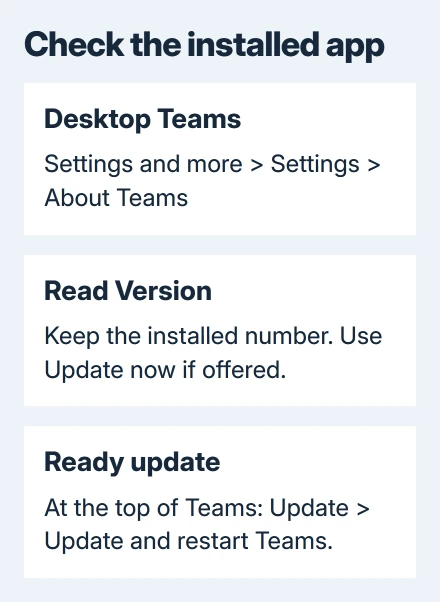
In desktop Teams, select Settings and more > Settings > About Teams. Under Version, check the installed version and whether Update now is offered. This route applies to personal Teams and work or school Teams.
Keep the version number if you're checking with your help desk. IT can compare it with their approved version. The app icon and your computer's last restart don't tell them which release you're running.
Microsoft's Teams update instructions explain automatic updates while the app is idle. Restarting finishes the change; downloading alone doesn't.
Don't use an old tutorial's avatar-menu command as the only way to check. The current About Teams screen shows your installed version and any waiting updates. The window's update control handles a ready desktop update.
The Teams getting-started guide covers chats and meetings after updating. Keep using your existing organization account to access its conversations.
Install a ready desktop update on Windows
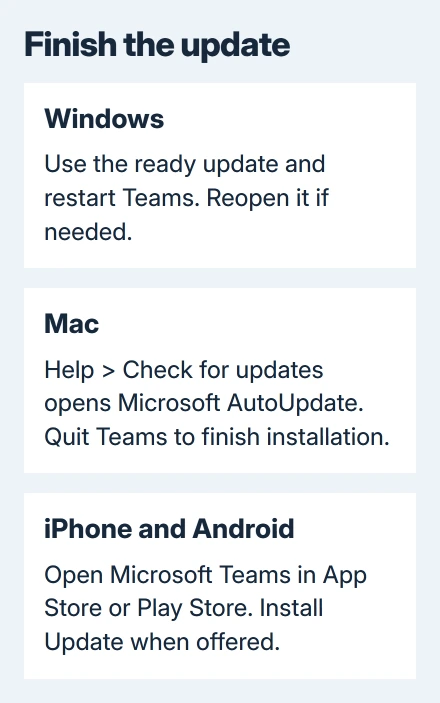
Finish or leave your meeting and save anything you're composing before restarting the app. At the top of Teams, select Update, then Update and restart Teams. If the version screen offers Update now, use that control.
Teams closes to apply the update. If it doesn't reopen on its own, launch Microsoft Teams from Start. Return to Settings and more > Settings > About Teams and check the version again.
If Teams also launches at ordinary Windows sign-in, change its automatic startup choice after the update is complete.
In Windows 10, update through the installed Teams app. Windows 11 uses the same process. Windows Update is the operating system's updater; it doesn't replace the app's own update check or its restart.
If the screen says the app is current, return to the work you were doing. Repeatedly closing and opening it won't force a feature that hasn't reached your account yet.
If the update returns with the same failure or the installed version doesn't change, record the wording and continue to the managed-computer checks. Don't delete files from the app's installation folder to force the installer.
Finish the update on a Mac
The Mac app uses Microsoft AutoUpdate. Open Teams, then choose Help > Check for updates in the Mac menu bar to open that updater. Follow the update choices it offers for Teams.
After the download, quit Teams so the update can finish installing. Teams on macOS waits for you to quit; it doesn't automatically restart itself to apply the update.
Open Teams again and check Settings and more > Settings > About Teams. If the update downloaded while Teams stayed open, the old version may still be running. That can explain why its appearance hasn't changed yet.
If Microsoft AutoUpdate is missing, blocked, or controlled by your organization, ask IT to repair that updater or install the approved Teams package. The app's network connection can work even when its update service is blocked.
For a Mac needing a fresh app rather than an update, install the current Teams package and check system support and administrator approval.
I'd try this updater before reinstalling a working Teams app on a Mac. It keeps the repair focused on the part responsible for installing the new version.
Update Teams on iPhone, iPad, or Android
For iPhone and iPad, launch App Store, search for Microsoft Teams, and open its listing. Tap Update if offered. If the button says Open, that device has no newer release available from the store at that moment.
On Android, open Google Play Store, search for Microsoft Teams, and open the app's listing. Tap Update when available. Let installation finish, then launch Teams again.
Check the version inside the mobile app through your profile picture > Settings > About. That screen shows the version; it doesn't install updates inside Teams.
If the store won't install the update, read its error first. A storage, account, or device-compatibility message needs its own repair. Reinstalling Teams doesn't remove an app store's compatibility requirement.
For a company-managed phone, follow the organization's approved app-store or management process. If the update is withheld there, send IT the Teams version and the store's message rather than installing a package from another website.
When a work computer won't update
If your organization manages the computer, you may need IT to fix the update. Teams uses system services and approved download addresses; chat can work even when update downloads are blocked.
On Windows, ask IT to check Delivery Optimization, the Windows service used to deliver updates, and whether the required Microsoft 365 endpoints are allowed. Unsupported service settings or blocked downloads can stop the update.
For a fresh Windows deployment, download Teams for offline installation and keep its package together with the bootstrapper.
Leave the files and permissions under WindowsApps alone. Changing the Teams app package can make Windows treat it as damaged and create more installation problems.
On a Mac, include whether Help > Check for updates opens Microsoft AutoUpdate. That helps IT distinguish a missing or blocked updater from a download that completed but still needs Teams to quit.
For a remote or virtual work desktop, ask the team that manages that desktop to update its copy of Teams. Updating the app on your personal computer doesn't update a different copy running inside the remote session.
Separate an update problem from a missing feature
Teams releases reach customers gradually. Features can also depend on account permissions or organizational settings, so a current version number doesn't mean every account has identical controls.
For keeping conversation records independently of the client version, prepare a Teams backup using the route for your account type.
To change the room visible behind you, use Teams background effects and check whether the effect was applied to the live camera view.
A missing New team option also needs a team-creation permission check, since an app update cannot grant that organizational right.
If the difference concerns Teams camera mirroring, that option affects your preview rather than changing the picture sent to other people.
Use Help > What's new to check release information. If a colleague has a feature you don't, tell IT the feature name, account type, installed version, and whether you're using desktop, mobile, or web Teams.
If a completed update leaves the app unusable, follow the Teams connection and app checks. Follow the repair matching the symptom that remains.
Send an update failure that keeps returning to your help desk with the exact error and version. For personal Teams, use its Help options or Microsoft Support and ask for help fixing Teams updates on your operating system.
The Short Version
Check About Teams, install an offered update, and restart the app. Macs use Help > Check for updates and Microsoft AutoUpdate. Phones use their app stores. Send blocked work-client updates to IT for updater and network checks.
Checked November 12, 2026.
 If you have any business, I can build it online






