

Teams personal accounts can export chat history and media. Work and school accounts handle messages and files differently. Check which account holds the material first; copying the app folder won't back up your conversations.
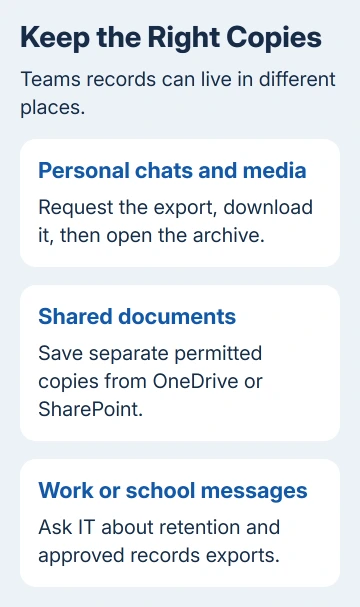
Use Export My Data for personal chats. At work or school, save permitted files and ask IT about message retention and exports. Keep downloaded documents alongside the chat archive; they are separate parts of the backup.
In this guide
Choose the account and the material you need
Open your Teams profile and check whether the account is personal, work, or school. If several accounts are listed, choose the one with the conversation before looking for files or requesting an export.
Decide which messages, pictures, documents, or project records you need. One export won't necessarily collect everything. Note the relevant chats, channels, and dates so you can check the result afterward.
Microsoft describes the personal account process in its Teams export instructions. The address still includes the older Free wording, but the current help page labels the product Teams for personal use.
Ask about the organization's data rules before moving work documents or conversations to a personal drive. Get permission first, especially for projects containing customer or employee information.
Request a personal chat and media export
Open the Export page linked in the personal Teams help instructions and use the Microsoft account that contains those conversations. Select Chat history, Media, or both, then choose Submit request.
Select Continue if prompted. Return to that page periodically and check Available Exports. When the archive is ready, its Download link appears there. Submitting the request doesn't download the archive. You'll need to return for it.
Choose history and media to keep the conversation with its included pictures and other media. A text record won't include every media file. Give the downloaded archive a folder named for its request date.
The call log is included too. The export excludes deleted chats and communities you've been removed from, so request and check it while the material is still available.
The export instructions don't promise that the chat archive will be ready instantly. Leave a pending request alone and check its status rather than treating the lack of an immediate download as an empty backup.
Extract the archive and check the conversations
The personal export arrives as a .tar archive, a container holding several files. On a Mac, open the downloaded archive using the system's built-in support. Keep the original archive while checking the extracted contents.
The built-in tar tool accepts these commands on Windows 11; Windows 10 uses them too. Open Command Prompt in the folder holding the download. For an archive in your user account's Downloads folder, enter:
cd /d "%USERPROFILE%\Downloads"
tar -xvf "YOURFILENAME_export.tar"
Use the archive's real filename in place of the example. Tar extracts the files into Command Prompt's current folder. For tidy results, move the archive into an empty folder and open Command Prompt there before running the command.
Look for messages.json in the extracted files. JSON is a text format that stores your messages in a structured layout. The personal export instructions also link a viewer: open its index.html, choose the messages file, and select Load.
I'd inspect a conversation with a known date and open a few included media files before calling the backup complete. Keep the archive together with its extracted files so the source download remains available if you need to unpack it again.
If extraction reports a missing file, compare the command with the actual archive name and folder. If the download itself is incomplete, return to Available Exports and download it again before changing the extraction command.
Save the documents separately
Personal Teams documents can be stored in OneDrive, including its Microsoft Teams Chat Files folder. Open OneDrive on the computer, locate the required documents, and copy them into the folder where you're keeping the backup.
Open each copied document before changing its original. A shortcut to an online document doesn't contain the complete file. Store the archive separately from folders that synchronize deletions to cloud storage.
For work or school Teams, channel files live in the team's SharePoint storage. Files sent in chats use OneDrive for Business. Check those locations when the conversation is still there but its attachment won't open.
For active collaboration rather than backup, a Word file that Teams cannot edit needs the original editor and permission checks, not a separate download.
On desktop Teams, open the channel's Shared tab, find the document, and select More actions > Download. For a file in the Teams OneDrive tab, its More actions > Download choice can provide a local copy when permission allows it.
If a download choice is unavailable, ask the file owner for an approved copy. The Teams app troubleshooting guide helps with an app failure, but changing the app won't give you permission to download a file.
Ask the administrator about work or school messages
The personal Export My Data procedure isn't a workplace chat backup command. For organizational messages, ask IT what retention rules apply and whether an approved export is available for the conversations you need.
Administrators with the required roles can use Microsoft Purview eDiscovery to search and export Teams message records. IT uses this to collect the organization's records. You can't turn it on yourself from inside a chat.
Give IT the account, conversation names, participants, dates, and attachment needs. Ask what their export will contain. If you need deleted messages or files, ask how they can be recovered before deleting anything else.
When setting up Teams on a replacement computer, update the app and sign into the correct account. Keep the downloaded records separately and check that you can open them. Signing into Teams again doesn't check those backup files.
The Short Version
Request personal chat history and media, download the archive, and inspect it. Save OneDrive or SharePoint documents separately. Ask IT about approved work or school message exports before your access changes.
Checked November 16, 2026.
 If you have any business, I can build it online






