

Opening the shared document in a browser or desktop Word is the quickest supported route when Teams won't let you edit. Use the file's Open in menu. If it stays read-only outside Teams, check permission and the account first.
A missing editing toolbar, a missing Desktop app option and a file shared for viewing can look similar inside Teams. Check which control is missing before changing settings.
In this guide
1. Open the same shared file outside the Teams viewer
Find the document in its chat, channel or Teams OneDrive file list. Open the file's three-dot menu, choose Open in, then Open in browser. In the desktop version of Teams, Desktop app may also be available.
Keep using the same shared file instead of downloading a separate copy. That copy doesn't automatically replace the original, so colleagues could keep seeing a document that never received your changes.
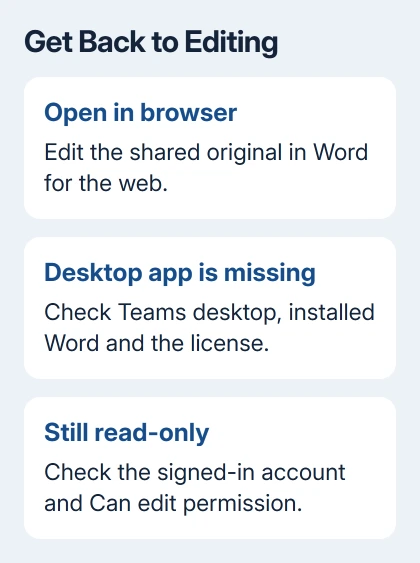
In Word for the web, check the mode in the document's top bar. If Viewing is selected and Editing is available, choose Editing. Make a small change you want to keep, then check that it has saved before returning to Teams.
The file-editing instructions support opening Office documents in their web or desktop app. If browser editing works, keep using that window while IT checks Teams.
If the browser also refuses editing, don't repeat the Open in command. Continue with permission and account checks in step 2. If only the Desktop app option is missing, step 3 explains that separate limitation.
2. Check permission on this document and the signed-in account
Check the account address you're using in the browser editor against the one on the sharing invitation. Your personal and school logins can both be active on this PC but hold different file permissions.
Open the original link with the intended account. If it allows viewing but not editing, ask the owner to grant Can edit to that address. Teams membership or an old invitation doesn't confirm that this file still allows editing.
The owner can open Share > Manage Access to review who has access and the links used to share the document. Ask them to check the actual Word file, especially if it was shared separately from the rest of the channel's material.
Reopen the shared original after access changes and check for Editing. Don't test a copy under your own account. The OneDrive sharing steps explain view and edit access for the storage behind many shared files.
If Word shows a document-protection warning, keep its wording and ask the owner. Permission to open a file doesn't mean you can change content the owner has protected. An Office repair won't remove a restriction the owner applied.
3. Check the requirements when Desktop app is missing
This menu choice requires the Windows or Mac version of Teams, running as an installed desktop app. Teams on the web offers Teams and Browser as its opening choices; a missing desktop option there isn't, by itself, an installation failure.
Check that the Word desktop app is actually installed. Search for Word in Windows Start, or look in the Mac's Applications folder, and open it directly. A browser shortcut to Word isn't the same as an installed desktop copy.
The current missing Desktop app guidance also lists a licensing requirement: Office 365 E3 or E5 with the O365ProPlusRetail product ID. Have IT check the assigned license and installed product when the option remains absent.
The product ID tells IT which Office installation license you're using. Don't edit it yourself. Ask IT to compare it with your Teams account and installed apps. A paid subscription doesn't automatically meet this particular requirement.
Use Open in browser while IT checks those requirements if web editing works. Buying another license or reinstalling Teams before that check can leave the real account or installation mismatch unchanged.
4. Set your file-opening preference after editing works
In desktop Teams, open Settings and more > Settings > Files and links. Under File open preference, choose Browser or Desktop App, according to the working route available to your account.
This changes the default editor for Word, Excel and PowerPoint files. It doesn't grant permission or install Word. Choose the app or browser only after you've opened and edited the file there successfully.
Older Teams instructions may call the settings category Files. In the current help page it's Files and links. Look for whichever category your copy shows. The older name isn't an additional setting.
I'd change this preference if the same viewing-only experience interrupts work every day. For an occasional problem, the individual file's Open in command is enough. Both routes keep you working with the shared original.
On phones, including iPhone and Android models, use Word's mobile app for editing. The desktop file-opening settings aren't the phone's repair path. Sign in to Word with the account that has access to the document.
Why did this happen to Education accounts in 2020?
The March 2020 discussion was about a temporary change for Office 365 Education. Documents opened in view mode first, and people had to choose a browser or desktop app to edit them.
One owner confirmed the desktop Word route worked. Another said reinstalling Teams didn't restore its editing controls. The accepted answer explained that temporary service change; it didn't describe a repair on the reader's computer.
Report a Teams-only editing failure
Don't assume your school account has that same temporary restriction today. If the file edits in a browser but fails inside Teams, send IT that comparison, the Teams version and the document's location.
Ask your administrator to check Health > Service health within Microsoft 365 admin center for current incidents. If none matches, request a Teams editor support case through that administrator, including the working browser result.
For a document that edits but won't keep its changes, use the Word AutoSave account checks.
The Short Version
Use Open in browser or Desktop app on the shared original. If editing fails there too, check the account and Can edit access. Check installation and licensing for a missing desktop choice. Then set your opening preference.
Checked November 16, 2026.
 If you have any business, I can build it online






