

Mirror my video changes your own Teams camera preview. It doesn't flip the picture other participants receive. Turn it off if writing looks backward in your preview. Before changing the camera, ask someone in the meeting to check the text.
If participants see reversed writing, check the camera sending the picture or the software controlling it. If only your own tile looks mirrored, the local preview setting is the place to start.
In this guide
Change the preview in Teams on your computer
In Teams Free for desktop, select Settings and more beside your profile picture. Open Settings > Devices, then find Video settings and Mirror my video. Change the switch while watching the camera preview.
During a call or meeting in that edition, open More > Video effects and settings. Select the Settings tab to find the video-device and appearance controls, including mirroring. Use the Video effects tab for backgrounds and other effects.
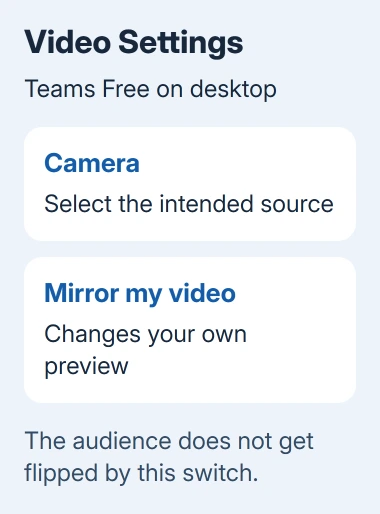
Microsoft's Teams Free device settings state that this changes the view for you. It isn't a switch for reversing the outgoing video sent to the meeting.
For a work or school client, check the camera or device settings before joining or during the call. The layout varies between Teams apps, so yours might not have the same panel as Teams Free. Look for the named mirroring control.
If the preview flips when you change it, the setting has taken effect. Leave it facing the way you prefer. The webcam driver doesn't need reinstalling just to change the orientation of your own preview.
Check writing with another participant
Hold up a card with a short word, keeping it inside the camera frame. Ask someone else whether it reads normally on their screen. That check separates a reversed preview from a picture that is actually being sent backward.
Use text on a card in front of the camera, rather than judging which side of your face looks familiar. A mirror image can feel natural to the person on camera while being unfamiliar in an unmirrored view.
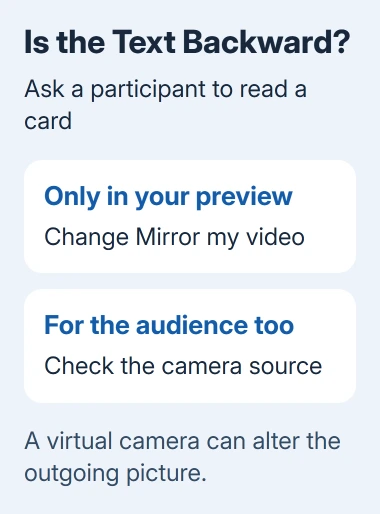
If the other participant reads the card normally, the picture they're receiving is already correct. Change Mirror my video only for your own comfort. Asking others to flip their screens would reverse a picture that already reads correctly.
If the card is reversed for them too, note which camera Teams is using and continue to the source check. Keep the same card for the comparison so you aren't judging two different scenes.
I'd make that quick check before a lesson or demonstration involving printed instructions. What matters is whether the audience can read the material, even if your own tile looks different from what you expected.
Check the camera source when the audience sees it backward
Open the camera selection in Teams' device settings. Read the selected name. A laptop camera, USB webcam, document camera, phone-webcam app, and virtual camera can all appear as separate sources on one computer.
Select the intended physical camera, then repeat the card check. If its picture reads correctly but the virtual source is reversed, change orientation in the software creating that source.
Virtual-camera software changes video before sending it to apps such as Teams. Its horizontal-flip control reverses the picture it sends, while Teams' mirror switch changes your preview. Adjusting both can produce confusing combinations.
Follow the camera maker's flip or mirror instructions. Controls vary, and Rotate may turn the picture rather than reflect it horizontally. Change one option, then compare the audience's view again.
If your selected camera is a GoPro, the GoPro webcam connection checks cover getting its source into the meeting. Getting a missing picture back and turning it the right way are separate tasks.
Keep the desktop and phone controls separate
The Teams Free instructions for Mirror my video apply to its desktop app. Don't expect an iPhone or Android phone to display the same Settings > Devices screen. Use the controls offered by the Teams client you're actually running.
Switching front and rear phone cameras changes the lens supplying the picture. The lens you choose doesn't tell you whether participants see a reflection. Repeat the card check after switching cameras when orientation matters.
For Teams in a browser, check the settings available there. If it doesn't offer the same mirror switch as your desktop app, use the desktop client when changing your local preview is necessary.
Keep track of which device is sending video when you've joined a meeting on both a phone and a computer. Changing the laptop preview won't change a picture coming from the phone. Check the active camera before adjusting another setting.
Present documents with a share when readability matters
A page's webcam picture depends on lighting, focus, angle, camera choice, and which way it faces. For a document on your computer, sharing its window usually gives people a clearer view than holding a printout toward the lens.
Open the file and use Teams' Share control to choose its window. That presents the document content directly. Mirror my video is a camera-preview option, so it isn't the control for reversing a shared document or slide.
For a physical object or handwritten page, keep using the camera and check the audience's view. Don't pre-flip every printed label just because its reflection appears backward in your own tile.
If the camera is black or missing rather than mirrored, use the Teams camera troubleshooting steps. A mirror switch can't restore a blocked camera permission or select hardware that isn't connected.
If participants still see reversed text, tell the camera maker or IT the device name, which Teams app you use, and how the physical and virtual cameras compare. Ask which orientation control applies to that model.
The Short Version
Mirror my video changes your preview. Check readable text with another participant. If they see it reversed too, check the selected camera and its software. Share documents directly when the files are on your computer.
Checked November 12, 2026.






