
The GoPro Webcam app can appear not to open because it runs in the background, with its controls in the system tray. Check the GoPro icon beside the Windows clock before reinstalling the utility.
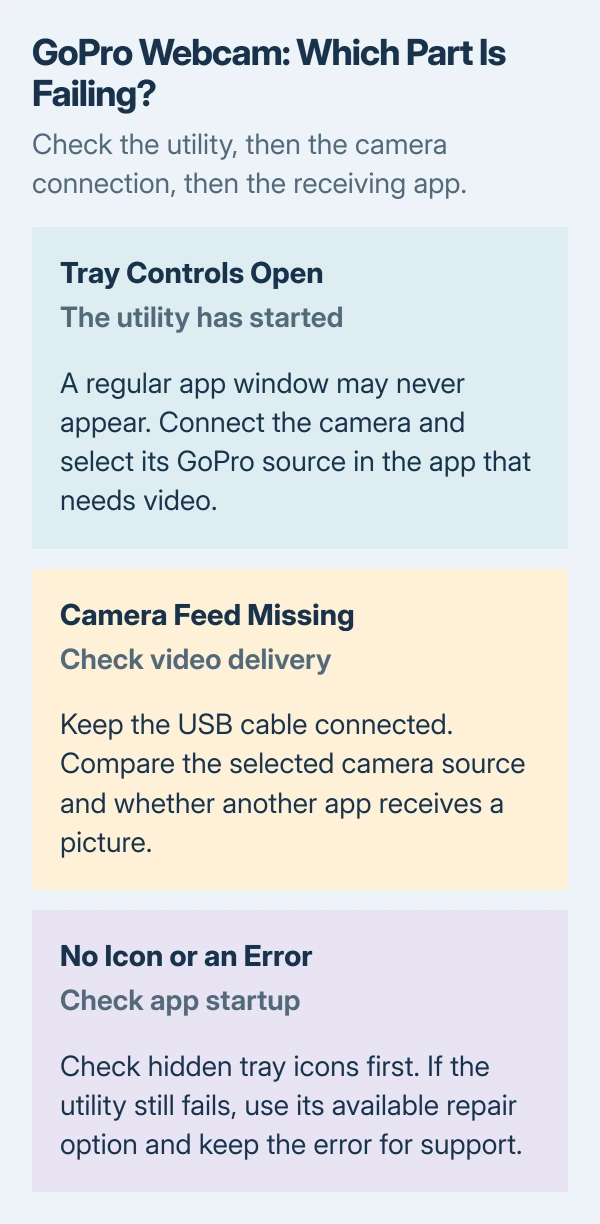
A visible icon means the app has started. A missing camera feed is then a separate connection or camera-selection problem. Start by separating those two symptoms.
Find the utility in the Windows system tray
Open Start, search for GoPro Webcam and launch the installed app. Then look in the system tray, including its hidden-icon menu. The desktop shortcut does not have to produce a large application window.
Stop Motion Studio's developer documents this behavior in its GoPro integration instructions. Its guide describes a background utility that supplies a camera feed to another app.
Status: Vendor integration, Windows tray and repair steps, and GoPro's Mac app listing checked October 29, 2026. No utility was installed or camera connected.
On Windows 11, right-click the taskbar's blank area and select Taskbar settings > Other system tray icons. Enable the hidden-icon menu if it is off, then check for GoPro again.
Microsoft's taskbar instructions also allow dragging an icon from the overflow area into the visible tray. Keep GoPro there if its hidden position caused the confusion.
If the icon appears and opens its controls, continue with the camera connection. If no icon appears, or Windows displays an error, use the app-repair section.
Finish installation before checking the camera feed
Restart after installing the utility. Stop Motion Studio's setup guide includes a restart to initialize the software. Save open work first, then check whether the GoPro tray controls appear.
Connect the GoPro to the computer with its USB-C cable and leave it attached while using the camera. The integration guide says the utility's tray icon becomes active when it detects the camera.
Seeing the tray icon confirms startup; camera detection and the receiving app's access remain separate checks.
If the picture drops or freezes after connecting, the same developer recommends reconnecting the USB cable or restarting the utility from the tray. Try those when the feed fails, rather than repeatedly opening the desktop shortcut.
Select GoPro in the app that needs the picture
Open the camera selection in the meeting or recording app and select GoPro Webcam when it is offered. The exact name can differ by operating system, as the integration guide notes.
For Stop Motion Studio Pro, the documented route is Camera Settings > Camera Source. Select the GoPro source and allow a few seconds for the first picture. Use the corresponding camera chooser in the app needed for the recording or meeting.
A working feed in one app shows that the utility can supply video. If only Teams fails, check its camera selection and permissions before repairing GoPro's installation.
If Windows reports blocked camera access or an error across applications, follow the Windows webcam checks for that specific symptom. A black preview and a utility that never starts need different next steps.
Repair an actual Windows launch failure
Microsoft documents a repair route for desktop programs in its app-repair instructions. Use it when the utility produces an error or still has no usable tray controls.
- Open Control Panel using taskbar search.
- Select Programs > Programs and Features.
- Right-click GoPro Webcam, then choose Repair if available.
- If Repair is absent, choose Change and check whether its installer offers a repair option.
- Follow that installer's instructions, then launch the utility again.
Microsoft says these options are not available for every program. If GoPro offers neither route, skip this step. A missing repair control does not prove that the installation is damaged.
This is Microsoft's general program-repair procedure, not a GoPro-specific confirmed fix. Keep the exact error message if the utility still fails; it gives support more information than the absence of a window.
On a Mac, check the app requirement and update it
GoPro's Mac App Store listing requires macOS 13.0 or later. It lists supported Black models and specifically excludes HERO11 Mini and MAX. A similar camera name does not establish compatibility.
That listing applies to the Mac app. It does not establish the Windows utility's current system requirements, so check the Windows download information for the installer being used.
For a Mac app that actually quits or refuses to launch, Apple states the first steps in its app-opening guidance: quit and reopen it, then restart the Mac.
Open App Store > Updates to check the store version.
Apple's later step is deleting and downloading the app again, with a warning that its stored app data can be lost. Preserve any needed settings or data before taking that step.
For continued failure, contact GoPro with the computer's OS version, utility version, camera model and exact error.
Say whether the tray controls appear and whether any application receives a picture. Those details separate launch failure from video delivery.
The Short Version
Check the tray first, then connect the camera and select its source in the receiving app. Complete an installation restart if still pending.
Use program repair for an actual launch failure. Keep Mac requirements separate from Windows.

Isaac Smith is the founder and editor of PC Glance, a website that covers computers, laptops, and technology. He is a tech enthusiast and a computer geek who loves to share his insights and help his readers make smart choices when buying tech gadgets or laptops. He is always curious and updated about the latest tech trends.