

Microsoft Teams' offline installer needs two files: the current Teams bootstrapper and the MSIX package that matches your PC. Download both on a connected computer, copy them across, then run the bootstrapper with its offline option.
That avoids downloading the main Teams package during installation. It doesn't make Teams meetings or sign-in work without internet, and a missing Windows component can still need a separate download.
In this guide
1. Check the PC that will run Teams
On the destination computer, open Settings > System > About and read System type. Choose the package for that computer, even when you're using a different laptop to download the files.
An x64-based Intel or AMD computer needs the MSIX x64 download. For an ARM-based processor running Windows, select ARM64. The deployment page also lists MSIX x86 for a matching 32-bit installation.
Check the Windows version on the same page. An offline package doesn't bypass the Teams system requirements. Being able to open an old Teams client doesn't mean the PC meets the current requirements.
These steps are for administrators installing Teams on Windows. It isn't a Mac installer, an Android package, or an Office offline image. For the Office applications themselves, use the separate Microsoft 365 offline installer.
If the computer belongs to work or school, check with IT before installing. IT may already supply the approved package, settings, and permissions. Installing your own copy can conflict with the version they manage.
2. Save the bootstrapper and the matching MSIX
Open Microsoft's bulk deployment instructions on the connected computer. Find Option 1B: Download and install Teams using an offline installer.
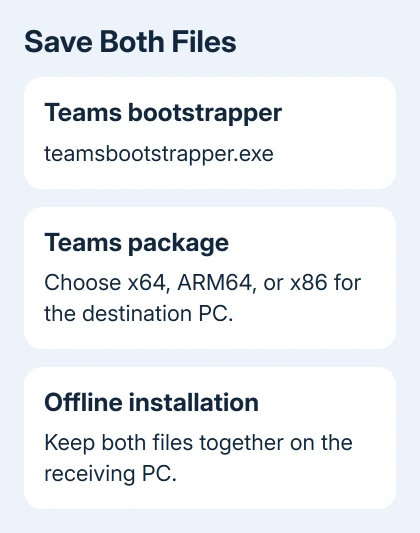
Save the linked .exe installer, named teamsbootstrapper.exe. Then save the MSIX that matches your PC's system type from the links in that section. Keep both files together so the installer and its package reach the destination PC.
Use the current bootstrapper rather than a copy saved months ago. Microsoft says to compare Properties > Details > Product version with the latest download when checking an older copy.
Wait for both downloads to finish before copying them. A browser showing a download in progress doesn't mean the package is ready. Check the files in the download folder and confirm neither is still marked as a partial download.
Copy both files to a local folder on the destination, such as C:\TeamsInstall. In Windows 11, turn on File Explorer > View > Show > File name extensions to distinguish the MSIX from a shortcut.
Windows 10 has that checkbox on File Explorer's View tab. The setting changes what Explorer displays; it doesn't convert a downloaded file into a different format. Don't add another extension to the name.
3. Run the offline installation as administrator
Find Command Prompt through Start search. Select Run as administrator, then approve the request or enter administrator credentials when Windows asks. Without those credentials, ask the computer's administrator for help.
Change to the folder containing the bootstrapper:
cd /d C:\TeamsInstallRun the offline command, substituting your downloaded MSIX filename for this example:
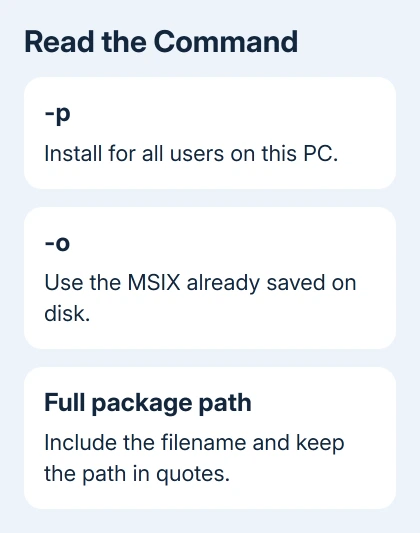
teamsbootstrapper.exe -p -o "C:\TeamsInstall\MSTeams-x64.msix"The -p option prepares Teams for all users on that computer, including accounts added later. The -o option points to the package already on disk. Without -o and a package path, the normal command downloads Teams.
Keep the quotes around the package path, especially when a folder name contains spaces. Point the command to the MSIX file itself, not just its folder.
Let the command finish and read its success or error result. Success means Teams has been installed for the computer's users. Then open Teams from Start. With the required connection, it should reach the sign-in screen.
I'd use a local folder for the first attempt. A network share adds another connection and permission check, so a failed install has more possible causes to check.
4. Correct a failed installation using its error
If the command can't find the package, compare the typed path with the file in Explorer. A renamed download, an extra extension, or a path pointing to the USB drive after it was removed can prevent the installer from finding the MSIX.
For a package or processor error, check the destination again in System > About. Downloading ARM64 files on an Intel laptop is fine when they are for an ARM64 computer. Match the receiving PC.
For an installation error code, save that complete code. Look up the code under Common HRESULT values in the deployment instructions. It helps explain what failed, so you can address that problem instead of running the same command again.
Check required components before replacing the installer. Teams needs a current WebView2 runtime, the component it uses to display web content inside the app. Copying the MSIX doesn't automatically install every other component Teams needs.
On a managed computer, send IT the error code, Windows version, system type, and the package filename. Ask them to check the required runtime and the organization's application deployment policy.
Don't remove security controls to get an unsigned or unofficial installer through. The official deployment page provides the bootstrapper and package links needed for this procedure.
5. Separate installation from sign-in and updates
Teams still needs a working connection and an authorized account for its online services. A sign-in failure after successful installation needs account or connection troubleshooting. It doesn't mean the bootstrapper failed to install Teams.
For an installed client that can't sign in or connect, follow the Teams connection and app checks. Downloading the same offline package again can't remove account restrictions or restore an unavailable service.
The offline option reduces the initial package download. Teams can still update afterward. Its deployment requirements include Delivery Optimization for automatic updates.
For several computers, let IT distribute the approved files with its management tools. Sharing a package can reduce downloads, but each PC still needs a package that matches its processor, a supported system, and a successful install.
The Short Version
Save the latest bootstrapper and the destination PC's MSIX from the official deployment page. Run the bootstrapper as administrator with -p -o and the full package path. Keep any error code; Teams still needs internet for its services.
Checked November 16, 2026.
 If you have any business, I can build it online






