

The Microsoft 365 offline installer saves the setup files in advance. For a personal subscription, choose Offline installer in the account's Install window. Save the image, then open it on the Windows PC that needs Office.
This helps when an online installer keeps stopping on a poor connection. Downloading and activation still need internet access. An organization's Office installation uses the Deployment Tool instead of a personal account's image.
In this guide
1. Match the installer to the license you already have
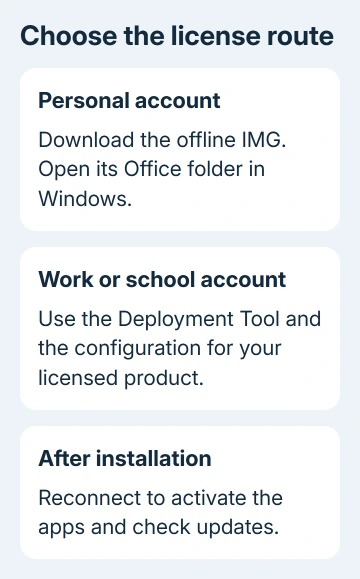
Check whether Office belongs to a personal Microsoft account or your organization. The two routes provide files for different licenses. Use the route that matches your license, even if you're installing on your own computer.
The offline installer doesn't include a subscription or product key. If the license hasn't been redeemed yet, finish the Microsoft 365 setup and account steps first. The account used for activation must have the matching license.
These offline steps are for Windows. A Mac uses its own Office installation package, not Setup32.exe, Setup64.exe or the Windows Office Deployment Tool. Don't copy the Windows image to a Mac expecting the same setup program to work.
If you're replacing an older suite, check its version before installing. The Office 2016 upgrade guide covers documents and local Outlook data that need attention before changing the installed apps.
2. Download the personal installer on a connected PC
Open Microsoft's Office offline installer page and select Office for home. Use its Download button, then sign in with the personal account that owns Office.
In the Install window, open Choose a version and select Offline installer. Choose the language for the apps, then select Install to start the download. Save the whole file before moving to the destination computer.
Microsoft says the downloaded image is O365HomePremRetail.img. The disk image holds the installation data, unlike a small launcher that downloads Office during setup. Check that the browser reports a completed download.
For a PC with poor internet, download through a better connection and transfer the image by USB drive. Keep the original until setup finishes successfully. An incomplete download isn't ready for offline installation.
I'd move the completed image itself rather than guessing which files to copy from an ordinary online installation. That keeps the installation package together and avoids discovering that a required file was left on the connected computer.
3. Open the image and run the correct setup file
On the destination PC, double-click the saved IMG in File Explorer. Windows should open it as a virtual drive, like a disc containing the installer. Open the new drive if its window doesn't appear automatically.
The drive letter can differ between computers. If another drive already uses D:, Windows can use the next available letter. Look for the newly mounted Office drive under This PC rather than looking for one specific letter.
Open its Office folder. Run Setup64.exe for 64-bit Office or Setup32.exe for 32-bit Office. Match any existing Office components and required add-ins; a 64-bit version of Windows doesn't mean every Office add-in supports 64-bit Office.
Let setup complete before disconnecting the installation media. The completion message tells you the apps are installed. Open Start and look for Word or Excel, then launch an app to continue with activation when internet is available.
If the image won't open, check that it finished downloading and copy it again from the original computer. If setup rejects the Office version or its 32-bit or 64-bit type, write down that message before removing installed Office products.
For business: use the Deployment Tool
Ask your Office administrator which product and 32-bit or 64-bit version you're licensed to use. Microsoft 365 Apps for business and Apps for enterprise use different product IDs. A plan with only web apps won't activate the desktop apps.
Download the Office Deployment Tool from the link in the business section of the support page. Create C:\ODT, run the tool and extract its files there. An XML configuration file tells the tool's setup.exe what to install.
For a licensed 64-bit Apps for business installation in US English, the documented configuration is:
<Configuration>
  <Add OfficeClientEdition="64">
    <Product ID="O365BusinessRetail">
      <Language ID="en-us" />
    </Product>
  </Add>
</Configuration>
Save it as installOfficeBusRet64.xml in C:\ODT. In Notepad, choose All files in the save dialog so the filename doesn't silently end in .txt. Use this example only when its product, language and architecture match your license.
On the connected computer, open Command Prompt, change to the ODT folder, and download the files:
cd /d C:\ODT
setup.exe /download installOfficeBusRet64.xml
Wait for the download process to finish. An Office subfolder holds the installation data. For another offline PC, copy the complete ODT folder, including setup.exe, the XML file and the downloaded Office subfolder.
On the destination, open Command Prompt in that copied folder and run:
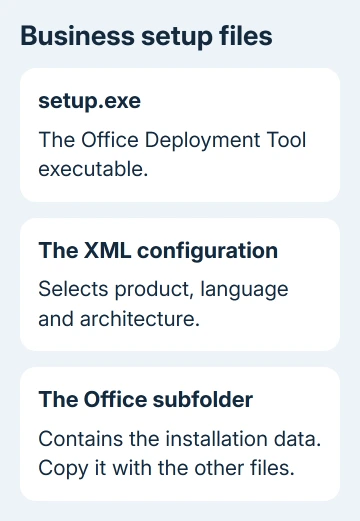
setup.exe /configure installOfficeBusRet64.xmlThe command installs the product you specified in the XML file. An enterprise license needs the enterprise configuration from the business instructions. On managed PCs, let IT supply it instead of guessing which product ID to enter.
4. Activate online and check the installed apps
Once the PC is back online, launch Word or Excel. Complete activation with your licensed account, accepting any license prompt that appears. Installation from local files doesn't remove the need to activate the product.
In Word or Excel, check the product information under File > Account. Select Update Options > Update Now when available. Organizations can manage updates differently; ask IT for the process if that control is absent.
You'll still need to reconnect the computer for activation checks and updates. Offline installation solves the download stage; it doesn't turn a Microsoft 365 subscription into a permanently disconnected license.
If setup still fails, send your administrator or Microsoft 365 support the error, account type, Office product, and whether it's 32-bit or 64-bit. Say whether you used an IMG or the Deployment Tool so they can check that installer's steps.
The Microsoft 365 contact options separate personal callbacks from an administrator's business service request.
The Short Version
Download and mount the personal-license IMG, then run the appropriate setup file. For business, use the Deployment Tool with matching configuration and downloaded data. Reconnect to activate and update the apps.
Checked November 15, 2026.
 If you have any business, I can build it online






