

Microsoft 365 support has separate personal and business routes. For Personal or Family, choose Home support on Microsoft's contact page. For business, an administrator uses Help & support in the Microsoft 365 admin center.
The account matters more than whether you're using a home computer. An employee working from home still needs the organization's support route. A personal subscription used for work still belongs to its personal Microsoft account.
In this guide
Identify the subscription's account first
Check which account your affected product belongs to. Personal and organizational accounts can have similar-looking addresses. They give you different support tools and access, so check which type you're using.
In Word or Excel for Windows, File > Account helps identify the signed-in account and product. Use the account associated with the subscription or purchase, rather than signing in with whichever address the browser remembers first.
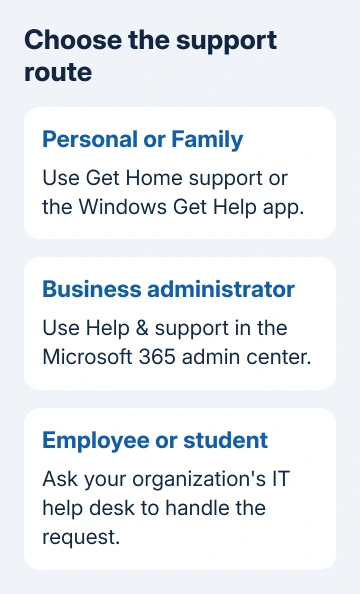
For a personal subscription shared with your household, check whether you're signed in with your own account or the account that bought it. The Microsoft 365 Family sharing guide explains that account relationship.
Prepare a short description of the problem: which app or service fails, the full error and its starting date. A billing question should name the subscription and charge; an app error should name the app and what triggers it.
Keep passwords and full payment-card details out of that description. Support needs enough information to identify the issue, not credentials pasted into a request or a screenshot of an entire private document.
Use Home support for Personal and Family
Open the official Microsoft contact page. Choose the Home route for personal and family accounts, then Get Home support. Sign in when asked so the site can offer help for your account and product.
Select Microsoft 365 or the affected app, describe the issue and review the suggested help. The page offers help articles and troubleshooting first. You'll see other contact options when they're available for your product and problem.
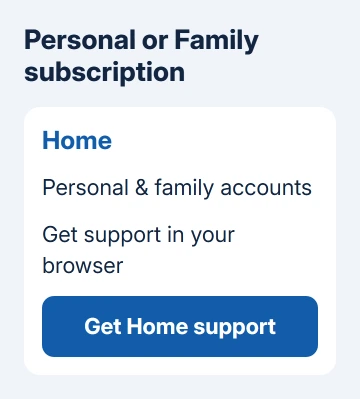
Choose an offered contact method and confirm your details. Chat and callbacks depend on the product, issue, subscription and opening hours. A missing callback button doesn't mean the wrong subscription was installed.
I'd start through that signed-in route rather than calling a number copied from a search result. It keeps the request attached to the correct product and avoids using an outdated regional phone number.
If you need help setting up or activating a retail key, keep your purchase confirmation ready. The Microsoft 365 setup guide explains redemption, which is different from asking support to locate an existing subscription.
Contact personal-account support from Windows Get Help
On Windows, open Start, search for Get Help and open the app. Enter a description of your Microsoft 365 problem, then follow the offered help and troubleshooting steps.
If those steps don't resolve it and the app offers Contact Support, select it. Choose the affected product or service, select any further issue category requested, then choose Confirm.
Choose an available contact method. For chat, confirm your details and continue to the browser chat window. For a callback, provide your phone number and keep the request number shown in the confirmation.
Requesting a callback doesn't mean the phone will ring immediately. Use the estimated timing shown for your request and keep the confirmation. Don't repeatedly submit identical requests because a call hasn't arrived the moment you click.
Get Help is a useful alternative when you're working directly on the Windows PC. On a Mac or phone, use the browser-based Home support route rather than searching for that Windows-only tool.
Open a business request as an administrator
Sign in to admin.cloud.microsoft with your organization's administrator account. Before opening a request for a service failure, check the admin center's Service health dashboard for a matching incident.
If the issue isn't listed or needs separate assistance, select Help & support at the bottom right. In Support Assistant, type your question or describe the problem. Review the results before continuing.
When those results don't help, select the Contact Support headset control. Choose phone or email, add and confirm the contact details, then select Contact me. The pane shows the expected wait time.
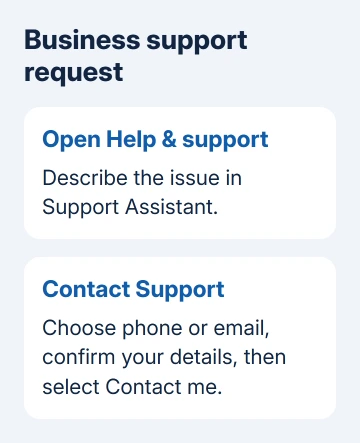
Microsoft's business support instructions state that this route needs an admin account and at least one subscription bought directly through Microsoft.
If every subscription came through a partner, contact that partner for support. Use the supplier in your organization's subscription records or purchasing agreement. A personal request isn't the right route for that organization.
For provider-based Teams calling, check the Operator Connect setup stage before reporting an absent number or failed assignment.
Open a separate service request for each unrelated issue. Keep a mail-delivery problem separate from a billing adjustment, for example, so each request has the details and contact person it needs.
Use the help desk when the admin center refuses access
If the admin center won't let you in, you might be signed in with a normal user account. Check the account and admin role before trying again. Buying another subscription won't grant that account permission in this organization.
For an employee or student, contact your company's IT help desk or school's technology support. Give them your work or school address, affected app, exact error, device type and the time the problem occurred.
If you're responsible for the business, check that you used the administrator account rather than a normal user account. Ask another existing admin to help with access if your organization has one.
For an admin who can't use the online route, use the country or region phone list linked from the official business support instructions. Numbers change, so get the current number from that official list.
Business phone support can require verification against your organization's registered contact details. Make sure you can use that registered contact method, then follow the official support steps for the request you started.
Keep the case number and return to the same request
Once a request is created, save its case number, contact method and any requested next steps. Reply through the existing case when the same fault persists, with the new error or result, instead of starting the explanation again.
If you can't create a request, record the page, account type and permission message. Check the route: Home for personal accounts, the admin center for eligible admins, or the supplier for partner-only subscriptions.
The Short Version
Use Home support or Get Help for personal subscriptions. Business admins use the admin center; employees ask IT, and partner-only subscriptions go through their supplier. Save the case number once your request is accepted.
Checked November 15, 2026.
 If you have any business, I can build it online






