

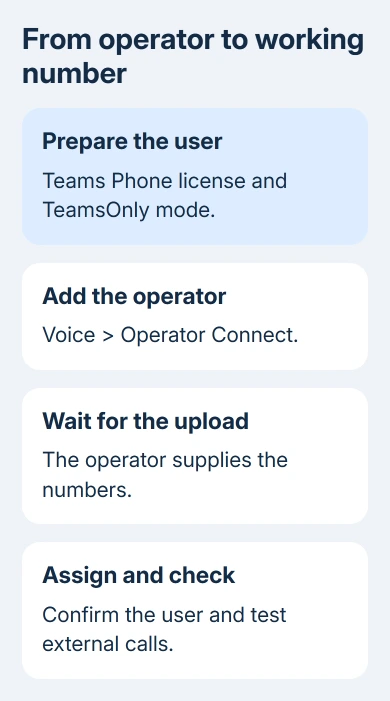
Operator Connect setup starts in the Teams admin center, but the telephone numbers come from your chosen operator. Enable the operator under Voice > Operator Connect, complete its order, then assign the uploaded numbers to licensed users.
Adding an operator alone doesn't give an employee a working phone number. The account also needs the right Teams Phone license and TeamsOnly mode, and an existing number needs a planned transfer from its current service.
In this guide
Check the users, licenses, and countries first
Use an administrator account with permission to manage Teams Phone. An employee's normal Teams account can't set this up for the organization, even when that person can already call colleagues inside Teams.
Check that each user who needs a number has the required Teams Phone license. Microsoft lists this requirement in its Operator Connect planning instructions, along with TeamsOnly mode and a supported operator.
In the Teams admin center, open Teams > Teams upgrade settings to check the organization's mode. For an organization using Islands mode, open Users, select the user, and check the coexistence mode under Account > Teams upgrade settings.
The user needs TeamsOnly. Ask the Teams administrator to plan any coexistence change, especially with Skype for Business still in use. An unplanned routing change can interrupt telephone service.
Choose a certified Operator Connect provider that serves the countries or regions you need. Confirm number availability, porting support, and the operator's service agreement before promising employees a changeover date.
For someone still learning the app, the Teams getting-started guide covers ordinary chats and meetings. Working chats and meetings don't tell you whether calls to external telephone numbers are set up.
Before retiring an office switchboard, review the complete Teams Phone replacement plan, including call menus and the devices that must keep working.
Enable the operator in the Teams admin center
Open admin.teams.microsoft.com and use an administrator login with permission to manage Teams Phone. In the left navigation, select Voice > Operator Connect. Open All operators and filter by region or service to find your provider.
Select that operator, then choose the countries or regions under Operator settings. These choices should match the service discussed with the provider, rather than every country displayed in its listing.
Review the contact details. Your name and email are shared automatically with the operator; the form also asks for company size and can accept a phone number. Use the details of someone who can handle the organization's telephone order.
Accept the data-transfer notice after reviewing it, then select Add as my operator. The operator should now appear under My operators, where you can review its status and manage its selected services.
If it doesn't appear, return to the setup pane and check that the addition completed. Note the operator name, selected country, account role, and any error shown so you can pass them to your administrator or provider.
Seeing the operator listed means this stage is complete. The phone service still needs numbers. Continue to the number order before trying to assign a number that hasn't reached the tenant yet.
Order new numbers and wait for their upload
For new users, order the telephone numbers through the operator's website or its agreed ordering process. You'll need the organization's tenant ID, the identifier for its Microsoft 365 organization.
Use the tenant ID confirmed by your administrator. A company can have several similarly named organizations, and an order placed for the wrong tenant won't show numbers in the admin center you're checking.
Once the operator completes the order, it uploads the numbers to your tenant. Open Voice > Phone numbers in the Teams admin center and check both the numbers and their provider before assigning them.
If an order is complete but the numbers aren't listed, ask the operator to check the tenant ID and upload status. Repeatedly adding the same operator doesn't replace that missing upload.
I'd begin with one user and a confirmed new number before arranging a large changeover. That gives your team a straightforward setup to verify while existing staff keep their current phone service.
For auto attendants, call queues, or conferencing, ask the operator for the appropriate service numbers. These are used differently from ordinary employee numbers, so don't assume an unused user number is the correct choice.
Assign each number to the intended user
Under Voice > Phone numbers, select the uploaded number, then Edit. Under Assigned to, find the user by name and select Assign. Complete any required location information, then select Apply.
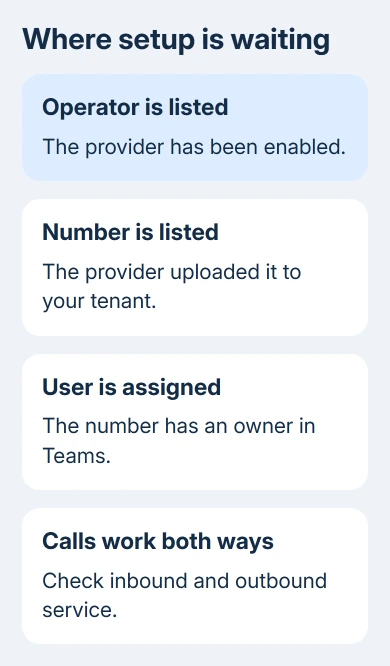
Before saving, confirm the intended person is selected, especially with similar display names. Return to the number list and check that the correct employee is attached to that number and the provider is the one you ordered from.
For a hybrid organization with on-premises Active Directory, ask IT to check the existing telephone-number entry before assignment. The old msRTCSIP-Line value must be removed and that change synced to Microsoft 365.
The emergency-address requirements depend on the number, country, and operator. Complete the location requirements for that deployment with the provider; don't copy another office's address just to complete the pane.
Have the user open Teams and check the calling experience. Make an ordinary outbound call and an inbound call to the assigned number, with the person available to answer. Record which direction fails if only one works.
A working call to a colleague inside Teams doesn't check this. Check that an external call works through the newly assigned number and that an incoming call reaches its owner.
Plan a number transfer before removing old routing
For numbers currently on a Microsoft Calling Plan, contact the selected operator to arrange the port. After that order completes and the operator uploads the numbers, assign them through the Teams admin center.
For Direct Routing, the setup has extra steps involving the existing number and online voice-routing policy. Use the Direct Routing migration section in the configuration instructions with the administrator who manages that service.
Don't unassign a working business number as an experiment while waiting for a port. Agree on the transfer sequence and service window with the provider so the organization knows when calls should move.
The Operator Connect configuration guide separates new numbers, Calling Plan transfers, and Direct Routing migration. Follow the steps for your existing service; either route ends with Operator Connect.
Give the operator a specific failed stage
Report the failed stage to the provider: missing operator, absent upload, refused assignment, or calls failing in one direction. Include the tenant ID, country, affected number, time, and error.
Keep the working number assignments while the provider checks the case. Removing an operator has separate requirements, including unassigning numbers and arranging their release, so it isn't a general troubleshooting reset.
For an account or Teams administration problem, use your organization's administrator or the Microsoft 365 business support route. Give them the provider's case number when the operator has already checked its side.
The Short Version
Check Teams Phone licensing and TeamsOnly mode, enable a supported operator, and order numbers for the correct tenant. Wait for the upload, assign the numbers, and verify external calls. Plan existing-number transfers with the operator.
Checked November 15, 2026.
 If you have any business, I can build it online






