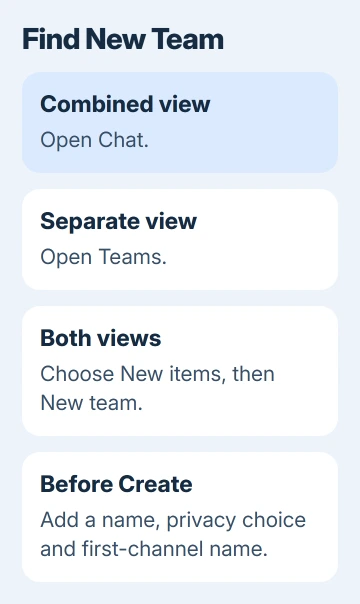
Create a team in Microsoft Teams from Chat > New items > New team, then give it a name, choose its privacy and name the first channel. In the separate teams view, start from Teams instead of Chat.
These controls belong to work or school Teams. A missing creation option can mean your organization restricts who can create teams, so changing chat settings won't necessarily bring it back.
In this guide
Start with the work or school account
Open the Teams desktop app on Windows or Mac and check the account shown under your profile. Choose the organization that should own the team. Personal accounts and other workplaces can display different conversations and controls.
For an unfamiliar installation, the Teams getting-started guide covers sign-in, chats and meetings. Finish signing into the right organization before creating a space for its files and discussions.
The creator becomes the team's owner. That role matters because you'll manage its members and settings. Choose an account that should keep responsibility for the team, rather than a temporary guest account from another organization.
A team contains channels for shared work. A group chat is another kind of conversation, so starting a new message and adding several people doesn't create a team with its own channel structure.
Create the team and its first channel
Microsoft's team creation instructions describe the current combined chat-and-channels view and the separate view. Follow the route that matches your left sidebar.
- Select Chat in the combined view, or Teams in the separate view.
- Choose New items, located over your chats and channels.
- Select New team.
- Enter a team name and, if useful, a description.
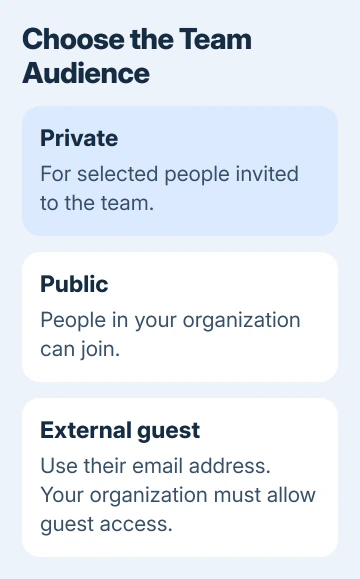
- Choose Private or Public, and select a sensitivity label if your organization uses one.
- Enter the name of the first channel.
- Select Create.
Use a name people can recognize in a busy sidebar, such as the project or department. Put the purpose in the description so someone deciding whether to join can tell what belongs there.
When creation finishes, look for the new team and its first channel in your list. Check both names before inviting colleagues. A typo is easier to correct while the team is still empty than after people start searching for it.
The first channel used to be called General automatically. Now you're asked to name it when you create the team. That channel stays with the team and can't be deleted or archived, although it can be renamed.
Choose who should be able to join
Choose Private for a selected group whose membership you want to control. Choose Public when anyone in the organization should be able to join the team's shared work. Public doesn't open membership to the internet.
I'd keep a project private until its membership and purpose are clear. Choose the intended members before putting sensitive project material into the new space.
The organization can set a default sensitivity label and control which privacy choices are available. A sensitivity label tells you your organization's rules for the team's data. It isn't a free-text tag you can ignore when naming a team.
If a required label or privacy choice is unclear, ask IT which one fits the material you'll store. Don't choose a more open team simply to work around a restriction on the private option.
Creating the team also creates associated SharePoint and OneNote resources. Those resources belong to the organization you chose, too. You're creating more than a conversation in your chat list.
Add members, then check their roles
Open the new team's More options menu and choose Add member. Search for colleagues by name or email address, select the intended people, then finish adding them. Check similar names before confirming.
The member-adding instructions explain the owner controls. After adding someone, the role selector lets you make them a member or an owner where that option is available.
Give ownership to someone who needs to manage the team. Other colleagues can participate as members without having to manage the team. A second appropriate owner can also help when the original creator is unavailable.
For someone outside the organization, use their full email address and follow the guest invitation process. Guest access has to be allowed by the organization; finding someone in member search doesn't let you bypass that policy.
Ask an invited person to check that the team appears under the correct organization in their account. If it doesn't, verify the address and invitation rather than creating a duplicate team with the same name.
Use the phone or classroom route when it applies
On the Teams phone app, go to your teams in the combined Chat view or the separate Teams view. Open More options in the upper-right corner and tap Create new team.
Enter its name and description, choose the privacy level and data type, then invite people or contact groups. The organization can restrict creation on mobile too. Using your phone won't give you creation rights you lack on your computer.
Teachers creating a class need the class-team workflow. Select Teams > Join or create team > Create team, choose Class, enter its details and select Next.
Add students or co-teachers when prompted, or skip that part and add them later. Choosing Class provides the education-specific team type; a normal project team isn't the same setup just because its name includes a course title.
When New team is missing or creation fails
Confirm the account and organization first. If Teams itself can't connect, resolve the Teams connection problem before retrying creation. Once the app connects, check your account's team-creation permissions.
If the account works but New team is missing, ask IT whether you're allowed to create Microsoft 365 groups and teams. Give them the account address, organization and the exact message or missing control you see.
Look for the team's name before pressing Create again. If it stays hidden, ask IT to check whether it was created and who owns it. That avoids leaving several empty copies for colleagues to sort through.
The Short Version
Check the organization, open New items and New team, then choose privacy and name the first channel. Give colleagues suitable roles. Ask IT to check creation rights when the command is missing.
Checked November 13, 2026.