Outlook email not showing pictures often means external image downloads are blocked. Open a message from a sender you trust and use its download-images banner first. That checks this message without allowing pictures from every sender.
Empty boxes, missing attachments and a red X need different checks. A classic Outlook picture bug was fixed in 2026, so persistent failures can need an Office update rather than looser privacy settings.
In this guide
1. Allow pictures in one trusted message
In classic Outlook for Windows, open the affected message and look for the information bar near its top. Select that bar, then choose Download Pictures. The pictures should fill their spaces if blocked downloads were the problem.
Microsoft's picture-download instructions describe this per-message control. It's a useful first check because it leaves the default protection in place for other mail.
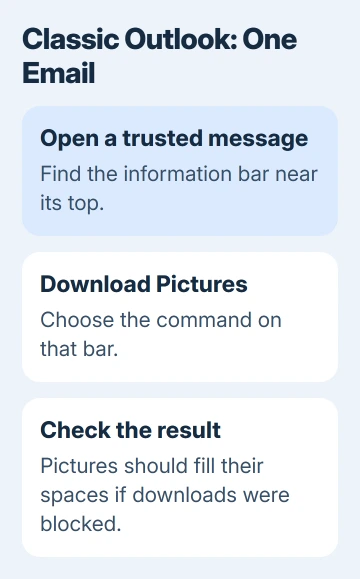
In the Reading Pane, allowing downloads saves the message automatically. For a message opened in its own window, save it after choosing Download Pictures if you want the pictures to remain available when you reopen it.
Only allow remote pictures for a message you trust. Loading an external image can tell the sender the message was opened, even when you haven't replied. A logo isn't needed to decide that an unexpected payment email is suspicious.
If the message contains a separate photo attachment rather than a blank space in its body, use the missing-attachment checks. Downloading external content doesn't retrieve a file the sender never attached.
2. Adjust classic Outlook without allowing every sender
For regular mail from a known sender, right-click a blocked image in an open message and choose Add Sender to Safe Senders List. The menu can also add the sender's entire domain.
I'd add the individual sender before trusting a whole domain. A newsletter from one address doesn't require every address at that organization to receive the same treatment.
For the download settings, open File > Options > Trust Center > Trust Center Settings > Automatic Download. The first checkbox controls automatic downloads in HTML email and RSS items. Clear it when you intend to allow downloads broadly.
With the first checkbox selected, you can choose specific exceptions. Clearing it allows all picture downloads and disables those extra choices. If an exception is grayed out, check that first checkbox.
Close the settings with OK, then reopen a trusted message to check the result. If these settings are locked on a work computer, ask IT whether an organization policy controls external images rather than trying registry changes.
These paths apply to classic Outlook. New Outlook doesn't have those File and Trust Center screens. For a trusted received message in new Outlook, select Show blocked content when that banner is offered.
If pictures appear briefly and vanish again, treat that as a display failure rather than repeatedly trusting the sender. Owners have reported pictures disappearing after that command.
A reinstall helped one owner temporarily, while another got just one working email. Send an example email and Outlook's version through Help > Support. The Office update in the next section fixes classic Outlook, not new Outlook.
If Support isn't offered, use your work help desk or the Outlook support page. Include whether the pictures disappear after briefly loading, since that's more specific than pictures never appearing.
3. Update Office for persistent red X images
A bug in classic Outlook after the May 12, 2026 updates could hide images in messages, newsletters and signatures. A red X could appear, but not every affected message showed one.
The fixed-issue notice lists corrected builds across supported Office versions. Install the current update for your Office channel instead of manually seeking one of the older builds listed as fixed.
Run File > Office Account > Update Options > Update Now, then restart Outlook. For employer-managed updates, send IT the installed Office version and ask whether its channel includes the image fix.
Open the original message again after updating. Replies or forwards made during that bug may permanently lack the image because it wasn't included in the new message. Updating can't add the missing picture to those copies.
If needed, request a fresh copy of the original picture after updating. That also helps when a broken image is tied to an unavailable source rather than Outlook's download settings.
4. Check empty placeholders in the message editor
When pictures become empty boxes while composing or editing a message in classic Outlook, check the editor's display options. This differs from the external-content banner in received mail.
Open File > Options > Mail > Editor Options > Advanced. In Display email content, clear Show picture placeholders. That setting replaces pictures with empty boxes to speed scrolling through image-heavy messages.
The advanced editing options describe what the checkbox changes. Reopen the draft and check whether its inserted picture appears. Don't treat this as a fix for a missing external image on every Outlook platform.
If the entire message is absent, follow the separate Outlook delivery checks. Image settings only affect content inside a message that has reached your mailbox.
5. Use the Mac or phone controls for those apps
The Windows Trust Center path won't appear in these apps. Choose the settings that match your email app.
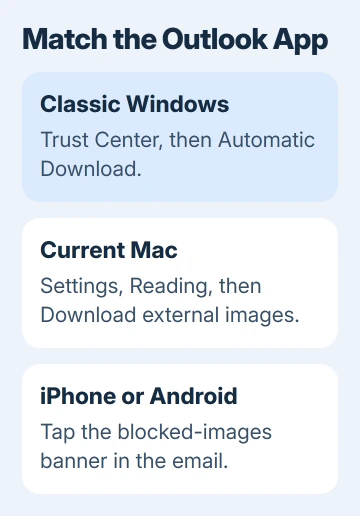
On current Outlook for Mac, open Outlook > Settings > Reading under Email. In Download external images, choose Always, My contacts, organization(s) and safe senders, or Ask before downloading, depending on who should be trusted.
Legacy Outlook uses Outlook > Settings > Reading > Security instead. Its choices include all messages, contacts or never. The Mac download guide separates these interfaces.
Those Mac controls don't govern attached pictures or images embedded as attachments in the message. If one of those is missing, changing the external-image setting won't bring it back.
On Outlook for iPhone or Android, tap the banner at the top of the email to download blocked external images. The mobile instructions say downloads are otherwise automatic unless you or IT enabled blocking.
6. Handle Outlook.com's connection warning separately
For Outlook.com showing Connection not secure beside external content, open Settings > General > Privacy and data. Under external images, choose Always use the Outlook service to load images.
That uses an image proxy, meaning Outlook's service fetches the picture. The external image protection page explains this choice. It isn't the classic Windows Trust Center setting.
If pictures still won't load, request a fresh image from its sender and report your app version with details of the affected message. In Outlook.com, choose Help, enter the problem and follow the additional-help option if offered.
The Short Version
Allow downloads in one trusted message first. Use the settings for your Outlook version, update classic Office for persistent missing images, and distinguish external content from a missing attachment or damaged forward.
Checked November 13, 2026.