

Google Calendar can create Teams links with the Microsoft Teams Meeting add-on. Install it, use your Microsoft work or school login, then choose Teams as the event's conferencing provider before saving the invitation.
This adds a Teams meeting to a Google Calendar event. It doesn't copy your whole calendar into Outlook or the Teams calendar, so check the saved event in Google Calendar to check that setup worked.
In this guide
Install the official meeting add-on
Open Google Calendar in a desktop browser with the Google account that will own the event. The browser steps work on Windows and Mac. Keep that account selected while you install the add-on and create your event.
Open the right-hand side panel and select Get Add-ons. If the panel is hidden, use Show side panel near the screen's lower edge. Search the Marketplace for Microsoft Teams Meeting and open the official listing.
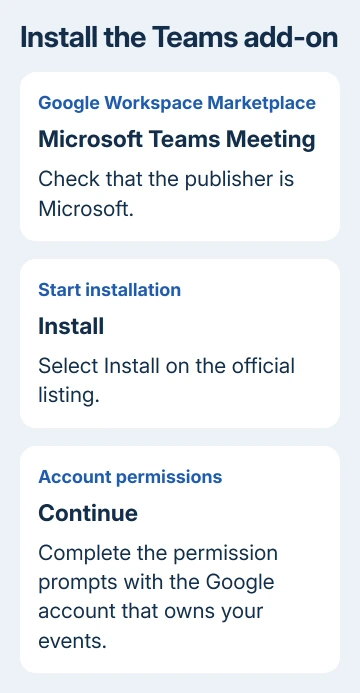
Check that the listing's publisher is Microsoft before continuing. Select Install, then Continue on the permission screen and complete the account permission prompts. After installation, the Teams add-on should appear in Calendar's sidebar.
Microsoft says you can install directly from the Marketplace or through Calendar in its installation instructions. Both routes install the Calendar integration, not the Teams desktop app.
If your organization blocks installation, ask the Google Workspace administrator to approve the official add-on. Installing the desktop Teams app won't add the missing conferencing choice to Google Calendar.
Connect the meeting organizer's account
Select the Teams add-on in Calendar's side panel, then choose Sign in. Use the Microsoft work or school account you use for Teams. Select Authorize Access when the add-on asks for the Google access it needs.
Your Google account owns the Calendar event, while your Microsoft account creates the Teams meeting. Each handles its own part of the invitation. A personal Microsoft account isn't the work or school sign-in specified for this add-on.
If several accounts are signed into the browser, read the account shown on each permission screen before continuing. It's easier to correct an account choice during setup than to discover the meeting was created under the wrong organizer.
I'd make the first event with a colleague who can confirm the invitation arrived. That checks whether the add-on can sign in, create a meeting link and deliver it before you use it for a larger meeting.
For ordinary chat and meeting controls after sign-in, the Teams getting-started guide covers the app itself. The app's controls differ from the Google Calendar add-on's sidebar.
Create the event and choose Teams conferencing
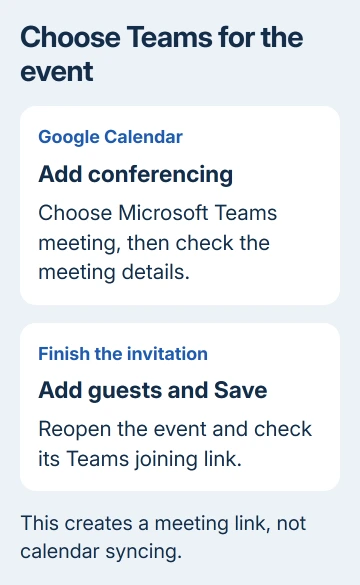
Click the date and time you want in Google Calendar. Enter a clear meeting title, then open Add conferencing and choose Teams meeting or Microsoft Teams meeting, depending on the event editor.
The Teams meeting details should appear in the event. Add people in Add guests, check the date, start time and end time, then add a description or location if needed. Select Save and send the guest invitations when prompted.
For a more detailed event editor, select Create > More options first. Then choose the Teams conferencing provider, enter the title and guests, and set the schedule. Either route lets you create the same kind of event.
Before sending, check which meeting service the event uses. Don't assume the default changed. A Google Meet link is a different meeting. The event should show Teams meeting details when Teams is what you intend to use.
Reopen the saved event and check its joining link. Ask an invited colleague to confirm the time and Teams details on their invitation. If your event has no meeting details, return to Add conferencing and select Teams.
Edit or join from Google Calendar
Double-click the saved event to open its details. Make any schedule or guest changes there, then select Save. When Calendar asks about sending updates, send them so the people invited receive the changed information.
When it's time to meet, open the event and select Join Teams meeting. The Teams side panel also shows today's and tomorrow's meetings with a Join control. Use either route for the event you're attending.
If the side panel is missing, reopen it before looking for the Teams icon. The add-on can still be installed even when its panel is hidden. The saved event's joining link is another way to reach the call.
For the first call, check the microphone and camera in the meeting's pre-join screen. Getting the Calendar invitation means scheduling worked; check that your computer uses the headset and camera you want.
The scheduling guide notes that the in-call title can appear as Microsoft Teams meeting instead of the title entered in the invitation. Compare the event's guests and time if that name seems unfamiliar.
Fix authorization errors or a sign-in window that never opens
For an Authorize error inside an event, select that error text or open the add-on in the side panel. Choose Authorize Access and complete the Google permission request. Then return to the event and try adding Teams conferencing again.
A different failure happens when selecting Sign in does nothing. The Microsoft login opens in a separate browser window. Check whether the browser blocked that window, allow the sign-in pop-up for this task, then select Sign in again.
If your work or school account still denies access, tell IT which error appears and which Google and Microsoft accounts you're using. Microsoft administrators can disable the app; Google Workspace rules can block its authentication route.
An administrator should check the Microsoft Teams meeting add-on for Google Workspace application and the organization's access rules. The authentication URL listed in the setup documentation is https://login.microsoftonline.com/.
Reinstalling a working add-on won't remove a block set by your organization. Ask the administrator to check both Microsoft application access and Google Workspace authorization, then retry once the policy change is complete.
Keep meeting links separate from calendar syncing
Meetings created with this add-on appear in Google Calendar and don't sync into other Microsoft calendars. A missing Outlook copy doesn't mean the Teams link failed. Check the event where you created it.
If the Microsoft calendar itself changed, the legacy Teams calendar explanation separates its retired switch from hidden events.
Some meeting features aren't supported through this add-on: meeting and AI notes, passcode generation and Copilot. Cloud Video Interop, which connects certain third-party video systems, isn't offered for joining these meetings either.
If the real goal is viewing another calendar in Outlook, use the Outlook calendar subscription and import options. Decide whether you need a calendar view or Teams conferencing before installing another integration.
For unresolved errors, ask your Microsoft 365 and Google Workspace administrators to review the add-on configuration together. Include the meeting error, what happens when you authorize access and whether the sign-in window opens.
The Short Version
Install Microsoft Teams Meeting, connect your work or school login and authorize access. Choose Teams under Add conferencing, save the event and check its link in Google Calendar. The add-on doesn't sync events into Outlook.
Checked November 13, 2026.






