

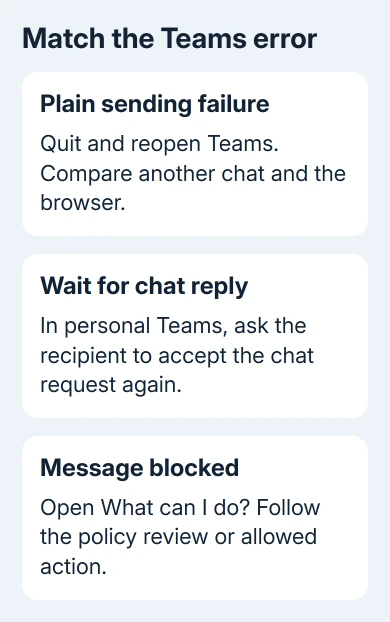
Microsoft Teams can fail to send after losing its connection; quit and reopen the app first. A chat-request notice means the recipient needs to accept, while a policy notice tells you how to request a review.
Check which notice you see, especially when other chats still work. A restriction on one conversation won't disappear after reinstalling an otherwise working app.
In this guide
1. Reopen Teams and check the failed conversation
Copy important unsent text somewhere safe before closing the app. Reopening the app can refresh a broken connection, but text that never reached the conversation still needs to be kept separately.
On Windows, find the Teams icon beside the clock or on the taskbar, right-click it, and choose Quit. Launch Teams again and return to that chat. Read the message's status before trying to send it again.
On a Mac, quit Teams with Command + Q, then open it again. If the app doesn't respond, use Apple menu > Force Quit, choose Microsoft Teams, and reopen it after it closes.
Microsoft's chat refresh instructions recommend restarting Teams and checking the internet connection. Open an ordinary website to see whether internet access works on that computer.
Once you're connected again, send one short message. Its failed or sending state should clear; confirm arrival with the recipient when it matters. Repeated long posts can leave unwanted copies after an unstable connection recovers.
If a Sign in prompt appears, finish signing in with the conversation's account. Teams can hold both personal and organizational profiles, each with its own chat access and history.
2. Separate one failed chat from an app-wide failure
Try a short message in another existing conversation where messaging is normally allowed. If that works, return to the first chat and read any request, membership, or organization notice there.
For an app-wide problem, compare the same account in Teams on the web. Use teams.microsoft.com for the work or school browser experience and select the account address shown in the desktop app's profile.
If browser messaging succeeds while the app fails, the desktop app needs attention. The general Teams repair steps cover its update and app-repair route without treating a conversation restriction as damaged software.
If messages fail in both the app and browser, tell IT what happened in each. Changing local app folders won't change a blocked conversation, a restriction on the account, or a wider failure affecting browser access as well.
For a missing conversation rather than a failed outgoing message, first confirm the selected account and chat view. The Teams chat workflow explains the difference between starting a chat and posting into a channel.
I'd do the browser comparison before a full app reset. It gives you a usable fallback when the browser works and helps support focus on the app that's failing.
3. Ask the recipient to accept a personal chat request
In Teams for personal use, a Wait for chat reply to continue messaging notice has its own fix. Ask the recipient through an existing contact method to accept the chat request again.
The personal-chat restriction allows up to 10 messages before the recipient accepts. Sending more attempts doesn't replace that acceptance step.
After the recipient accepts, reopen the conversation and send one new message. This advice applies to that notice: the ten-message limit isn't a general limit on all Teams work conversations.
If the recipient can't find or accept the request, use the support link on that personal Teams help page. Include the notice and explain whether the conversation worked before it appeared.
4. Use the policy notice for a blocked work message
A This message was blocked notice is different from a connection error. An organization's data-protection rule can stop a message containing sensitive information, and the recipient may see a blocked-content notice too.
Select What can I do? on the affected message. The actions you see depend on your organization's rule: some allow a report to the administrator, while others also offer an override.
For a rule with no override, report the message for review. It stays blocked until the administrator reviews it and permits it. Restarting the app won't get the message approved.
The message-policy guidance also distinguishes flagged from blocked. A flagged message can still be sent, so read the notice before assuming delivery failed.
A policy for inappropriate content can require a different review, with no option for you to override it. Give your administrator the specific notice and conversation details rather than trying to disguise the same content and resend it.
5. Check a file-only failure or an outside contact
If ordinary text sends but a message with a file is blocked, read the file warning. Teams can block certain high-risk file types, including executable files, and prevent recipients from accessing that message's contents.
Use your organization's approved software-sharing method or ask IT how that file should be distributed. Renaming a blocked executable's extension doesn't turn it into a suitable document attachment.
When only an outside contact fails, verify the contact's address and your selected Teams profile. External communication can be limited by either organization's settings, even when internal colleagues can chat normally.
Ask your Teams administrator to check external access and any communication restrictions for those two organizations. Include whether this is a new chat request, an existing one-to-one chat, or a group conversation.
That check is more useful than repeatedly creating groups to work around a restriction. The external-chat rules describe organization-level limits that the sender doesn't control.
6. Report a recurring failure with useful details
If several colleagues lose message sending at once, ask IT to check Microsoft 365's admin center under Health > Service health for a Teams incident. That helps tell an outage apart from a problem with one computer's app.
If the problem keeps happening, note the exact error, approximate failure time, affected account, and whether other chats work. Include what happened in the browser and say whether text, attachments, or both fail.
Send those details to your organization's support team for work or school Teams. For personal Teams, use its official support route. A temporary successful restart is useful information, but a returning failure still needs follow-up.
The Short Version
For a connection failure, restart Teams and compare a different chat with Teams web. Personal requests may need acceptance; blocked work content needs policy review. Include the exact notice when reporting file or external-contact failures.
Checked November 16, 2026.
 If you have any business, I can build it online






