

A missing Teams channel is often hidden rather than deleted. Open See all your teams at the list's end, select its team, and choose Show beside the channel. Check your account next if the entire team is missing.
Private and shared channels also depend on who has access. A channel that colleagues still use may need its owner to restore your access; a deleted channel needs an owner to restore the channel itself.
In this guide
1. Find the channel outside the shortened list
Scroll to the end of your chats-and-channels list in work or school Teams. Select See all your teams or See all your teams and channels, depending on the layout offered. Look for the team that contains the missing channel.
Select the team and choose Show beside the channel. In another layout, select See all channels beneath the team's name first. Reopen the main list and confirm that the channel appears there.

Microsoft's channel visibility instructions explain both labels. Hiding all a team's channels hides the team from that list as well, so a missing team isn't automatically a lost account.
On the phone app, go to the end of the teams-and-channels list and tap See all teams. Open the team and tap the circle beside the channels you want displayed. Tapping that selection again hides them.
If the channel reappears and its discussions open, you've restored its visibility. Keep using it without creating a replacement or reposting messages. If it's still missing from the complete list, continue to the next check.
2. Check filters, sections and temporary channel views
Return to the main list and clear an active search or filter that limits the conversations shown. Then open the complete team list again. A filter can hide a channel from view even though you still have access.
Look in any custom sections you use, including Favorites. To keep a visible channel handy in the current desktop layout, open More options beside its name and choose Show in > Favorites when offered.
Some layouts offer Pin instead. Use the control present in your own menu rather than looking for an option another Teams layout shows. Either control can keep that existing channel easy to reach.
Opening a channel through search or a link may show only a temporary preview. Previewed channels can appear in italics; use the channel's visibility control to keep it in the regular list instead of relying on that temporary entry.
For the difference between a one-to-one chat and a team's shared workspace, the Teams usage guide explains where each kind of discussion belongs. A missing chat isn't restored through a team's Channels settings.
If all channels from one workplace are absent, check the account before treating each channel as a separate failure. The whole group can disappear when Teams switches to another account.
3. Open the account and organization that own the team
Open your profile menu to read the current address and organization. Choose the workplace or school account used by this team. A personal Microsoft account doesn't automatically include your workplace's channels.
For a guest workspace, select the organization that invited you. Then return to its team list. Similar account names can make the wrong workspace look familiar, especially when you belong to several organizations.
Ask a colleague to send a link to an existing channel post. Open it with the intended account. If the post opens, the channel exists and that account can reach it; return to the visibility controls to restore its list entry.
If the link gives an access message, save its wording for the owner. Don't create another account with a similar address. The owner needs to check the identity already invited to the workspace.
When the app is stuck reconnecting or repeatedly requests sign-in, use the Teams connection repairs. Finish that sign-in problem before deciding that the channel's content has disappeared.
4. Ask the owner to check private or shared membership
Standard, private and shared channels let different groups of people in. Standard channels belong to the whole team. Private channels are visible to their members, and shared channels have their own membership arrangements.
Ask the channel owner whether the channel is private or shared and whether your exact account still has access. Give them the address shown in your Teams profile, especially if you've recently changed jobs, accounts or guest organizations.
Being a team owner doesn't automatically make someone a member of every private channel. If a private channel exists but isn't visible to you, its owner is the right person to check membership.
For a shared channel, the owner can open More options > Manage channel > Members to review members and participating teams. Ask them to check the intended person or team rather than only confirming that the channel still exists.
Once the owner fixes access, reopen Teams and check the full team list. If you still can't get in, give them the error's exact wording and time. They may need the organization's administrator to review the account or sharing policy.
5. Restore a deleted channel through its team
If the owner confirms deletion, ask them to open More options beside the host team, then Manage team > Channels. Find the Deleted filter or section. Current instructions can place it inside a 4 more filter menu.
Select Restore beside the intended channel and confirm Restore when asked. Then reopen the channel and check its conversations. Restoring the original channel is different from making a new channel with a similar name.
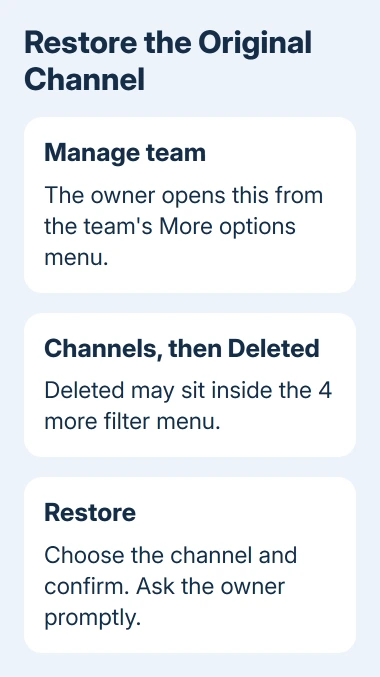
Act promptly. The current deletion help page gives a 21-day recovery window, while the channel-creation page still says 30 days. Those instructions disagree. Don't wait for the longer deadline; ask the owner to try Restore now.
If Deleted or Restore isn't offered, have a team owner check the same place. Owners can control which members may delete and restore channels. If that control is missing from your screen, an owner may still be able to restore the channel.
If the owner can't restore it, give IT the team name, channel name, channel type and approximate deletion date. Ask about recovery and retention settings. Keeping records of the messages doesn't bring the channel itself back.
I'd ask the owner to check deletion before anyone clears app data. Resetting your Teams app can't bring back a channel deleted for the whole team, and it can remove logs support needs.
The Short Version
Show the channel from the complete list, check filters and the signed-in organization, then ask its owner about membership. For deletion, use Manage team, Channels, Deleted and Restore promptly. Access and deletion need different repairs.
Checked November 15, 2026.
 If you have any business, I can build it online






