

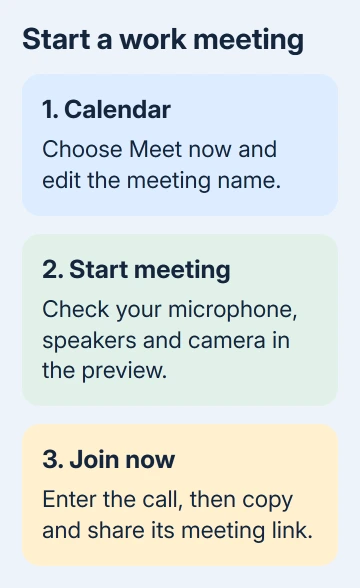
To start a Microsoft Teams meeting immediately, open Calendar > Meet now, name it and select Start meeting, then Join now. Copy its invitation link, then share it with the intended attendees.
That Calendar option requires an Exchange Online mailbox. An existing group chat is another way to start, and personal Teams accounts use Meet. Choose the method that fits your account. Creating a link doesn't put you in the call.
In this guide
Start from the work or school Calendar
In the desktop app, choose the account you'll host with: work or school. Select Calendar on the left, then Meet now in the upper-right corner. This creates an immediate meeting rather than scheduling an event for another day.
Edit Meeting name so the invitation describes the conversation. For example, a specific project name helps attendees recognize the link when you send it alongside an existing email discussion.
Select Get a link to share if you want the invitation link before joining. That route also offers Configure meeting options, where you can review who may enter and present.
When ready, select Start meeting. At the preview screen, check the microphone, speakers and camera, then select Join now. You're still getting ready at the preview screen. Join now takes you into the meeting itself.
Microsoft's instant-meeting instructions note that Calendar's Meet now requires an Exchange Online mailbox, the organization's cloud email mailbox. Without one, this option won't appear.
If you're trying to organize a later date, use the Teams scheduling steps instead. An immediate meeting link and a calendar invitation with a time aren't the same task.
Meet with people already in a group chat
Open the existing group chat and select Meet now at the top. This keeps the meeting connected to that conversation, so participants don't have to search for a separate invitation in another chat.
A group-chat meeting starts without ringing all its members. Other members can see that a meeting has started, open the chat and select Join. That's useful when some people need to finish what they're doing first.
To actively notify the group, select the live meeting indicator in the chat header, then Ring others to join. Choose individual names and Ring, or Ring all for members who aren't already in the meeting.
I'd send a short message about the purpose before ringing the whole group. People can decide whether they need to join, and a colleague who arrives late has some context for the call.
Another supported chat route is to type /meetnow into the compose box and press Enter or Tab. Use it in the chat where you want the meeting conversation to belong.
If you've left while others are still meeting, return to that group chat and select Join to rejoin. When the last person leaves, the group receives a notification that the instant meeting has ended.
Start a channel meeting for a shared work discussion
Choose the channel from your chats and channels list. Select Meet now in the upper-right corner, then Join now. This is the right route when the conversation belongs with a team's shared channel rather than a private group chat.
To connect the call to a particular channel post, choose Reply on that post. In the compose box, select Actions and apps > Meet now. That lets people see the surrounding discussion when they return to the channel.
Channel meeting conversations appear as threads in the channel's Posts or Conversations feed. Use the channel the participants already work in, rather than assuming any channel meeting will reach the whole organization.
If the control is missing, confirm which account and channel you're viewing. If it's still missing, give IT your account address, channel name and the control you can't see. Your organization's rules can affect meeting features.
Use the personal account's Meet controls
For Teams for personal use on desktop, open Meet > Create a meeting link. Enter a descriptive title. The meeting appears under Meeting links, where you can choose Join and Share link.
These personal-account controls differ from work Calendar's Meet now route. If you're using a personal account, use its Meet controls even though the work Calendar button isn't there.
On the personal mobile app, open Meet and choose Meet, then update the name and tap Start meeting. Review the meeting options, set audio and video, and tap Join now to enter.

Use Copy meeting link or Share meeting invite to send the invitation. The personal app's meeting-creation guide also explains options such as who can bypass the lobby and who can present.
For mobile work or school meetings, try Meet now in an existing group chat if that control is available. Use the personal app's Meet steps only for a personal account; your work account can have a different layout.
Invite people after joining and admit waiting guests
In a work meeting, select Copy meeting link when the invitation prompt appears and send it through the conversation the attendees are using. Copying the link doesn't send it to anyone by itself.
For a direct invitation inside the meeting, select People > Participants. Search the Invite someone or dial a number field, point to a person's name and choose Request to join to call them into the meeting.
Share invite > Share via default email opens an email invitation in your default mail app. Add the intended recipients and send it. Check the address list before sending a link intended for a private work discussion.
Watch for guests waiting in the lobby and admit the expected attendees. How they join depends on your organization's settings; some visitors need to verify an email address or sign in before they reach that stage.
If the first participant can't hear you, use the Teams audio-device checks to select the microphone the meeting is actually using. Starting another meeting won't change a wrongly selected headset.
When the meeting still won't start
For a missing Calendar button, ask IT whether the account has an Exchange Online mailbox and whether instant meetings are allowed. Include the account address and the route that failed: Calendar, group chat or channel.
If an attendee can't enter, ask for the exact message and whether they're joining with a personal or work account, or as a guest. Check the invitation and admission settings with that information before asking them to reinstall the app.
The Short Version
Use Calendar's Meet now for an immediate work meeting, a group chat to meet in that conversation, or the personal account's Meet tab. Join the call after the preview, share its link and check the lobby for waiting attendees.
Checked November 16, 2026.
 If you have any business, I can build it online






