

A Microsoft Teams black screen can affect the entire app or just the video. Restart and repair Teams if its window is blank. If the meeting controls work but video is black, check camera access and the Nahimic driver conflict.
Check which part is black before resetting Teams. A closed camera shutter and a blank app window need different fixes. These steps cover the current Windows desktop app, with separate Mac permission checks.
In this guide
1. Reopen Teams and identify the black area
Quit Teams from its notification-area icon, then open it from Start. Closing its window alone can leave the app running. If it won't quit, open Task Manager with Ctrl + Shift + Esc, select Microsoft Teams, and choose End task.
Check what returns. Can you read chats and open Settings? Is only your camera preview black, or are other people's video and shared content missing too? Choose the repair that matches what you see.
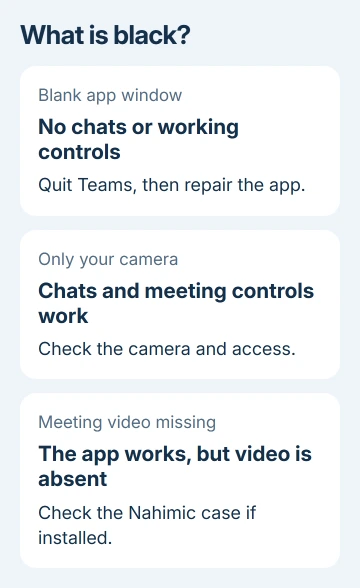
If the whole window is black and you can't use its controls, start with section 2. For a visible meeting interface with missing video, go to section 3. If Teams exits when you start presenting, use the separate screen-sharing crash checks.
I'd make that distinction before clearing anything. It saves you from signing in again for a camera shutter or permission switch.
2. Repair the Windows app, then rebuild its cache
On Windows 11, open Settings > Apps > Installed apps. Find Microsoft Teams, open its three-dot menu, and select Advanced options. Choose Repair if it's offered, then reopen Teams.
Windows 10 uses Settings > Apps > Apps & features > Microsoft Teams > Advanced options. Some installations don't offer these controls. If yours doesn't, use the cache folder method instead.
If Repair brings back chats and navigation, stop there. If the window stays black, quit Teams again and press Windows + R. Paste this exact current-client cache path:
%userprofile%\appdata\local\Packages\MSTeams_8wekyb3d8bbwe\LocalCache\Microsoft\MSTeamsRemove that directory's contents, then launch Teams again. Microsoft's cache-clearing instructions list this location for new Teams.
Leave the parent Packages folder intact. Teams can take longer to open while it recreates cached content. If this directory is missing, the path doesn't match your installed version of Teams; don't substitute another folder.
Reset, in Advanced options, also clears the current app's data. It removes local app settings, so have your sign-in and verification method ready. Choose it if the folder method isn't suitable.
The older %appdata%\Microsoft\Teams path belongs to classic Teams. Clearing it won't repair the current client's cache. If the black window returns, continue to the security checks instead of repeatedly deleting temporary files.
3. Fix a black self-preview before changing meeting settings
Open the camera's physical shutter and disconnect any camera you aren't using. Close other camera apps. Then open Teams Settings > Devices and select the intended camera, rather than a virtual camera left by streaming software.
Look for a live preview. A visible picture here means Teams can receive that camera's image. If the picture is black in every camera app, check the device connection and camera permissions before repairing Teams again.
On Windows 11, open Settings > Privacy & security > Camera. Check Camera access, app access, and the Teams entry if listed. For a desktop client, also check Let desktop apps access your camera.
For Windows 10, open Settings > Privacy > Camera. On a Mac, use System Settings > Privacy & Security > Camera, allow Microsoft Teams, and restart Teams once the permission is changed.
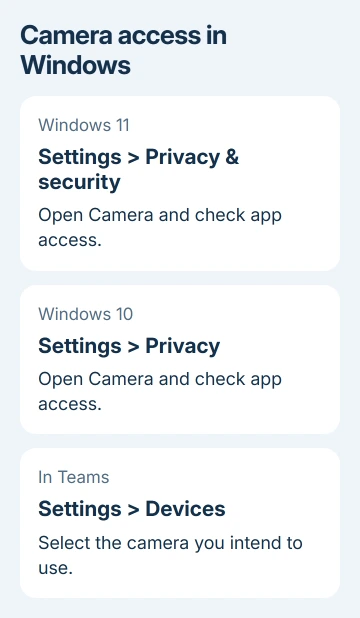
When permission controls are grayed out on a work computer, ask IT about the camera restriction. Reinstalling the app won't give you control of an organization-managed switch.
If your preview works but another participant is black, ask whether they can see their own preview and whether others can see them. Your camera permission can't repair somebody else's outgoing feed.
4. Check Nahimic when the meeting works but video doesn't
Some PCs come with Nahimic audio software as part of the manufacturer's sound package. Microsoft identifies a conflict that can prevent new Teams from displaying presented video, a pre-join preview, or video enabled after joining.
For those symptoms on a PC with Nahimic, add two Teams processes to its exclusion file. That tells Nahimic to leave them alone, without changing every graphics setting on your PC.
Quit Teams. In File Explorer, enter %PROGRAMDATA% in the address bar, then search that folder for BlackApps.dat. Make a copy of the file before changing it, and open the original in Notepad.
Add these executable names as separate entries, save the file, and restart Teams:
ms-teams.exe
msedgewebview2.exe
Recheck the same preview or meeting content that was black. If it now appears, the exclusion has resolved that conflict. If the file isn't present, don't create a random copy; continue with app and security support.
Saving may require administrator permission. On a managed computer, ask IT to apply the Nahimic exclusion rather than granting broad file permissions yourself. A PC without Nahimic doesn't need this procedure.
5. Have IT check WebView2 and security rules
Teams uses Edge WebView2 to display parts of its interface. Antivirus, monitoring, and software that prevents sensitive data from leaving a PC can interfere with WebView2, leaving a blank window or making Teams crash.
Ask IT to check the approved Teams and WebView2 processes against the vendor's Teams security guidance. Keep security software enabled while they check its logs and rules. A blanket antivirus shutdown isn't a lasting repair.
Give them the Windows version, Teams version if accessible, whether the whole window or just video is black, and the results of the cache and camera checks. Mention Nahimic if it's installed.
For a meeting you need to join immediately, another working device can keep you connected while the desktop is repaired. Once the app works, the Teams sharing controls explain how to choose the intended window.
If Teams still shows a black screen, have your Microsoft 365 administrator open a support request about the Teams display problem. Include whether other work apps show blank windows too; that helps support check the shared components.
The Short Version
Repair a blank Teams window and clear the current client's cache. For black video inside a working meeting, check the camera and permissions, then apply the Nahimic exclusion only on a PC that has that driver.
Checked November 16, 2026.






