
Printing a document starts in the app holding the file. Press Ctrl+P, select your actual printer, check the preview, and choose Print. Selecting Microsoft Print to PDF creates a file instead of sending paper through the printer.
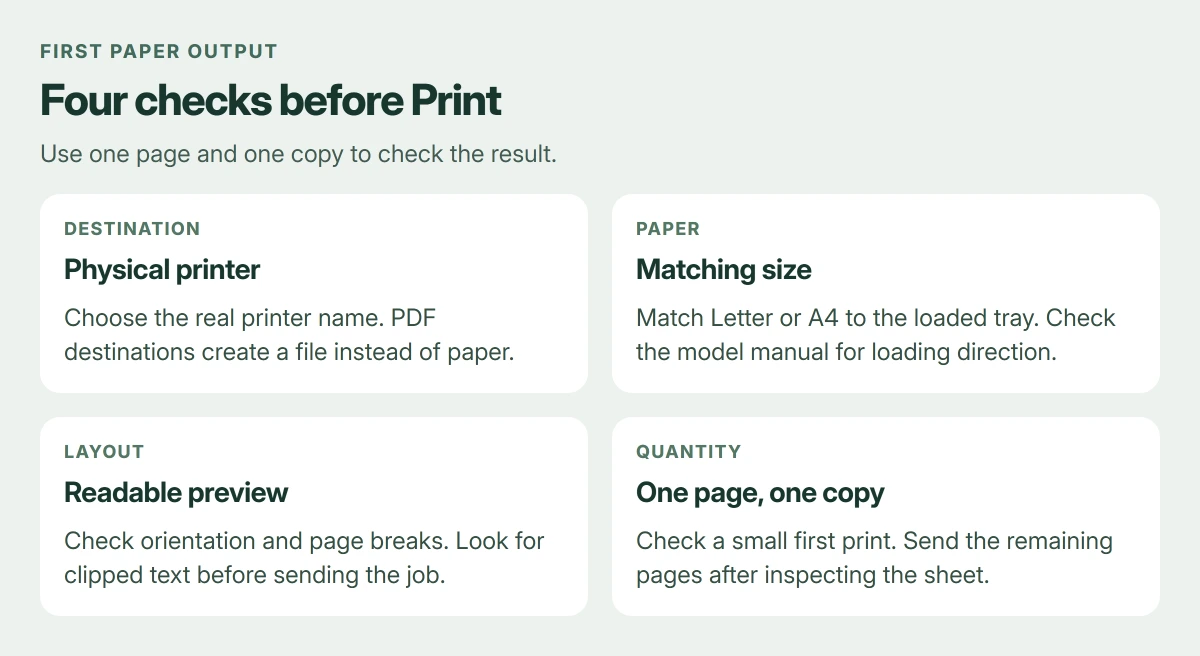
For a first print, use one copy of one page. That checks the connection, paper orientation and layout before a larger document uses paper or ink.
Prepare the printer and check Windows can see it
Turn the printer on, load the paper size its tray supports, and check its screen for an error. Follow the model's loading diagram for which face of the paper goes up; that direction is not the same on every printer.
On Windows 11, open Settings > Bluetooth & devices > Printers & scanners. Windows 10 puts the list under Settings > Devices > Printers & scanners. Look for your printer's model or the name your office assigned it.
Status: Word, Edge and Windows printer documentation reviewed 23 October 2026. Instructions use Microsoft's current menus; no paper-output test is claimed.
Microsoft documents Add device for installing a printer that is absent from this list. Our printer discovery and manual-add guide covers that setup stage. Return to the file once the printer is available.
For a USB model, connect its data cable as the manufacturer's setup instructions direct. A wireless printer must be reachable on the home or office network; its power light alone does not establish a connection.
Open the file and choose the physical printer
Open the document, photo or web page in its normal application. Choose File > Print or press Ctrl+P. A printer's scanner or copy button is not used to print an existing computer file.
Microsoft says Word's File > Print combines the preview and printing settings. In the Printer list, choose the physical printer you prepared. Recheck this for every important job, especially when several similar entries appear.
A destination labeled Save as PDF or Microsoft Print to PDF produces a digital document. If Windows asks where to save a PDF, cancel and choose your real printer when the intention is paper output.
Check the preview before sending paper
Read the document's Word printing options when the layout is unfamiliar. Start with these settings:
- Copies: set one for the first attempt.
- Pages: select the current page or a single page number for a short trial.
- Paper size: match the paper actually loaded, such as Letter or A4.
- Orientation: choose Portrait or Landscape to match the document.
- Color and two-sided printing: select these only when your printer supports them.
Advance through the preview if you intend to print several pages. Look for clipped text, unwanted blank pages and content pushed onto an extra sheet. Fix the layout before selecting Print.
For manual two-sided printing, follow the specific printer's reinsertion directions. Guessing which side faces up can print both pages on the same face or put the second side upside down.
Include a web page's background when needed
In Microsoft Edge, press Ctrl+P and inspect the preview. Microsoft states that More settings > Background graphics controls whether the website's background graphics are included.
Enable that option if a needed background or shaded area is missing. Leave it off when the background adds nothing to the information. The preview shows the effect before a sheet is used.
For a simpler article layout, try Immersive Reader first, then print from that view. Edge supports it on suitable pages; it is not offered for every website.
Send one page and check the result
Select Print once. Wait for the printer to finish and check the sheet's orientation and legibility. If the result is correct, reopen Print and set the remaining page range and copy count.
If nothing arrives, avoid sending the job repeatedly. Open the printer's queue from Printers & scanners and read its state. Several duplicate jobs can all print later when a connection returns.
Our printer not printing checks separate a printer that cannot print its own internal page from a Windows queue or connection failure.
For a persistent model-specific error, note the exact message and contact the printer manufacturer. An office printer with access codes or restricted printing belongs with the office IT team.
The Short Version
Prepare the printer, open the file and use Ctrl+P. Choose the physical printer, match its paper, and inspect the preview. Print a single page before sending the complete document.
Where to Next
Keep the printer's loading instructions nearby for envelopes, photo paper and manual two-sided jobs. Those media depend on the model's tray and feed direction.

Isaac Smith is the founder and editor of PC Glance, a website that covers computers, laptops, and technology. He is a tech enthusiast and a computer geek who loves to share his insights and help his readers make smart choices when buying tech gadgets or laptops. He is always curious and updated about the latest tech trends.