
Right-clicking an empty part of the Windows desktop opens the menu for creating a folder. Choose New > Folder, type a name, and press Enter. The new folder appears on the desktop, ready for your files.
The keyboard route is Ctrl+Shift+N after selecting the desktop. A folder created elsewhere in File Explorer stays in that location, so select the destination before using the shortcut.
Make the folder on the desktop itself
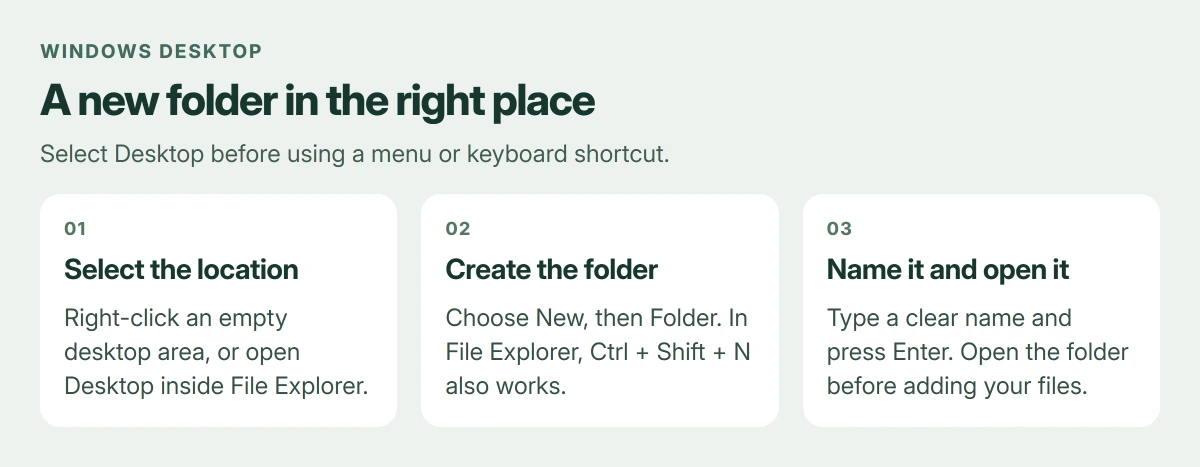
Minimize your windows or press Windows+D. Right-click the wallpaper, away from existing icons. Open New, select Folder, then replace the highlighted name with something descriptive, such as Travel Receipts.
Microsoft documents New > Folder and naming the folder in its folder creation instructions. The location you open is where the new folder belongs.
Status: Windows folder creation, shortcuts, desktop visibility and OneDrive backup guidance checked 23 October 2026. No files or desktop settings were changed.
Double-click the new folder. An empty File Explorer window showing that name confirms it exists. Files are added separately; creating a folder does not gather matching documents automatically.
Use the keyboard or File Explorer instead
Microsoft lists Ctrl+Shift+N as the File Explorer shortcut for a new folder. Press Windows+E, select Desktop in the navigation pane, then use that shortcut. Type the name and press Enter.
On Windows 11, New > Folder is also available in File Explorer's command bar. Windows 10 has New folder on the Home ribbon. Both create the folder in the location currently open.
If an existing folder with that name is already there, choose a different name. Avoid vague names such as New folder (2) when the goal is finding the documents again later.
Put files inside without losing track of them
To move one file, select it, press Ctrl+X, open the new folder, then press Ctrl+V. To keep a copy in the original location, use Ctrl+C instead of Ctrl+X.
Start with one file and check it opens from the destination. Then move the remaining files. This makes it easier to catch a mistaken location before reorganizing a larger collection.
A downloaded file may still be in the browser's actual download folder. Making a desktop folder does not change where future browser downloads are saved.
The folder exists but its icon is missing
Right-click empty desktop space, open View, and check Show desktop icons. Microsoft says that disabling this option hides desktop items; it does not delete them.
To check without changing that setting, open File Explorer and select Desktop. If the folder is listed there, it was created successfully. Its visibility on the wallpaper is a separate setting.
If it appears only after pressing F5, use the File Explorer refresh repair guide. Creating more copies would leave several folders once the display catches up.
Check whether Desktop is backed up to OneDrive
Microsoft states that backing up Desktop to OneDrive makes its items available on other computers using that account and desktop backup. A new folder can therefore appear on more than this PC.
Open the OneDrive cloud icon, then Settings > Sync and backup > Manage backup, to see whether Desktop is included. Read that state before placing private or work files in a location you assumed was local only.
A managed desktop can refuse new folders through an organization's settings. If New is unavailable or Windows reports access denied, give IT the exact message. Permission changes are a separate job from creating a folder.
The Short Version
Create the folder from empty desktop space, or select Desktop in File Explorer and press Ctrl+Shift+N. Name it, open it, and add files. Check icon visibility and OneDrive backup when the result appears somewhere unexpected.
Where to Next
Use a name that describes the contents rather than the day you created it. Keep subfolders for separate projects so the desktop remains easy to scan.

Isaac Smith is the founder and editor of PC Glance, a website that covers computers, laptops, and technology. He is a tech enthusiast and a computer geek who loves to share his insights and help his readers make smart choices when buying tech gadgets or laptops. He is always curious and updated about the latest tech trends.