Windows 11 can hide Create shortcut in the extended right-click menu. Right-click the folder and choose Show more options, or hold Alt while dragging it to your desktop. This links to the folder without moving its contents.
On a work PC, a missing command can also come from an IT restriction. In the reported network-folder case, the asker ultimately said their IT department fixed a setting. The accepted menu instructions weren't the whole outcome.
In this guide
1. Open the full menu on the folder itself
Find the folder in File Explorer before right-clicking it. Right-click the folder's icon or name, rather than empty space inside it. On Windows 11's compact menu, choose Show more options.
Look for Create shortcut in the extended menu. Holding Shift while right-clicking the folder also opens the classic menu on supported Windows 11 versions. On Windows 10, the older menu normally appears directly.
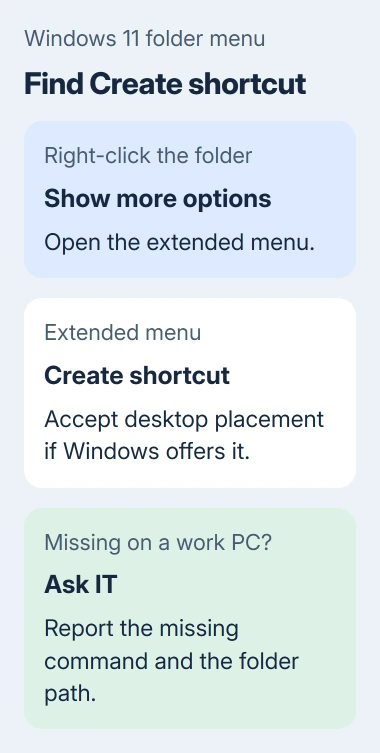
If Windows says it can't create the shortcut in that location and offers to place it on the desktop instead, choose Yes if that's where you want it. A network share can be readable without allowing new files beside its folders.
Return to the desktop and open the new shortcut. It should take you to the original folder. Make sure the contents match the original folder. Seeing a new icon isn't the same as checking that the shortcut works.
If the command isn't offered, continue with Alt-drag. If a company restriction blocks the action, skip to the IT section rather than changing policies or permissions yourself.
2. Hold Alt while dragging to make a desktop link
Arrange File Explorer so some empty desktop space remains visible beside the window. Select the folder, hold Alt, and drag the folder onto that empty desktop area. Keep Alt held until you release the mouse button.
Microsoft lists this behavior in its Windows keyboard shortcuts: Alt-drag creates a shortcut in the destination. Plain dragging can move or copy instead, depending on the locations.
Watch the drag description before dropping. It should indicate a link or shortcut, rather than a move. If it doesn't, press Esc to cancel while still holding the mouse button, then try again with Alt held.
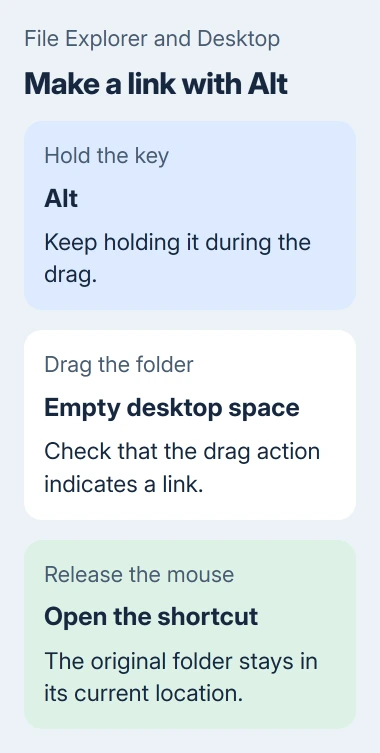
The shortcut opens that same folder from a second location. It doesn't make a copy you can use offline, change the share's permissions or collect files from several drives. Those jobs require something other than a desktop link.
I'd use this method before looking for a registry edit to restore the old menu. It gets the shortcut made without permanently changing how File Explorer's menus work for every file.
3. Create the link in a location you can write to
A shortcut is a small file of its own, so Windows needs permission to save it in the destination. Being able to read a shared folder doesn't mean you can save new files on its server.
To choose the destination directly, right-click empty desktop space and select New > Shortcut. In Type the location of the item, enter the folder's complete path, or use Browse to select it. Choose Next.
Name the link, for example Team Projects, then select Finish. Open the finished shortcut. This method avoids trying to store the link inside a shared folder where your account has read-only access.
For a network location, use the path your organization supplies. A server path can look like \\server\share\Projects; replace that example with the real location. Don't guess the server or share name from a folder's display label.
If you actually want a new folder to store separate files, use the desktop folder creation steps. New Folder makes a container; New Shortcut makes a link to an existing item.
4. Check the network destination before blaming the shortcut
Open the original folder directly in File Explorer. If that fails too, the desktop link can't solve the connection problem. Check whether you need the organization's VPN, office network or a current sign-in for that share.
A mapped drive gives a network location a drive letter in your Windows session. If that connection drops or its letter changes, a shortcut using the old letter can point to a location Windows can't reach.
Right-click the shortcut and open Properties. Read its Target field and compare it with the real folder path. A renamed folder or changed share can leave an old shortcut pointing at a destination that no longer exists.
Keep the server address that IT supplied instead of inventing a replacement. Ask them whether the location requires a mapped drive or a direct server path for your account. The right answer depends on how that network is managed.
For a Start menu entry rather than a desktop link, use the Windows 11 Start shortcut procedure. Putting a file in the Start menu's Programs folder is a separate placement task.
5. Ask IT about a missing command on a managed PC
One owner confirmed their IT department fixed a setting. They didn't name the setting, so we can't point other PCs to a particular policy.
Send IT the folder path, the intended location for your shortcut and what happens in both the full menu and New Shortcut wizard. Include the exact error message, or say that the command is absent if no error appears.
Ask them to check whether shortcut creation or the chosen destination is restricted for your account. That tells IT what you need to do, so they can check it against the organization's security settings.
On a personal PC, compare a Documents folder with the network folder. If the local link works, the problem points toward the share or its access rules. If local shortcuts fail too, the Windows account or Explorer needs a wider check.
Open Get Help from Start for that wider failure and give support both results. Explain whether you can't create the link or can't open its destination: either stage can fail while the other works normally.
The Short Version
Use the folder's full menu or Alt-drag to create a desktop shortcut. Save it somewhere writable and check the target path. If a work PC still hides or blocks the command, have IT review the restriction instead of guessing at policy changes.
Checked November 17, 2026.