

Create a folder in your Windows 10 home directory by opening %USERPROFILE% in File Explorer and pressing Ctrl+Shift+N. Name it, then press Enter. This puts it inside the profile of the account you're using.
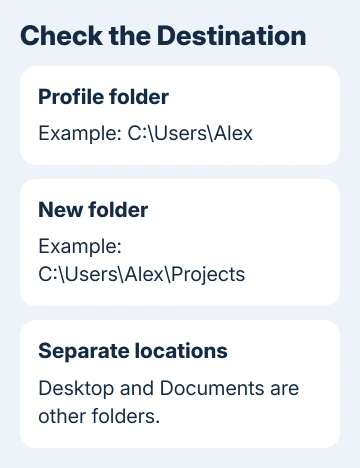
This avoids guessing the account's folder name under C:\Users. It also keeps the folder separate from Desktop, Documents, or OneDrive unless you choose one of those locations yourself.
In this guide
Open the actual profile folder
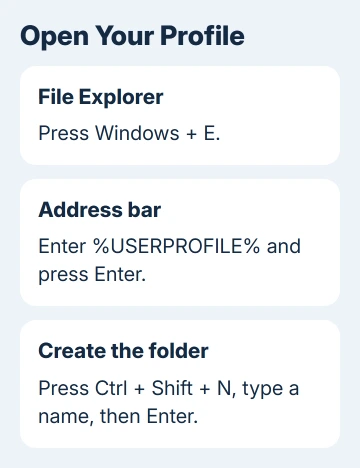
Press Windows+E to open File Explorer. Click its address bar, replace the existing address with %USERPROFILE%, and press Enter. Type this into the address bar; the search box won't open the profile.
The percent signs tell Windows to read an environment variable, a saved value that points to a location. In this case, it points to your account's profile folder. A typical result is C:\Users\Alex, though the name and drive can differ.
Look for familiar folders such as Desktop, Downloads, and Pictures. Click the address bar again to inspect the complete path. Your Windows sign-in display name can differ from the shorter folder name you see here.
Microsoft says USERPROFILE represents the profile in its environment-variable reference. Using that value is more reliable than typing a guessed account folder.
On a shared PC, confirm the current Windows account first. A folder made in your profile won't become another person's home folder. The Windows account setup guide explains separate user accounts.
Make and name the folder
With the profile folder open, press Ctrl+Shift+N. File Explorer creates a folder with its name selected. Enter a simple name, such as Projects, then press Enter to finish.
The mouse route in Windows 10 is Home > New folder on File Explorer's ribbon. Another option is to right-click unused space inside the file list, then choose New > Folder. All three create the folder at the address shown in the window.
If Windows reports that the name already exists, inspect the existing folder before choosing another name. A familiar name may belong to a previous attempt, and making Projects 2 can leave files divided between two locations.
Double-click the new folder to open it. Its address should now end with your chosen name, such as C:\Users\Alex\Projects. An empty file list is expected because creating a folder doesn't put files inside it.
Use a short, descriptive name without characters Windows reserves for other uses, such as slashes, a colon, or an asterisk. If File Explorer rejects the name, try Projects first to check that you can create a folder in that location.
I'd check the final address before moving any files. Matching folder names in Documents and the profile can be misleading. An app expecting the profile path won't use a same-named folder in Documents instead.
Keep Home, Desktop, and OneDrive separate
In Windows 10, File Explorer's Home ribbon tab contains commands. It isn't a special home-directory location. Likewise, Quick access lists useful locations but isn't a normal folder where you can store new items.
In Windows 11, File Explorer also has a Home landing page. To reach the profile there, enter %USERPROFILE% in the address bar just as you would in Windows 10. Use New > Folder or Ctrl+Shift+N after it opens.
For a folder you want visible on the desktop, follow the desktop folder steps instead. A profile-level folder won't automatically appear as an icon on the desktop.
A folder directly inside the profile isn't automatically a OneDrive backup location just because OneDrive is installed. Check the actual destination and your backup settings when those files need a saved online copy.
If your employer names a network home drive, use that location. It can differ from the local profile. Don't replace a required network path with C:\Users just because both are called home directories.
Create it from Command Prompt when needed
For instructions that use Command Prompt, open Start, type cmd, and open Command Prompt normally. Enter this command to create the same example folder inside the current account's profile:
mkdir "%USERPROFILE%\Projects"The quotation marks keep the path together if it contains spaces. The command includes the full destination, so it doesn't depend on which folder Command Prompt opened in.
If it succeeds, open %USERPROFILE% in File Explorer and confirm Projects is there. A subdirectory-already-exists message means Windows found that name at the destination. Check the existing folder before trying to create it again.
To enter it afterward, use Command Prompt's change-directory command:
cd /d "%USERPROFILE%\Projects"The /d switch lets Command Prompt change drives as well as directories if the profile is on a different drive.
These commands use Command Prompt syntax. A PowerShell prompt uses a different way to reference environment variables, so don't expect the percent-sign form to work the same way there.
Use PowerShell's own path syntax
In PowerShell, $env:USERPROFILE points to the same profile location. To create the example folder, run this command in an ordinary PowerShell window:
New-Item -ItemType Directory -Path (Join-Path $env:USERPROFILE 'Projects')The output should list the created directory. Open it in File Explorer to confirm the location. If PowerShell says it already exists, check the existing item instead of adding a command that silently overwrites or changes it.
For a Linux shell running through Windows Subsystem for Linux, ~ normally refers to that Linux user's home. It isn't the same location as the Windows profile. Use the shell and filesystem that the original instructions require.
Handle a missing folder or permission error
When a folder seems to disappear, return to %USERPROFILE% and look for its name there. Check the address before using search; the previous window may have been showing Documents, a library, or a different account's files.
For Access denied, check that you're inside your own profile, rather than C:\Users, another user's folder, or a protected location. Don't change drive-wide ownership or permissions to create a personal folder.
Send IT the complete path and error on a work PC. On a personal device, use Windows Get Help if the correct profile still refuses a simple name. Leave the existing profile folders in place.
The Short Version
Open %USERPROFILE% in File Explorer, press Ctrl+Shift+N, and name the folder. Confirm its full address before saving files there. Command Prompt uses %USERPROFILE%; PowerShell uses $env:USERPROFILE for the same account location.
Checked November 15, 2026.






