
Microsoft Copilot is optional for ordinary use of a personal Windows computer. Keep it if its chat and writing tools help with your work. Otherwise, uninstall the app through Windows Settings.
Browsing, opening files and running other programs do not depend on keeping the Copilot app installed.
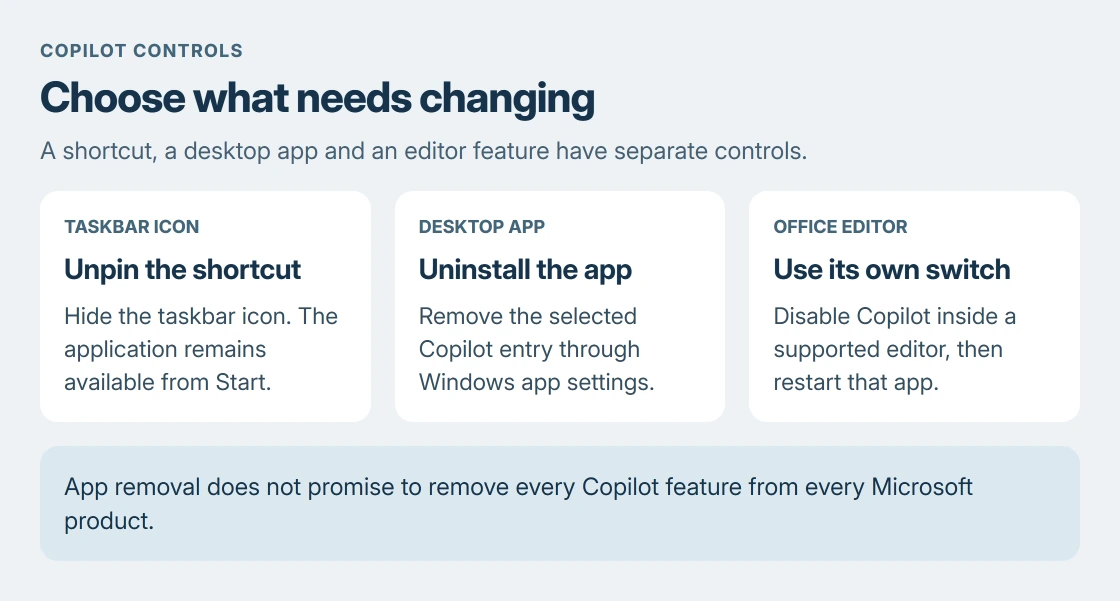
First decide what needs changing: a taskbar shortcut, the installed Copilot app, or Copilot inside Word or Excel. Each has its own control.
Choose the change that matches the interruption
For an unwanted taskbar icon, open its right-click menu and select Unpin from taskbar. That removes the shortcut while leaving the application available from Start.
For an app you do not use, uninstalling is the direct route. Microsoft documents Copilot removal in its app setup instructions, including the path for each Windows version.
Status: Microsoft's Copilot removal and Office controls checked 24 October 2026. App names are changing; instructions follow the installed entry. No software was removed from this computer.
For a Copilot button inside a document editor, use that editor's settings. Removing a Windows shortcut does not change a feature inside an open Word document.
Uninstall the desktop app in Windows Settings
On Windows 11, open Settings > Apps > Installed apps. Find the Copilot entry, open its three-dot menu and select Uninstall. Confirm the removal when asked.
On Windows 10, open Settings > Apps, find Copilot in the app list and select Uninstall. Afterward, check the installed-app list again to confirm that the selected entry is gone.
Microsoft says the former Microsoft 365 Copilot app is now named Microsoft Copilot. An older installation can still show an earlier name, so inspect the entry before removing something with a similar label.
This procedure removes the selected application. Copilot controls inside a browser or another Microsoft product can remain available through that product.
Turn it off inside Word, Excel or PowerPoint
Microsoft's Office instructions give an app-specific option on supported desktop versions.
In the affected Windows app, open File > Options > Copilot. Clear Enable Copilot, choose OK, then close and reopen the app. Apply the change in each editor where Copilot is unwanted.
Microsoft states that this checkbox applies to that app on that device. A change in Word therefore does not switch it off in Excel or on a second computer.
If the checkbox is missing, check the app's version against Microsoft's instructions. The same document gives a different route for Outlook; do not assume the Word menu exists in every Microsoft product.
Keep occasional access without keeping the desktop app
The web route in Microsoft's Copilot instructions offers another way to use it. Open that route in a browser when needed rather than treating installation as a requirement for occasional chat access.
If the real problem is a blank account session, our Copilot loading guide addresses that fault. Choosing not to use the app and repairing a service you need are different decisions.
A physical Copilot key also has a separate setting. Our Copilot key remapping guide explains the Windows control for changing what that key does.
When removal is blocked or Copilot returns
A work or school computer can have centrally managed app settings. Ask its IT team which Copilot application is required and whether installation is being enforced.
Microsoft's management documentation gives administrators separate deployment controls. A personal-PC removal procedure does not override those organization settings.
For a personal PC, record the app's displayed name and the message beside its removal control. Contact Microsoft support if uninstalling fails or the entry returns unexpectedly.
Avoid deleting unrelated Windows components to remove one application. The supported uninstall route targets the app selected in Settings.
The Short Version
Copilot is a choice for a personal PC's everyday tasks. Unpin the icon to hide a shortcut, uninstall the app to remove it, or use the supported editor's own Copilot switch. Check which control is bothering you first.
Where to Next
An app name, an editor button and a keyboard key can all mention Copilot while requiring different settings. Use the control that belongs to the thing appearing on your screen.

Isaac Smith is the founder and editor of PC Glance, a website that covers computers, laptops, and technology. He is a tech enthusiast and a computer geek who loves to share his insights and help his readers make smart choices when buying tech gadgets or laptops. He is always curious and updated about the latest tech trends.