
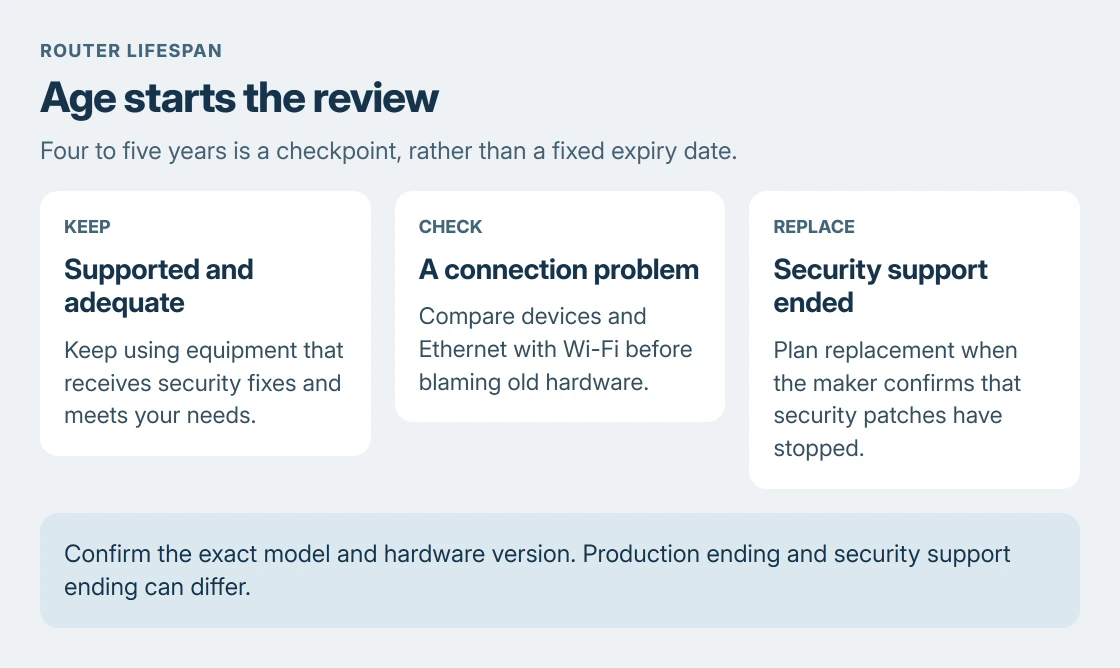
Four to five years is a sensible point to review a router, rather than an automatic replacement deadline. NETGEAR uses that range for checking support and performance.
A supported router that still serves the home can remain useful longer. One that has lost security support may need replacing sooner.
Check the exact model's support status first. Then test the problem that prompted the question before buying new equipment for a slow laptop or a provider outage.
Check security support for the exact router model
Read the model and hardware version from the router's label. Look them up on the manufacturer's support site for your region, then check its firmware downloads and end-of-service information.
Spectrum's similar black towers need a model-label check before their appearance can tell you which generation is installed.
NETGEAR says continued internet access does not establish that a router is still getting security fixes. A working Wi-Fi light therefore cannot answer the support question.
Status: NETGEAR's replacement guidance, TP-Link's US lifecycle explanation and Microsoft's network checks reviewed 24 October 2026. No universal hardware lifespan or router test is claimed.
TP-Link says its US end-of-life label refers to a model or hardware version whose production has ended. Its page also links an EOS list.
Read the actual security-support information instead of assuming every lifecycle label means the same thing. The router's hardware revision can matter as much as the model name.
If the status is unclear, ask the maker whether that precise version still receives security patches. The relevant answer is support for the unit in use, not whether a similarly named router is still sold.
A slow connection does not establish worn-out hardware
Test another phone or computer near the router. Then, when possible, compare the laptop over Ethernet with the same laptop over Wi-Fi. Keep the internet plan and test location in mind when comparing results.
Microsoft documents these device and wired-connection comparisons in its Wi-Fi troubleshooting instructions. They help distinguish a wireless problem from a wider connection failure.
A single laptop dropping while other devices remain usable needs the PC Wi-Fi disconnection checks. Replacing a router on age alone leaves a device-specific fault unresolved.
If several devices fail online at once, check the provider's outage information and the modem or gateway connection. A new wireless router cannot repair a service interruption upstream of it.
Try supported maintenance before paying for an upgrade
Install any firmware offered for the exact model and hardware version, following the maker's instructions. Use its automatic-update setting when available. Do not install firmware intended for a similar name or another hardware revision.
Check that cables and the supplied power connection are secure. Move a supported router to an open, central position if the problem is weak coverage in distant rooms. Recheck the room where the connection was failing.
Persistent restarts or disconnects after those checks deserve the manufacturer's hardware troubleshooting. If the equipment belongs to the internet provider, ask about its replacement process before buying your own.
Replace for a demonstrated limit or ended security support
Plan a replacement when the maker confirms security support has stopped. There is also a practical case when unresolved hardware faults or inadequate coverage prevent the router from meeting the household's needs.
Check compatibility with the provider's service before ordering. Our modem and router guide explains why replacing a wireless router can be different from replacing provider equipment.
Compare Ethernet-port capabilities and coverage needs with the connection you actually have. Paying for a faster router does not increase the speed included in the internet plan.
If support continues and the comparison tests are satisfactory, keep the router and review it again when its support status or household demands change. Its birthday alone is insufficient reason for a purchase.
The Short Version
Review a router around four or five years old, then decide using security support and actual performance. Confirm the model's lifecycle status, compare devices and connection types, and contact the maker or provider about persistent faults.
Where to Next
Bring the model, hardware version and connection-test results to support. Those details help distinguish firmware trouble, a line repair and a case for replacement equipment.

Isaac Smith is the founder and editor of PC Glance, a website that covers computers, laptops, and technology. He is a tech enthusiast and a computer geek who loves to share his insights and help his readers make smart choices when buying tech gadgets or laptops. He is always curious and updated about the latest tech trends.