
Mouse Without Borders shares one keyboard and mouse across Windows computers on a network. Install PowerToys on both PCs, generate a connection key on the first, then enter that key and the first PC's name on the second.
Each computer keeps running its own apps. This shares input between machines; it does not turn a laptop into an extra monitor for another PC.
1. Install PowerToys on both computers
Use Microsoft's PowerToys installation page to reach its Microsoft Store listing or official GitHub installer. Install the same current release on each PC, then open PowerToys Settings.
Microsoft documents a minimum of Windows 10 version 2004, with Windows 11 also supported. The processor must be x64 or ARM64. A Mac or a 32-bit Windows installation does not meet those requirements.
Status: PowerToys requirements and Mouse Without Borders connection controls checked 24 October 2026. No software was installed and no computers were paired during research.
Connect both computers to the same network, and leave PowerToys running on each one while you pair them.
2. Copy the key and computer name in the right direction
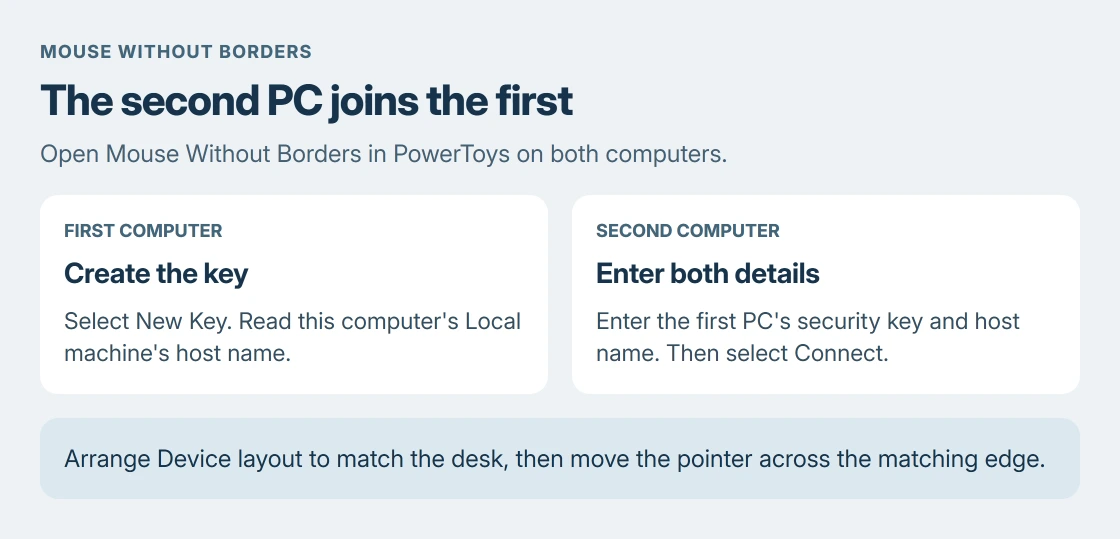
Open Mouse Without Borders in PowerToys Settings on the first PC. Select New Key. Read its Local machine's host name and keep the generated security key private.
On the second PC, open the same utility. Enter the first computer's key and host name, then select Connect. Both pieces identify the machine being joined, so a correct key paired with the wrong name is insufficient.
Microsoft says a successful connection lets the pointer move into another computer when it passes the screen edge. Test that movement before adding more machines or changing advanced options.
3. Arrange the computers to match their physical positions
Drag the device entries in the utility's layout so the left and right positions match your desk. Move the pointer across the corresponding edge, then type a few harmless characters into a blank document on the destination PC.
Input arriving on the intended computer confirms the arrangement. If the pointer exits toward the wrong machine, correct the device order before changing network settings.
For two displays attached to just one computer, use the Windows display arrangement controls instead. Mouse Without Borders addresses a desk with separate computers.
What can move between the PCs?
The utility includes Share clipboard and Transfer file settings. Test ordinary text first. A clipboard failure within one computer needs the local copy-and-paste checks before treating it as a network transfer problem.
Microsoft states that clipboard file transfer accepts a single file up to 100 MB. Folders and multiple selected files need packaging into one ZIP archive. Dragging a network file between machines is also unsupported.
Those limits explain why working pointer movement can coexist with a refused file transfer. A larger file needs another sharing method; regenerating the connection key will not change the size limit.
Fix a failed connection without disabling the firewall
Recheck the first PC's name, its current key and both network connections. New Key resets existing connections, so repeatedly generating one while typing the previous value prevents a match.
Microsoft's connection troubleshooting offers Add a firewall rule for Mouse Without Borders. Use that utility control when the firewall blocks the connection, rather than turning protection off.
For a connection that worked and then dropped, choose Refresh connections. If a managed network or device policy blocks the utility, give the administrator the two host names and the connection status.
Control of elevated apps or a lock screen uses the separate Use Service option. Microsoft's documentation flags its additional security implications. Leave that advanced mode for a specific requirement, after ordinary desktop input works.
If the PCs still refuse to connect, report the PowerToys version, the status the utility shows and the step that failed on the PowerToys issue tracker. Those three details show whether the install, the key or the network is at fault.
The Short Version
Install PowerToys on both PCs and use the same network. Enter one computer's key and name on the other, then arrange the layout. Check the utility's firewall rule and refresh control if needed.

Isaac Smith is the founder and editor of PC Glance, a website that covers computers, laptops, and technology. He is a tech enthusiast and a computer geek who loves to share his insights and help his readers make smart choices when buying tech gadgets or laptops. He is always curious and updated about the latest tech trends.