
Windows Sonic for Headphones is selected on the sound output device in Windows Settings. Connect the headphones, open Settings > System > Sound, choose their output entry and select Windows Sonic for Headphones under Spatial sound.
This adds spatial processing for headphone listening. It does not pair Bluetooth headphones, choose the correct output for every app or repair a silent connection. Get ordinary playback working first.
Select the headphones before changing spatial sound
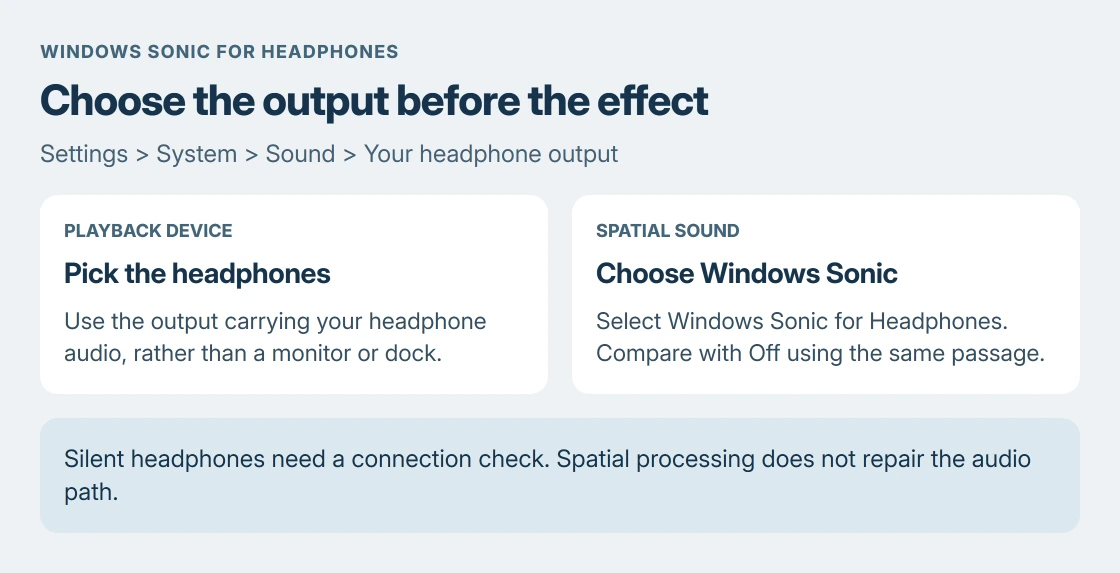
Play something familiar and open Settings > System > Sound. Under Output, select the device that actually carries sound to the headphones. A monitor, dock and headset can appear as separate choices.
Microsoft documents this device-first sequence in its spatial sound instructions. Changing a monitor's properties will not configure headphones using another output.
Status: Microsoft's Windows Sonic activation and spatial-audio documentation checked 24 October 2026. The setting was not changed on this laptop and no listening comparison was performed.
For complete silence, follow the checks for your headphone connection. Spatial processing needs an audio path that already works.
Enable Windows Sonic on that output
Open the selected output's properties and find Spatial sound. Choose Windows Sonic for Headphones from its format or Type menu. Use Apply if that control is presented.
The names vary between the Windows Settings page and the older device-properties dialog. Microsoft covers both Windows versions. The essential selection is the spatial format on the intended playback device.
Return to the same properties page to confirm that Windows Sonic for Headphones remains selected. If it shows Off, the setting is not active for that output.
Microsoft says other choices are available through Dolby Access and DTS Sound Unbound. Those are separate options. Selecting Windows Sonic does not require choosing one of them first.
Does it need special headphones or a special recording?
Microsoft states in its spatial-audio overview that the platform can render spatial sound through ordinary headphones. Windows Sonic supplies a headphone rendering format, rather than adding physical speakers to a headset.
The content and its application still affect the result. Apps can supply positioned sounds or surround channels; a stereo recording does not become an authored spatial mix merely because the Windows switch is enabled.
Compare Windows Sonic for Headphones and Off using the same passage at the same volume. Keep the setting that helps with the content you actually use. An enabled option alone cannot establish a better listening result.
Bluetooth sound that becomes thin when a meeting opens needs a different check. The headset profile explanation covers the microphone-related mode change; Sonic is not that repair.
When the option is missing or refuses to stay selected
Recheck the output device first, especially after connecting a monitor or dock. Microsoft's developer guidance makes spatial-format availability conditional on the output's support.
An unavailable format on the selected device does not establish that the entire computer lacks spatial audio. Confirm that the headphones' actual entry is selected and check its manufacturer's Windows driver/support instructions.
If normal playback fails too, resolve that fault before further comparisons. If playback works but Sonic is unavailable, give the PC or audio-device manufacturer the output name, driver version and Windows version.
That is a more useful support request than repeatedly changing unrelated audio settings. For a fault limited to one game, include whether Sonic remains selected and whether another app still plays through the same output.
The Short Version
Choose the headphone output, then select Windows Sonic in its Spatial sound menu. Verify the selection and compare against Off. Missing output, silence and Bluetooth microphone quality need separate checks.

Isaac Smith is the founder and editor of PC Glance, a website that covers computers, laptops, and technology. He is a tech enthusiast and a computer geek who loves to share his insights and help his readers make smart choices when buying tech gadgets or laptops. He is always curious and updated about the latest tech trends.