
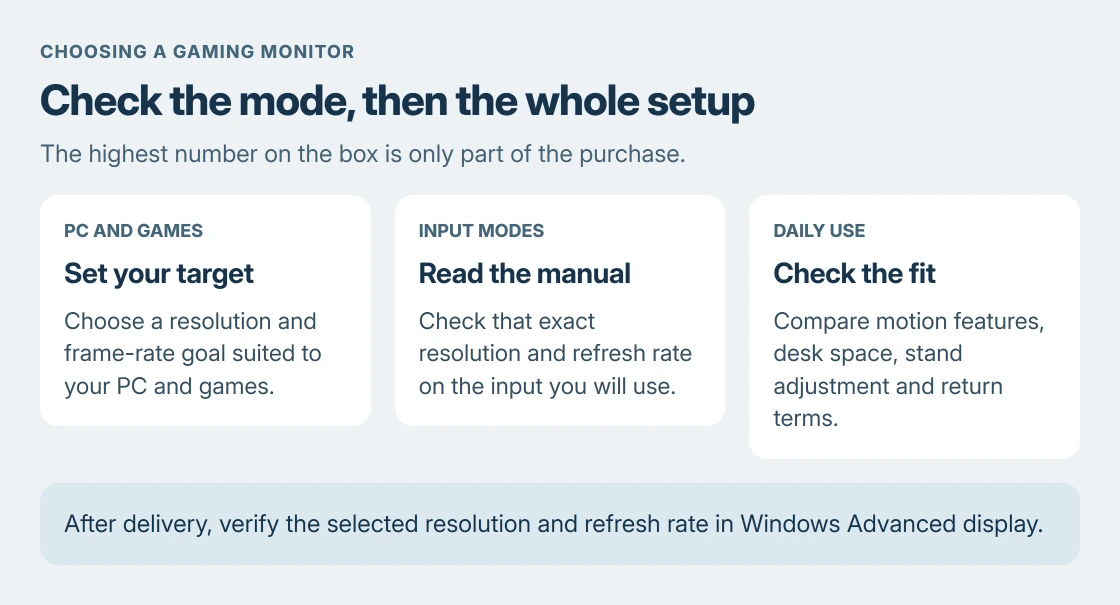
Choosing a gaming monitor starts with your PC, games and available connection. Pick a target resolution and refresh rate together, then check that the monitor supports both through the intended input.
A large refresh-rate number on a box is only part of the purchase. It does not establish the frame rate your games will produce or the modes available over every input.
Write down the PC and the games before shopping
Record the graphics model and the computer's video outputs. For a laptop, include any dock or adapter between it and the monitor. Look up those devices' supported display modes before making a shortlist.
Decide whether the priority is quick motion in competitive games, greater image detail, or a screen that also suits everyday work. Use your actual games and current settings to judge the performance the PC can already sustain.
Status: Dell's monitor-buying guidance, a model's input-mode table and Microsoft's refresh controls checked 24 October 2026. No monitors were tested or ranked.
Dell says its gaming-monitor selection guide treats refresh rate, response time, adaptive sync and panel type as separate considerations. Use all four when comparing candidates.
Match resolution and refresh rate to the intended games
Resolution controls the image's pixel dimensions. Refresh rate is the display's update frequency. A high-resolution screen with a fast refresh ceiling still needs a PC that can deliver the expected game performance at that resolution.
Dell's guidance distinguishes competitive play that prioritizes frame delivery from visually detailed games where a higher resolution can matter more. It also calls for stronger graphics hardware to sustain high frame rates at 4K.
Compare those priorities with your workload. A lower-resolution, faster target can suit competitive games; more pixels can suit detailed games and desktop work. Neither is automatically the right upgrade for every computer.
Do not read a 1 ms response claim as a guaranteed whole-system delay. Pixel transitions, frame delivery and the input-to-display path are different parts of the experience.
Read the supported-mode table for the input you will use
Open each shortlisted model's manual and find its resolution or preset-mode table. Check the exact resolution and refresh combination under HDMI, DisplayPort or the relevant USB-C video input.
For a concrete example, Dell states that its S2722DGM supports 2560 x 1440 at 144 Hz over HDMI, but 2560 x 1440 at 165 Hz over DisplayPort. The same screen therefore has different maximum modes on its inputs.
That is an example from the model's manual, not a purchase recommendation. Repeat the check for the monitor being considered.
Confirm the computer, cable and any intermediate device can carry the chosen mode too. The HDMI connection explanation helps when a working picture is capped by the connection.
Check motion features and practical fit
Check adaptive-sync compatibility with the graphics hardware and intended input. It varies refresh timing with delivered frames. Read the model's supported implementation; a badge does not guarantee every connection mode.
The Windows 11 gaming comparison separates usable HDR and storage features from promises of a higher frame rate.
Dell's panel comparison also gives a useful way to sort candidates before looking at individual models:
| Panel | What to compare for your use |
|---|---|
| IPS LCD | Wide viewing angles; check contrast in the dark scenes you play. |
| VA LCD | Higher native contrast than typical IPS; check off-center viewing and moving dark detail. |
| OLED or QD-OLED | Self-lit pixels for deep blacks; read pixel-care requirements and the actual burn-in coverage. |
Keep desktop work in that decision. A screen used for games and static application windows needs its maintenance requirements considered alongside motion quality.
Read the conditions attached to a response-time claim. The S2722DGM manual, for example, qualifies its 1 ms MPRT mode with possible visual artifacts. A mode used to advertise the number can have a tradeoff.
The ghosting and overdrive guide explains what to inspect in moving images. Check performance at the rates you expect to use, including dark scenes, during the seller's return period.
Measure the available desk space and the stand footprint. Check height adjustment and the input locations. Include any required cable or mounting hardware in the total budget, and read the actual panel warranty and return terms.
Verify the chosen mode when the monitor arrives
Connect it using the planned input. Microsoft documents Settings > System > Display > Advanced display for checking the selected display's resolution and refresh rate in its refresh-rate instructions.
Choose the intended rate and verify the resulting resolution. Microsoft warns that rates marked with an asterisk require a resolution change. Check both values after selecting a mode.
If the desired combination is unavailable, compare the setup with the manual's input table. Ask the computer or monitor maker about the exact mode, output and connection chain while the return window is open.
The Short Version
Match the resolution and refresh target to your PC and games. Verify both on the intended input. Check adaptive sync, response-mode conditions and physical fit, then confirm the delivered monitor runs that mode during the return period.

Isaac Smith is the founder and editor of PC Glance, a website that covers computers, laptops, and technology. He is a tech enthusiast and a computer geek who loves to share his insights and help his readers make smart choices when buying tech gadgets or laptops. He is always curious and updated about the latest tech trends.