
For a supported gaming PC, Windows 11 is a sensible choice, with useful display and game-loading features. It does not guarantee a higher frame rate than Windows 10.
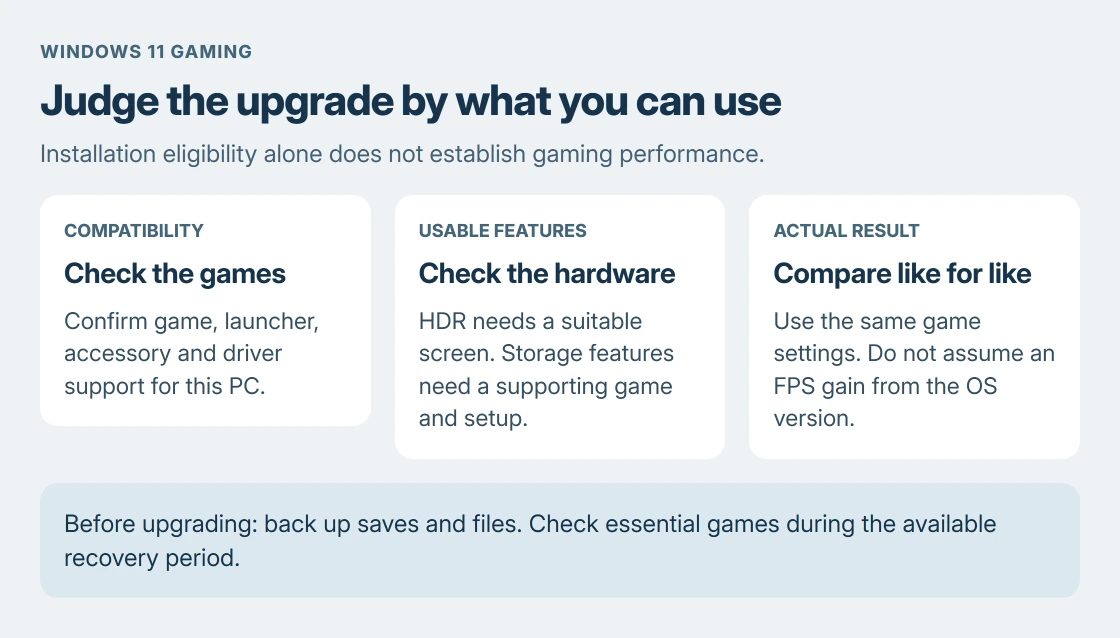
Check the games you play, their hardware requirements and the features your PC can use before upgrading.
The decision is different for an existing capable gaming PC and an office laptop that meets only Windows' installation requirements. The operating system cannot supply missing graphics performance.
Start with the games and the supported hardware
List the games that matter, including their launchers, anti-cheat requirements and any essential accessories. Check each publisher's current system requirements and support notes for Windows 11 before changing the PC.
Microsoft says its Windows 11 gaming overview offers the same level of game support as Windows 10, alongside additional features. That general statement is a starting point, not a guarantee for every old title or peripheral.
Status: Microsoft's gaming guidance, feature requirements, upgrade FAQ and Windows 10 lifecycle guidance checked 24 October 2026. No games or performance comparisons were run.
Use Microsoft's PC Health Check app to assess Windows 11 upgrade eligibility. Its upgrade eligibility instructions also provide the Windows Update route on Windows 10.
Passing that check means the PC meets Windows' requirements. It does not mean it meets a particular game's recommended graphics, memory or storage specification. The PC specification guide helps identify the actual components.
Which gaming features can the PC use?
The useful gains depend on the game, graphics hardware, storage and display. Match each advertised feature to those requirements instead of treating the Windows version as an automatic performance upgrade.
| Feature | What it can change | Requirement or limit |
|---|---|---|
| Auto HDR | Expands the brightness and color presentation of supported SDR games. | Requires an HDR-capable display and supported content. |
| Optimizations for windowed games | Reduces presentation latency for compatible games. | Microsoft's documented feature targets DirectX 10/11 windowed or borderless games. |
| DirectStorage | Improves the game's storage-loading path. | Requires game support and suitable hardware; installing Windows alone does not add support to a game. |
| DirectX 12 Ultimate features | Enables supported graphics techniques. | Needs both a supporting game and graphics chip. |
Microsoft states in its feature requirements that its DirectStorage configuration calls for an NVMe SSD and a DirectX 12 GPU with Shader Model 6.0 support.
DirectStorage is also compatible with Windows 10. Microsoft's DirectStorage announcement recommends Windows 11 for its additional storage optimizations. It is inaccurate to treat the API as exclusive to Windows 11.
For Auto HDR, Microsoft documents choosing the HDR-capable screen in Display settings, enabling HDR, then enabling Auto HDR in its expanded options. Its Auto HDR instructions cover the setup.
An SDR-only screen cannot gain HDR capability through that switch. Likewise, a faster storage path should not be read as a published FPS increase for an unrelated game.
Expect the comparison to depend on the actual game
Game performance covers frame rate, frame timing, input delay and loading time. A gain in one does not prove gains in all four. Windows' minimum requirements and a feature list cannot predict the result for every game.
No benchmark was run for this article, so there is no claimed percentage advantage. Compare the games, resolution and graphics settings that will actually be used on the same hardware.
After an upgrade, check the PC maker's and graphics maker's supported drivers. For an existing low-FPS or stutter complaint, use the game-performance troubleshooting page to check the display and graphics selection.
Microsoft's windowed-game guidance includes a per-game option when that feature causes trouble. Keep a problem with one game separate from a judgment about every game on the OS.
Include support and recovery in an upgrade decision
Standard Windows 10 support ended on October 14, 2025. Microsoft's end-of-support guidance describes ESU as a separate temporary security-update option for eligible devices.
That matters even when an older game still runs. Game compatibility and ongoing Windows security support are separate questions. Check the current ESU terms if a game prevents an immediate move from Windows 10.
Before upgrading, back up important files and confirm how each game stores its saves. A launcher being reinstalled does not establish that every local save has a cloud copy.
Microsoft's upgrade FAQ describes a return option for most upgrades during the first 10 days. After that period, going back requires a different installation process; do not treat it as an indefinite undo button.
Use the return period to check games and accessories. Record any error and the game's version for its publisher. A PC that fails eligibility or lacks a required driver needs its manufacturer's advice before an upgrade.
The Short Version
Windows 11 suits a PC with compatible games and drivers. HDR, windowed presentation and storage features have their own requirements. Check those and ongoing support without assuming a universal FPS gain.

Isaac Smith is the founder and editor of PC Glance, a website that covers computers, laptops, and technology. He is a tech enthusiast and a computer geek who loves to share his insights and help his readers make smart choices when buying tech gadgets or laptops. He is always curious and updated about the latest tech trends.